
How to: Remove the extra Drive after Windows 10 1803 Update.
This tutorial contains instructions to remove the extra drive, which appears in Windows 10, after updating to v1803. Problem description: After installing the feature update 1803 on Windows 10, a new appeared at Windows Explorer and at the Disk Management. The new drive letter is assigned to the 'System Reserved' (or the OEM Recovery partition) and as result of that, Windows always bothers the user with an annoying notification that says "Low Disk Space. You are running out of disk space on drive…".
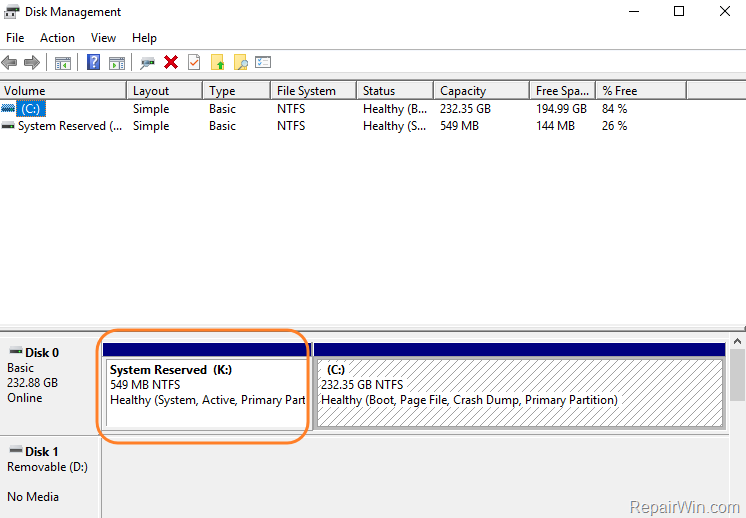
If an extra drive is displayed on your PC, after upgrading your system to Windows 10 v1803, then follow the instructions below, to get rid of the extra driver letter and to stop Windows notifying you about the "low disk space" on that drive.
How to Remove the Extra Drive letter after Windows 10 1803 Update.
1. At Cortana's Search box, type cmd or command prompt
2. Right click at Command Prompt result and select Run as Administrator.

3. At command prompt type the following commands in order (hit Enter after typing each command)
- diskpart
- list volume
4. Note in which volume, associated the new drive letter.
5. Then select that volume, by typing the following command (where "X" is the new drive letter) and press Enter.
- select volume X
6. Finally give this command to remove the drive letter (where "X" is the new drive letter):
- remove letter=X
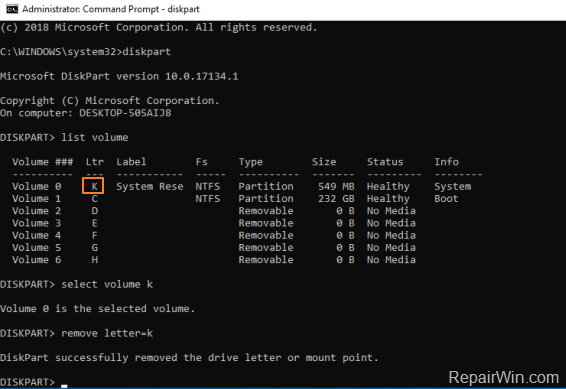
7. Type exit to close DISKPART tool and then close command prompt window.
That’s all folks! Did it work for you?
Please leave a comment in the comment section below or even better: like and share this blog post in the social networks to help spread the word about this solution.
Frequently Asked Questions
Why does a new drive appear after updating to Windows 10 version 1803?
The new drive letter is typically assigned to the 'System Reserved' or OEM Recovery partition after the Windows 10 v1803 update, causing Windows to issue notifications about 'Low Disk Space.'
How can I stop Windows from notifying me about the low disk space on the newly appeared drive?
You can remove the extra drive letter by using Command Prompt as an Administrator and performing a series of commands with diskpart to remove the drive letter assignment.
What commands are necessary to remove the extra drive letter in Windows 10 v1803?
In Command Prompt, run the following commands sequentially: 'diskpart', 'list volume', note the volume number with the new drive letter, 'select volume X' where X is the volume number, and 'remove letter=X'. Finally, exit DISKPART.
Where can I share feedback about the solution provided?
You can leave a comment in the comment section below the tutorial or share the blog post on social networks to help others with the same issue.




January 28, 2019 @ 4:01 pm
We really like your site, it has unique content, Thanks!
June 14, 2019 @ 12:53 pm
Thank you. It works.
March 27, 2020 @ 3:44 am
Thank u so much. It worked