
How to Never Combine Taskbar Buttons in Windows 11.
One of the biggest flaws of Windows 11, is the lack of the ability to "Never Combine Taskbar Buttons". Windows 10 and previous versions has the ability to ungroup items on the taskbar. But, in Windows 11 there is not a setting to ungroup taskbar items, which annoys many users.Since Microsoft has not yet decided to add the ability to ungroup taskbar items, I decided to write this guide to achieve this.
How to Ungroup Taskbar Items/Buttons in Windows 11.*
* Update: As of the first writing date of this article (February 3, 2022), the only way to "Never Combine Taskbar Items" on Windows 11 is by using a third-party program named "Explorer Patcher" from GitHub (Method-2). But in October 31, 2023 with the Windows 11, version 23H2 update, and almost after two (2) years, Microsoft decided to include the option to "Never combine taskbar icons" in its OS (Method-1).
Method 1. How Enable Never Combine Taskbar buttons on Windows 11 23H2.
Step 1. Update to Windows 11 version 23H2.
As mentioned above to be able to set Windows 11 to never combine taskbar icons, you need to install Windows 11 build 23H2. To do this:
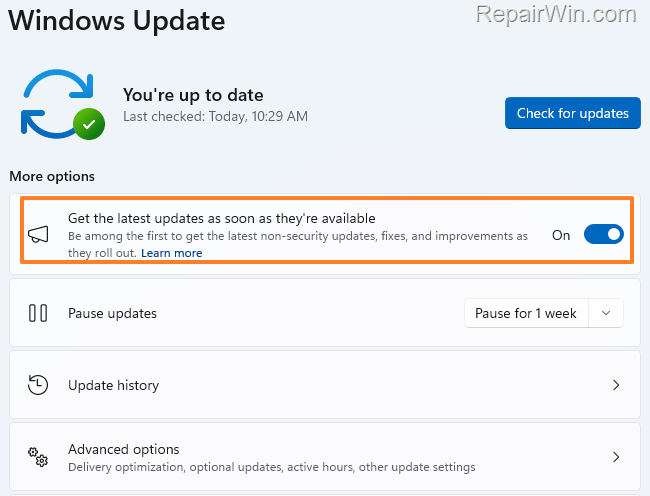
1. Go to Start menu, click Settings and then select Windows Update on the left pane.
2. Turn on the "Get the latest updates as soon as they're available" option and then click Check for updates.
3. When Windows finds the "Windows 11 version 23H2" click Download and Install. *
4. After the update installation continue to step-2 to set Windows to "never combine taskbar buttons".
* Notes:
1. If you running Windows 11 on unsupported hardware, follow the instructions in this article to install the Windows 11 23H2 update.
2. If Windows cannot find the "Windows 11 version 23H2", then download and install manually the KB5030310 from Microsoft Update Catalog and continue to step-2.
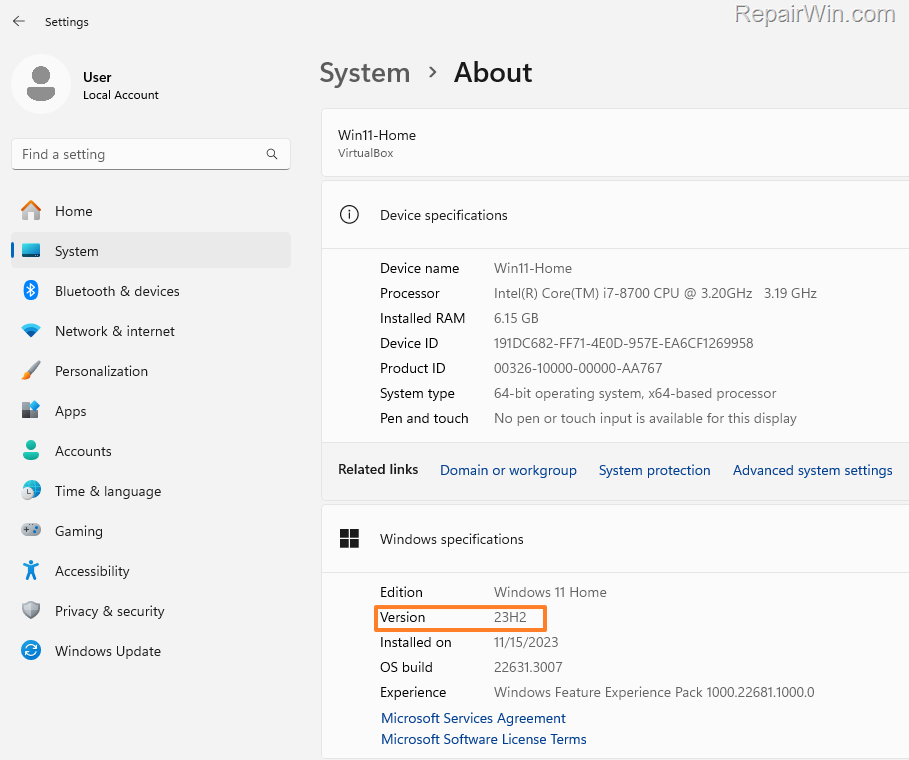
3. To view what Windows 11 you're currently running, go to Start > Settings > System > About.
Step 2. Enable "Never Combine taskbar buttons" on Windows 11.
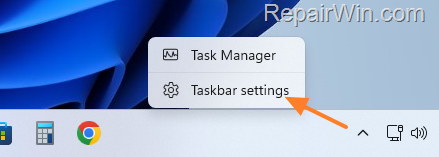
1. Right-click on the taskbar and choose Taskbar settings
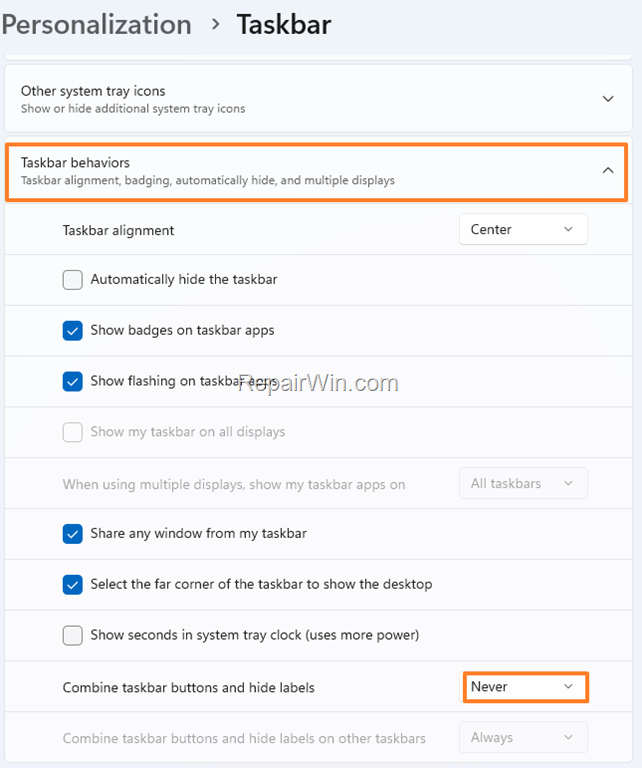
2. Click to expand Taskbar behaviors and change the Combine taskbar buttons and hide labels setting from "Always" to Never.
Method 2. Never Combine Taskbar buttons using Explorer Patcher.
Explorer Patcher not only restores the feature to "Never Combine Taskbar Buttons/Items", but also brings back the classic right-click context menu restore of Windows 10, among with other options to customize Windows 11 to feel like Windows 10.
1. Download the setup file or Explorer Patcher utility from GitHub.
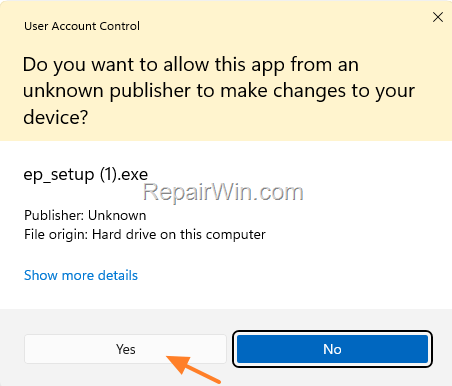
2. Run the installer file (ep_setup.exe) and ask Yes to UAC warning.
3. The screen will flash for 1 sec. When this happens, the program is installed and you will see the familiar Windows 10 taskbar with all taskbar items ungrouped.
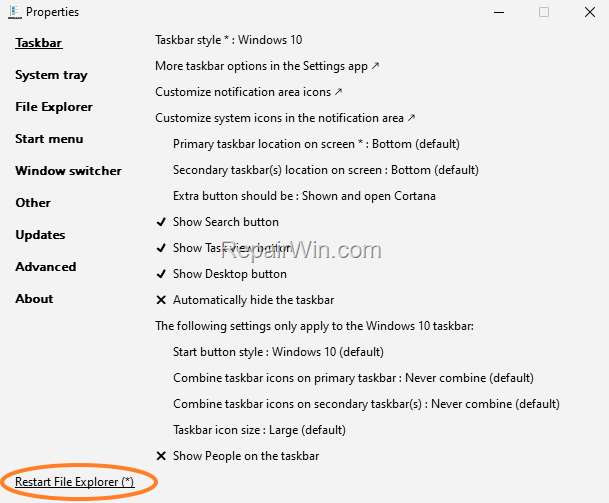
4. At this point you're done. To customize other Windows settings within Explorer Patcher, right-click an empty space on the taskbar and select Properties.

Conclusion: Explorer Patcher is an excellent program for personalizing the Windows 11 taskbar, Start menu, File Explorer, etc. Feel free to play with the available options and don't forget to "Restart File Explorer" to apply the changes. Also, if you're happy don't forget to Donate its publisher on GitHub.
That’s all folks! Did it work for you?
Please leave a comment in the comment section below or even better: like and share this blog post in the social networks to help spread the word about this solution.
Frequently Asked Questions
How can I enable the 'Never Combine Taskbar Buttons' feature in Windows 11?
To enable 'Never Combine Taskbar Buttons' in Windows 11, version 23H2, go to Start menu > Settings > Windows Update. Ensure 'Get the latest updates as soon as they're available' is on, then click 'Check for updates'. Download and install Windows 11 version 23H2. After updating, right-click the taskbar, choose Taskbar settings, expand Taskbar behaviors, and set 'Combine taskbar buttons and hide labels' to Never.
What should I do if Windows doesn't find the 23H2 update?
If Windows can't find the 'Windows 11 version 23H2' update, you can manually download and install the KB5030310 update from the Microsoft Update Catalog. Then follow the steps to enable the 'Never Combine Taskbar Buttons' feature.
What alternative do I have if I can't update to 23H2?
If you can't update to Windows 11 version 23H2, you can use the third-party program Explorer Patcher. Download it from GitHub, run the installer, and it will restore the 'Never Combine Taskbar Buttons' functionality along with other classic features. Right-click an empty space on the taskbar and select Properties to customize other settings.
What else can Explorer Patcher do besides ungrouping taskbar items?
Explorer Patcher can restore several classic features to Windows 11, such as the right-click context menu from Windows 10. It offers various customization options for the taskbar, Start menu, File Explorer, and more to tailor Windows 11 to feel more like Windows 10.



