How to Install Microsoft Works on Windows 11/10.
If you want to learn how you can install and run Microsoft Works, in Windows 10/11, continue reading below.
Microsoft Works was an early version of the Microsoft Office suite that featured a word processor, a spreadsheet, a database management system and a calendar. The software is developed and sold by Microsoft from 1987 to 2009, and is supported on Windows Vista and earlier versions of Windows.
Because, Microsoft Works is used by many users to create labels, family address books, etc., in this guide you'll find instructions on how to install and run Works, even on your Windows 10/11 64-bit machine.
How to Download, Install and Run Microsoft Works 9.0 in Windows 10/11.
Step 1. Download Microsoft Works.
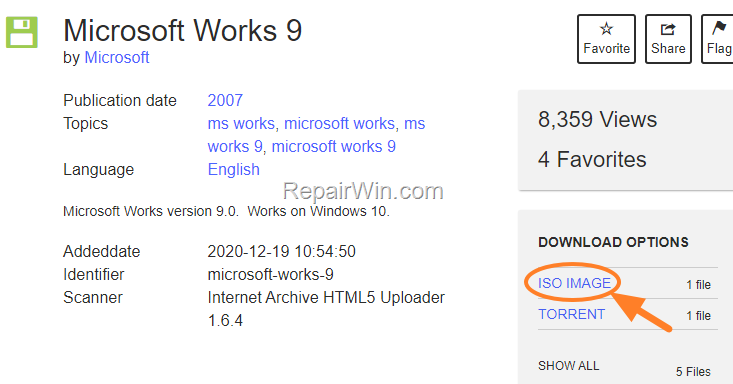
Since Microsoft Works discontinued and doesn't offered for download by Microsoft any more, click in the below link and download Microsoft Works ISO IMAGE, from archive.org.
Step 2. Install Microsoft Works 9.0.
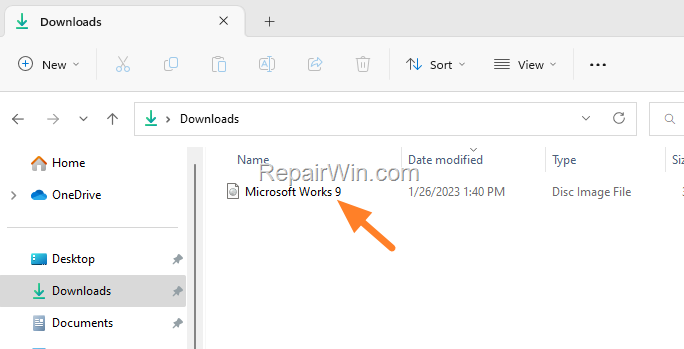
1. When the download is completed, double-click at Microsoft Works 9 disc image file, to open it in File Explorer.
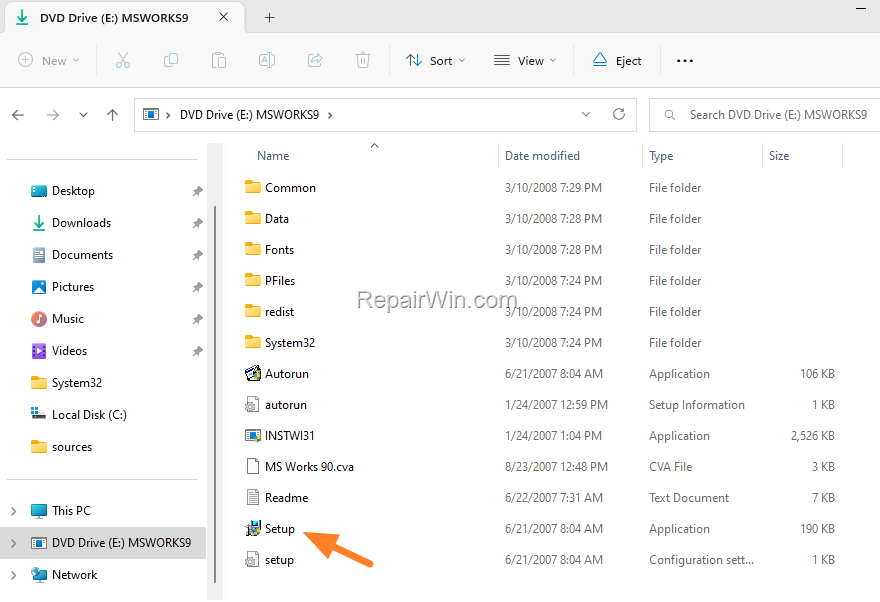
2. Now double-click at Setup application to start the installation of Microsoft Works.
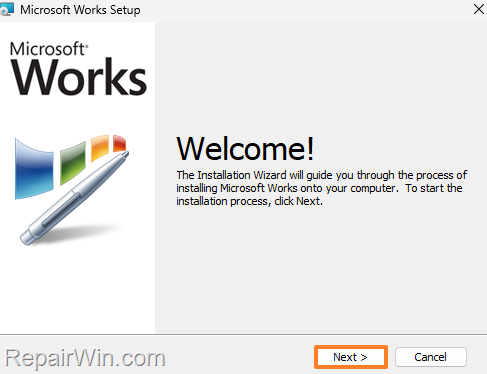
3. At the Welcome screen, click Next.
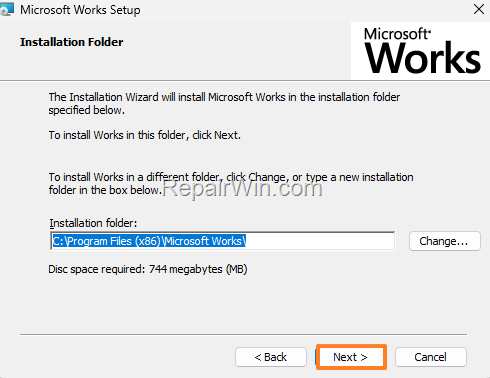
4. Click Next again.
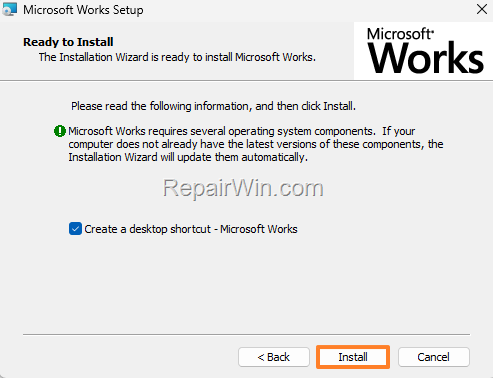
5. At the next screen, choose if you want the installation wizard to create a Microsoft Works shortcut on your desktop, and click Install.
6. Wait for the installation process to complete.

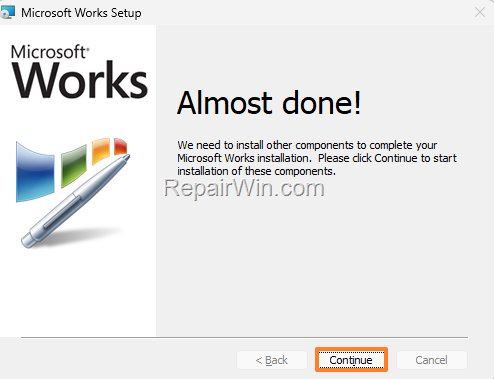
7. When, this done click Continue to download and install the required components.
8. When Microsoft Work is installed click OK.

9. Now open the Microsoft Works from its shortcut on the desktop or from programs list, click I Agree to Microsoft's License Terms and click Next.

10. Finally select No, I don't to participate at this time and click Finish.

11. You're done! Enjoy! *

* Note: The instructions above were written and tested in January 2023 on a Windows 11 64-bit PC. If you are having problems starting/running Microsoft Works on your computer, try running it in compatibility mode for Windows Vista. To do that:
-
Right-click on Microsoft Works shortcut and select Properties.
-
In Compatibility tab, select Run this Program in Compatibility mode for: Windows Vista and click OK.

That’s all folks! Did it work for you?
Please leave a comment in the comment section below or even better: like and share this blog post in the social networks to help spread the word about this solution.
Frequently Asked Questions
What is Microsoft Works and why is it still relevant today?
Microsoft Works was an early version of the Microsoft Office suite featuring a word processor, a spreadsheet, a database management system, and a calendar. It was supported on Windows Vista and earlier, and remains relevant for users who rely on its unique features for tasks like creating labels and family address books.
Can I still download Microsoft Works if it's discontinued?
Yes, you can still download Microsoft Works, but not from Microsoft directly. The software can be obtained as an ISO image from archive.org, allowing installation on modern Windows 10/11 systems.
How do I troubleshoot issues with running Microsoft Works on Windows 10/11?
If you face issues running Microsoft Works on Windows 10/11, try using compatibility mode. Right-click the Works shortcut, select Properties, go to the Compatibility tab, choose 'Run this program in compatibility mode for: Windows Vista,' and click OK.
Does Microsoft still support Microsoft Works?
No, Microsoft discontinued and no longer supports Microsoft Works since it stopped being developed in 2009. However, users can still run it on modern systems by using workarounds such as compatibility mode settings.