
How to Disable Copilot on Windows 11.
Microsoft Copilot is a smart assistant with artificial intelligence, built into Windows 11 and Microsoft Edge, that can provide real-time answers and solutions to help users perform their tasks more efficiently.
Here are some of the basic key features of Copilot in Windows 11:
- Real-time answers and suggestions: Copilot can provide quick and useful answers to questions, even if they are difficult or strange. It can also suggest relevant actions and solutions based on the problem reported by the user.
- Inspiration and creativity: Copilot can help users to create content, such as texts, poems, code, etc. or express their ideas in a more creative way (such with images created based on their ideas). Additionally Copilot can summarize or rewrite content, write professional emails and letters and much more.
Copilot is integrated into Microsoft Edge and in the Windows 11 taskbar to be easily accessed from anywhere in the operating system, to provide assistance based on the user's current activity.
However, many users does not like Copilot and look for a way to disable it. So, in this guide you'll learn how you can easily disable Copilot on Microsoft Edge or on Windows 11.
How to Disable Copilot in Microsoft Edge.
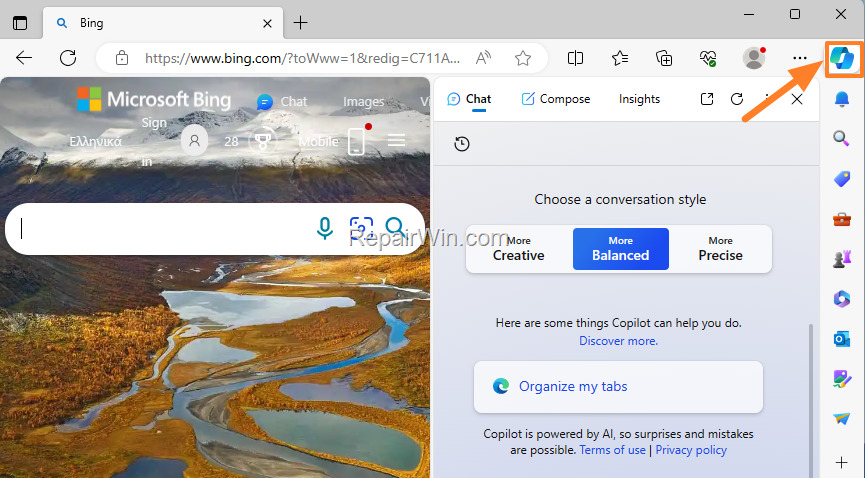
In Microsoft Edge you can close the Copilot window at anytime you want just by clicking once on the Copilot icon  in the top right corner of your browser.*
* Note: To re-open the Copilot window, click again the same icon.
How to Disable Copilot from taskbar on Windows 11.
To remove Copilot icon from the Taskbar, do the following:
1. Right-click on the Taskbar and open Taskbar settings.
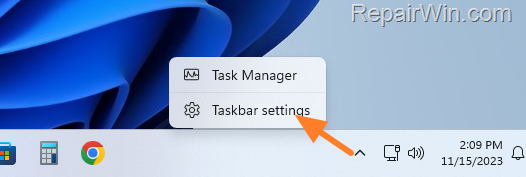
2. Under 'Taskbar items', toggle the Copilot switch to Off.
How to Completely Disable Copilot on Windows 11?
Method 1. Turn Off Copilot using Registry.*
To completely disable Copilot on Windows 11, apply the following changes in registry:*
* Note: These instructions apply to all versions of Windows 11 (Home, Pro & Enterprise). If you are running Windows Professional or Enterprise, you can also apply the instructions in method-2 below to disable Copilot using Group Policy.
1.Press Windows  + R keys to open the run command box.
2. Type "regedit" and click OK.

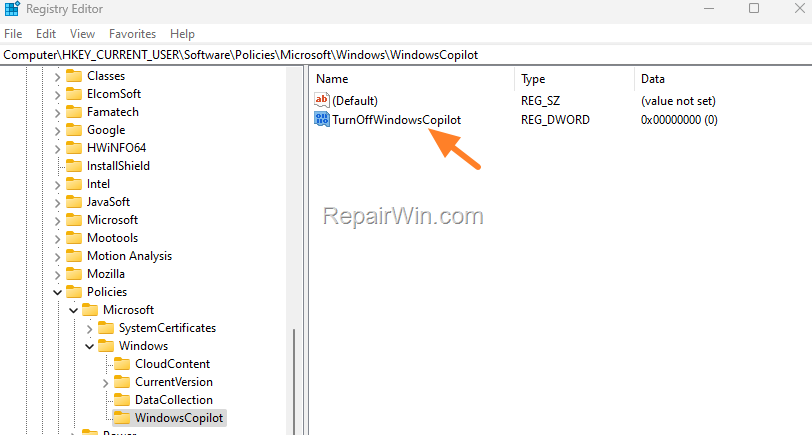
3. In registry editor navigate to this location:
- HKEY_CURRENT_USER\Software\Policies\Microsoft\Windows
4a. Right-click at Windows folder-key and select New > Key
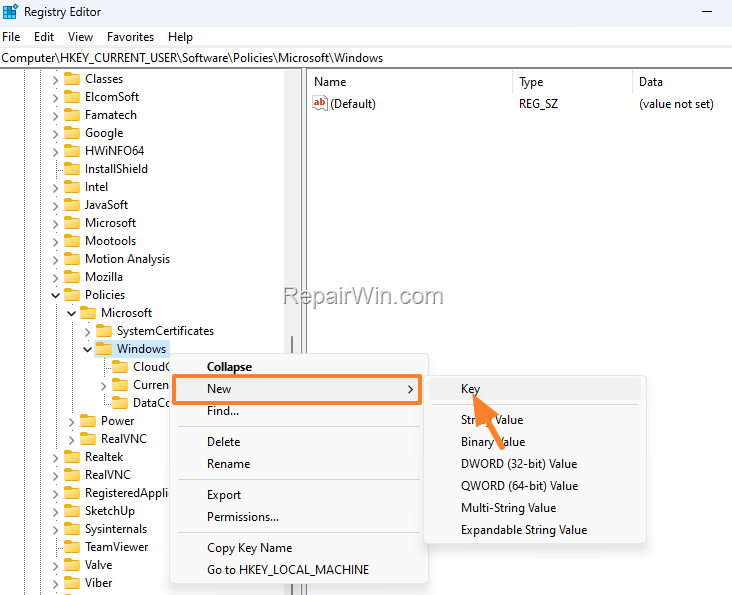
4b. Rename the "New Key #1" to "WindowsCopilot" and hit Enter.
5a. Then right-click at WindowsCopilot key and select New > DWORD (32-bit) Value.
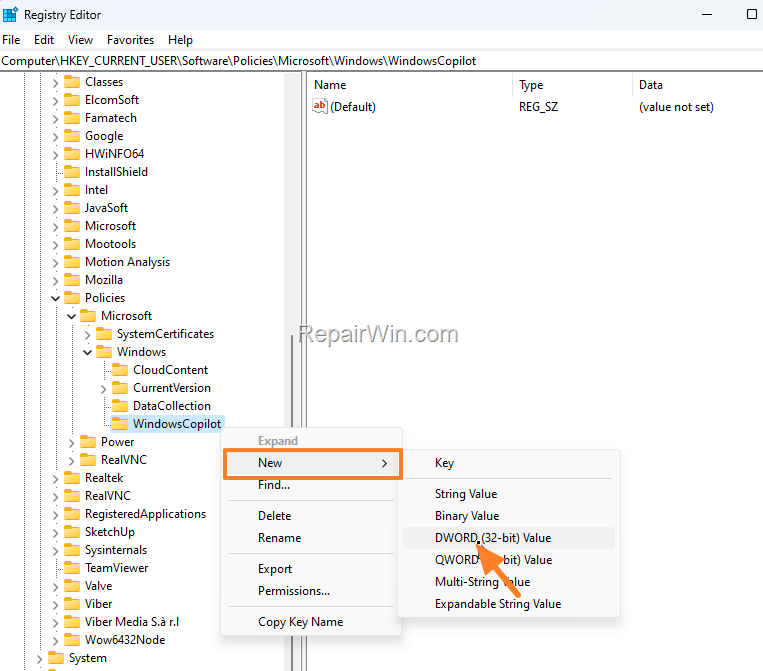
5b. Rename the "New Value #1" to "TurnOffWindowsCopilot" and press Enter.
6a. Finally, double-click to open the TurnOffWindowsCopilot REG_DWORD.
6b. Change the Value data from 0 to 1 and click OK.
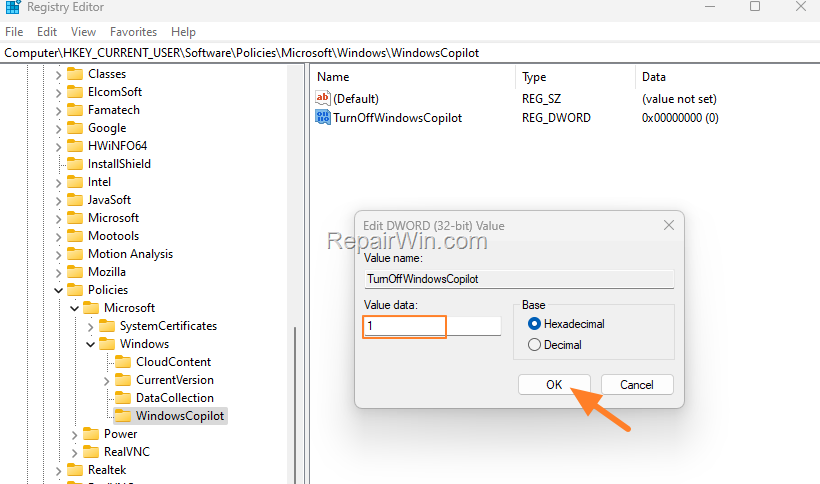
7. Close Registry Editor, restart your PC to apply the change and you're done! *
* Note: To re-enable Copilot, navigate to the above mentioned location and change the "TurnOffWindowsCopilot" REG_DWORD value from 1 to 0.
How to Turn Off Copilot on Windows 11 using Group Policy.
If you own Windows 11 Pro or Enterprise edition, you can disable Copilot in Group Policy.
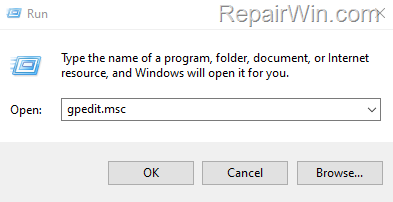
1.Press Windows + R keys to open the run command box.
2. Type "gpedit.msc" and click OK.
3. In Group Policy Editor, navigate to this location:
-
User Configuration\Administrative Templates\Windows Components\Windows Copilot
4. At the right pane, open the Turn off Windows Copilot policy.
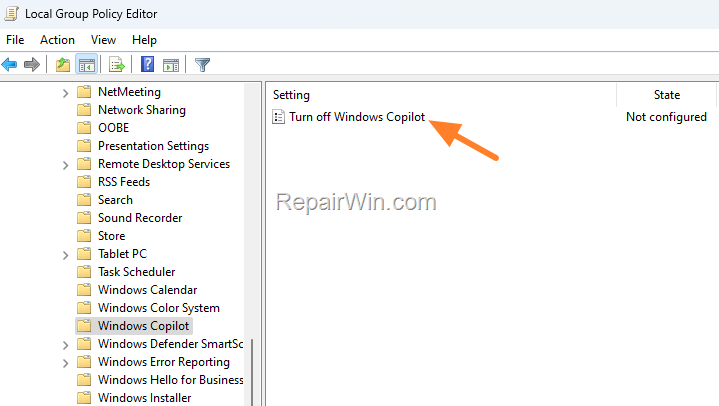
5. Set this policy to Enabled, to disallow users to use Copilot and to remove also Copilot icon in the Taskbar. When done, click Apply > OK.
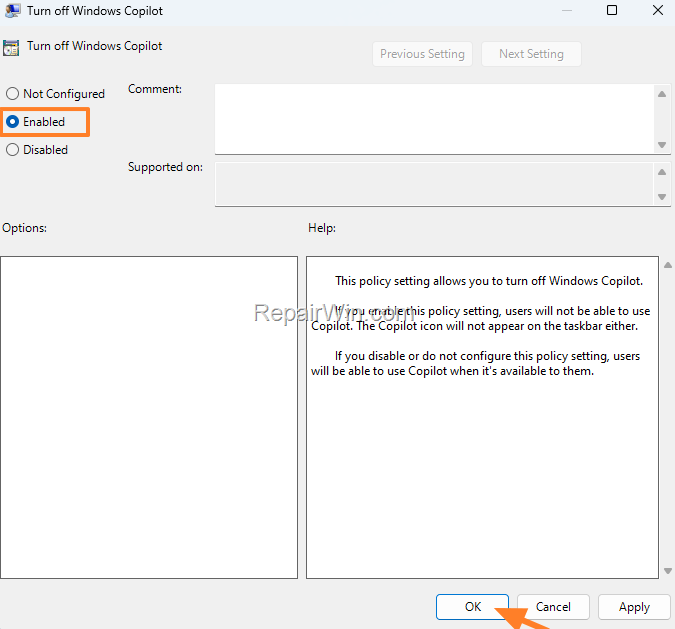
6. Close Group Policy and restart the computer to apply the change.*
* Note: To Turn on Copilot, open again the 'Turn off Windows Copilot' policy and set it to "Not Configured" or "Disabled".
That’s all folks! Please leave a comment in the comment section below or even better: like and share this blog post in the social networks to help spread the word about this solution.
Frequently Asked Questions
What are the key features of Microsoft Copilot in Windows 11?
Microsoft Copilot provides real-time answers and suggestions, assists with inspiration and creativity by helping to create content such as texts, poems, and code, and can rewrite or summarize content and draft professional communications.
How can I disable Copilot in Microsoft Edge?
To disable Copilot in Microsoft Edge, simply click the Copilot icon in the top right corner of the browser to close its window. To reopen, click the same icon again.
What steps are needed to remove the Copilot icon from the Windows 11 taskbar?
To remove the Copilot icon, right-click on the taskbar, open Taskbar settings, and toggle the Copilot switch to Off under 'Taskbar items'.
How can I completely disable Microsoft Copilot using the Windows Registry?
Open the Run command box with Windows + R, type 'regedit', and press OK. Navigate to HKEY_CURRENT_USER\Software\Policies\Microsoft\Windows, create a new key named 'WindowsCopilot', and under it, add a DWORD (32-bit) Value named 'TurnOffWindowsCopilot' with a value of 1. Restart your PC to apply the changes.



