
FIX: Windows 10 Update Couldn't uninstall Avira AntiVir (Solved)
On a Windows 10 computer, the following message appears when trying to update Windows 10 to version 1803 or 1809: "Some Apps need to be uninstalled: These programs need to be uninstalled because they aren't compatible with the Upgrade: Avira Antivirus" and when pressing the "Uninstall and continue" button, the following error appears: "We couldn't uninstall these apps: Avira AntiVir". The funny thing with this problem, is that the Avira Antivir (Antivirus) it is not installed on the PC (not listed at installed programs).

The problem "Couldn't uninstall Avira AntiVir" during the Windows 10 v1803 upgrade, is occurred because the update program, finds some files on your PC that are associated with the Avira Antivirus and they haven't removed during Avira Uninstall. *
* Note: If you really have the "Avira Antivirus" program installed on your machine, then uninstall it using the "Programs and Features" option in control panel and then proceed to update your system to Windows 10 v1803 (or 1809). After upgrade, download and install the latest version of Avira Antivirus in your system.
How to FIX Windows 10 Update Error: Couldn't Uninstall Avira AntiVir.
1. Start Windows in Safe mode. To do that:
-
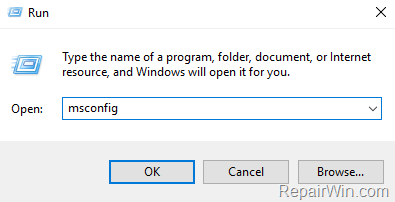
- Press the Windows
 + R keys to open the run command box.
 - Type msconfig and press Enter.
- Press the Windows

-
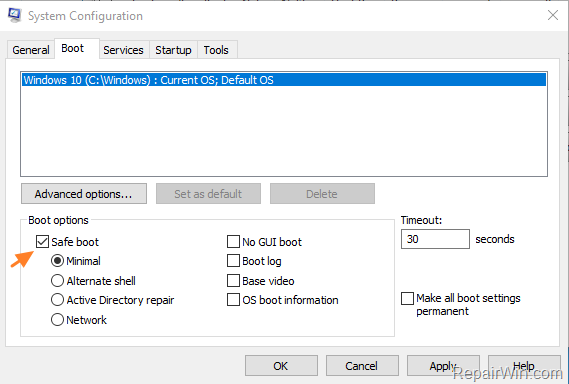
- At Boot tab select the Safe Boot option, then click OK and restart your computer.
2. After restart, open file explorer and delete the avipbb.sys file from the following locations:
- C:\Windows\System32\drivers
- C:\Windows\SysWOW64\drivers
3. Proceed to delete from the above locations every other file named avipbb despite its extension.
4. Then delete the Avira folder from the following location:
- (Windows 64-bit) : C:\Program Files (x86)\Avira\Antivirus
- (Windows 32-bit): C:\Program Files\Avira\Antivirus
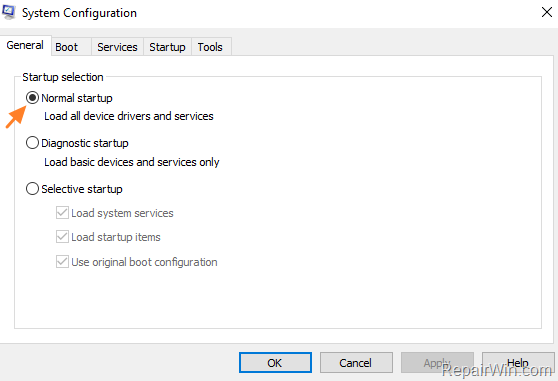
5. Run msconfig again.
6. At General tab, click Normal startup and click OK, to restart your computer normally.
7. Check and install updates. *
* Note: If you still face the "Couldn't uninstall Avira AntiVir" error during update, then download and run the Avira Registry Cleaner.
That’s all folks! Did it work for you?
Please leave a comment in the comment section below or even better: like and share this blog post in the social networks to help spread the word about this solution.
Frequently Asked Questions
Why am I receiving a message to uninstall Avira Antivirus when it's not installed on my system?
The Windows update program detects leftover files associated with Avira Antivirus on your system, causing the message. These files might not have been removed during a previous uninstallation.
How do I start Windows 10 in Safe Mode to resolve the Avira uninstall issue?
Press Windows + R to open the run command box, type 'msconfig', and press Enter. Go to the Boot tab, select Safe Boot, click OK, and restart your computer.
What files do I need to delete to fix the Windows 10 update error regarding Avira AntiVir?
In Safe Mode, delete the avipbb.sys file from C:\Windows\System32\drivers and C:\Windows\SysWOW64\drivers. Also, delete any other files named avipbb regardless of their extension, and remove the Avira folder in the Program Files directory.
What should I do if the issue persists after following the steps to fix the Avira uninstall error?
If the problem continues, download and run the Avira Registry Cleaner to remove any remaining registry entries related to Avira Antivirus.




September 10, 2019 @ 8:44 am
I have been trying to fix this for quite some time now – thank you for the post I will try it and let you know!!
December 1, 2019 @ 8:06 pm
Thanks, it works!
December 13, 2019 @ 1:53 am
That does the trick! Thank you SO much. Donation made.
April 28, 2020 @ 8:37 pm
Finally!!! After almost a year of attempting to fix this issue and now it’s done! Thank you very much. I feel like making a donation myself. Thank you very much, guys!!!
December 4, 2021 @ 2:59 am
For over a year I could not do any updates on my laptop because of this Avira antivirus error. It left me totally frustrated, I tried to find it to uninstall, couldn't, and I knew I sure in the hell didn't install it, so it just got left wherever it was hiding because I am not a great techie person and because everything I googled every month or so to fix it left me more confused or if I was able to follow along, absolutely nothing worked.
Finally my windows became so unresponsive and outdated I knew I had to either throw my laptop away. pay some kid a million bucks to fix it, or give it one more try. Lucky day for me, I found the above information, applied it (easy to follow directions), and BAM, it worked like a hot damn. Got all my thousands of updates in and my laptop is working 100% Best site ever !!!!!!! Thank you, thank you ,thank you!!!!!!!! (This comment required lots of !!!!!!!)