
FIX: Hardware Settings Have Changed. Please Reboot in Windows 10 Startup. (Solved)
This guide contains instructions to resolve the following problem at every Windows 10 startup: "Your hardware settings have changed. Please reboot your computer for these changes to take effect.".
The Windows 10 startup error "hardware settings have changed…please reboot", can appear even after a fresh installation of Windows 10, especially on computers (desktops or laptops) that own an AMD graphic card.
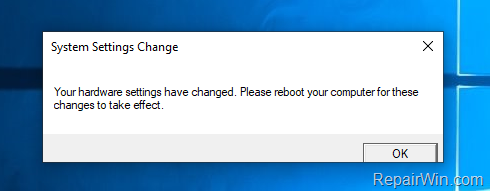
How to FIX Windows 10 Startup error: Your hardware settings have changed. Please reboot your computer…
1. Open Windows Services control panel: To do that:
- Press Windows
 + R keys to open the run command box.
 - In the Search box, type: services.msc & click OK.


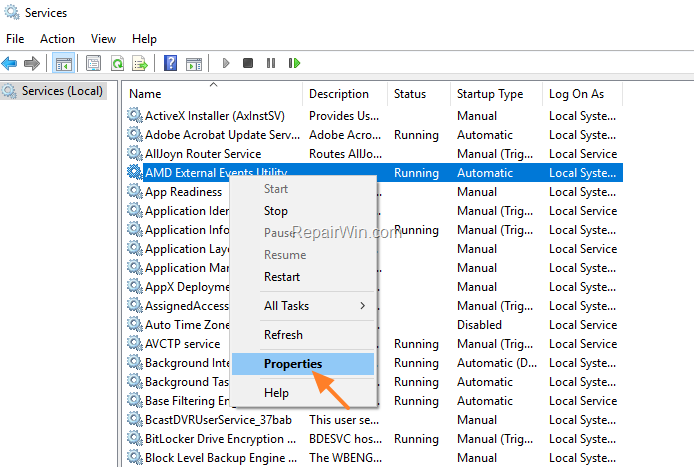
2. In Services control panel, right click at AMD External Events Utility service and choose Properties.
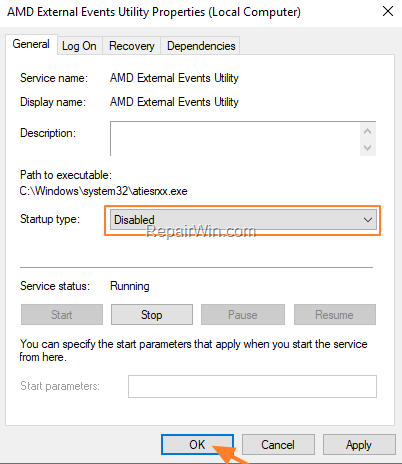
3. Set the Startup type to Disabled and then click OK.
4. Reboot your computer. If after restart, you still receive the error: "hardware settings have changed…please reboot", then proceed as follows:
1. Navigate to Control Panel -> Programs and Features and uninstall all the AMD software.
2. Navigate to AMD Driver Download page to download and install an oldest driver for your display adapter.
That’s all folks! Did it work for you? Please leave a comment in the comment section below or even better: like and share this blog post in the social networks to help spread the word about this solution.
Frequently Asked Questions
What causes the 'Your hardware settings have changed' error in Windows 10?
This error typically occurs on computers with an AMD graphic card, even after a fresh installation of Windows 10.
How can I access the Windows Services control panel to fix this issue?
Press the Windows + R keys to open the run command box, type 'services.msc' in the search box, and click OK.
What should be done with the AMD External Events Utility service to fix the startup error?
Right-click the AMD External Events Utility service, choose Properties, set the Startup type to Disabled, and then click OK.
What should I do if the error persists after disabling the AMD service?
Uninstall all AMD software from the Control Panel’s Programs and Features, then download and install the oldest driver available from the AMD Driver Download page.



