
FIX: Unable to Turn Off Protected Mode in Edge's Internet Explorer mode.
If you unable to Turn Off the Protected Mode in Microsoft Edge, when viewing a site in Internet Explorer Mode, continue reading below to fix the problem.
Problem description: When opening/viewing a site in Internet Explorer Mode in Microsoft Edge, the protected mode is On and without an option to Turn it Off.

How to Disable the Protected Mode in IE Mode on Edge browser (Windows 10/11).
When viewing a site in Internet Explorer Mode (aka "IE Mode) in Edge, the Protected Mode is always On for untrusted sites. So, the only way to disable the Protected Mode for a website in EDGE, is to add the site URL to Trusted Sites in Internet Options. To do that:
1. Navigate to Control Panel, set the View by: to Small icons and then open the Internet Options.

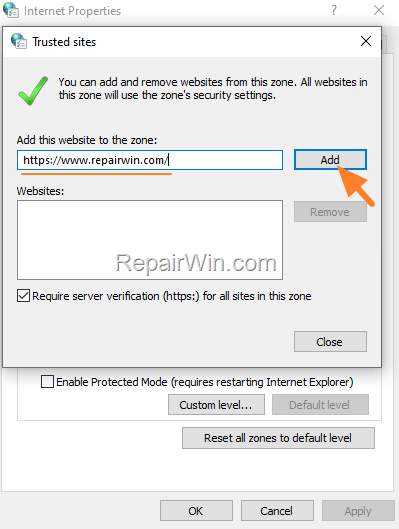
2. At Security tab, select the Trusted sites and click Sites.

3. Type the URL of the site that you want to turn off the protected mode on it and click Add.
4. When done, click Close and then OK to save the change.
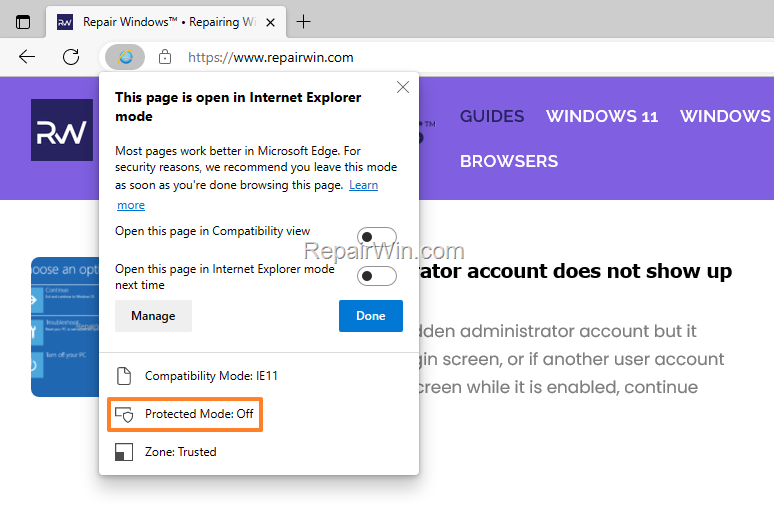
5. Reload the site in Microsoft Edge and the Protected Mode will be OFF.
That's all folks! Did it work for you?
Please leave a comment in the comment section below or even better: like and share this blog post in the social networks to help spread the word about this solution.
Frequently Asked Questions
Why can't I turn off Protected Mode in Internet Explorer Mode on Edge?
Protected Mode in Internet Explorer Mode on Edge is always on for untrusted sites, and there's no option to disable it directly. To manage this, you must add the site to the Trusted Sites list in Internet Options.
How do I add a website to Trusted Sites in Microsoft Edge using Windows 10 or 11?
To add a website to Trusted Sites, go to Control Panel, choose 'Small icons' view, and open Internet Options. Navigate to the Security tab, select Trusted Sites, and click Sites. Enter the site's URL and click Add. Finally, click Close and OK.
What should I do after adding a site to Trusted Sites to ensure Protected Mode is off?
After adding the site to Trusted Sites, reload the site in Microsoft Edge. The Protected Mode will be off for that site when viewed in Internet Explorer Mode.
Is this method applicable for both Windows 10 and Windows 11?
Yes, the steps to disable Protected Mode by adding sites to Trusted Sites in Internet Options apply to both Windows 10 and Windows 11.



