
FIX: This device can't use a Trusted Platform Module in BitLocker. (Solved)
On a Windows 10 Pro or Enterprise computer the following error may appear when trying to turn on BitLocker drive encryption on the Operating System drive: "This device can't use a Trusted Platform Module. Your administrator must set the "Allow BitLocker without a compatible TPM" option in the "Require additional authentication at startup" policy for OS volumes".
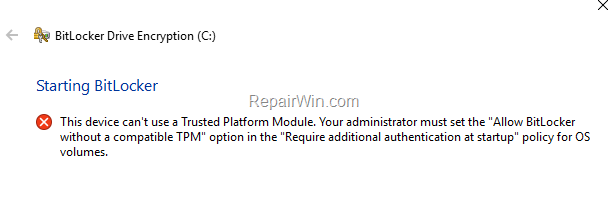
This tutorial contains instructions to resolve the following BitLocker error: "This device can't use a Trusted Platform Module…" on Windows 10 Pro and Enterprise Editions.
How to Fix: "This device can't use a Trusted Platform Module" error in Bit Locker.
BitLocker provides the most protection when used with a Trusted Platform Module (TPM) version 1.2 or later. If you own a computer that does not have a TPM module, then you must disable the TPM requirement for BitLocker in group policy. To do that:
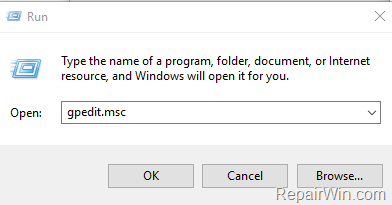
1. Press simultaneously the Windows  + R keys to open the run command box.
2. Type gpedit.msc & Press Enter.
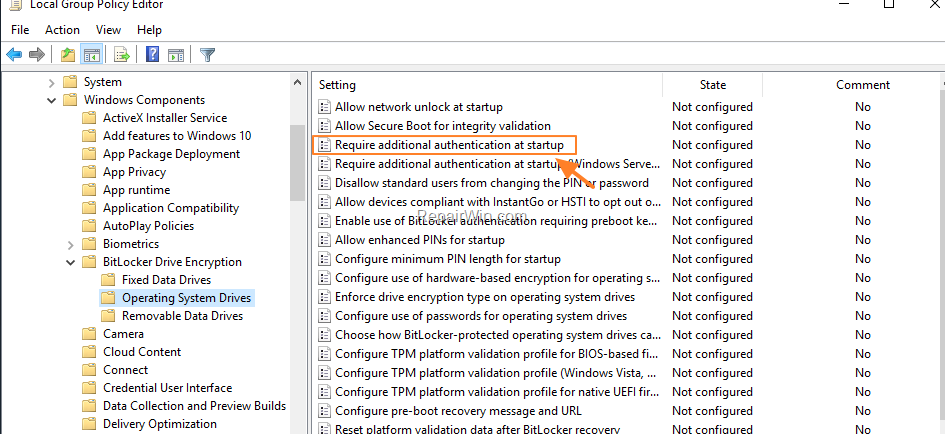
3. At the left pane navigate to:
- Computer Configuration\Administrative Templates\Windows Components\ BitLocker Drive Encryption\Operating System Drives
4. Then click at Require additional authentication at startup on the right pane.
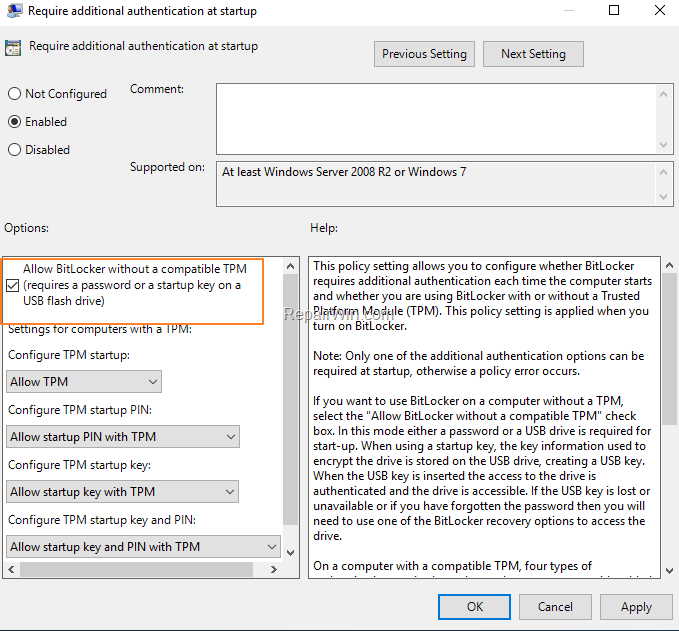
5. Click Enabled and then check the Allow BitLocker without a compatible TPM checkbox.
6. Click OK and close the Group Policy Editor.
7. You 're done! Proceed to enable the BitLocker protection on the operating system drive, without any problem.
That’s all folks! Did it work for you?
Please leave a comment in the comment section below or even better: like and share this blog post in the social networks to help spread the word about this solution.
Frequently Asked Questions
What does the error 'This device can't use a Trusted Platform Module' indicate on Windows 10 Pro or Enterprise?
This error means that the computer cannot use BitLocker with a Trusted Platform Module (TPM). It often occurs when the PC lacks a TPM module, which BitLocker requires for optimal protection.
How can I enable BitLocker on a PC without a TPM module?
To enable BitLocker without a TPM module, modify the group policy settings: open the Run command box with Win + R, type gpedit.msc, then navigate to Computer Configuration > Administrative Templates > Windows Components > BitLocker Drive Encryption > Operating System Drives. Enable the 'Allow BitLocker without a compatible TPM' option in 'Require additional authentication at startup'.
Is it safe to enable BitLocker without a TPM?
While BitLocker provides more robust protection when used with a TPM, enabling it without one is a viable option for computers lacking this module. It requires an additional authentication method, like a password or USB drive, at startup.
What should I do after changing the group policy settings for BitLocker?
Once you've enabled the 'Allow BitLocker without a compatible TPM' setting, you can proceed to enable BitLocker protection on your operating system drive. Follow the BitLocker setup to ensure that encryption begins without issues.



