
FIX: Server is Not Accessible. You might not have permission to use this network resource. The handle is invalid. (Solved)
This tutorial contains instructions to fix the following error when trying to access a shared folder on the network: "Server is not accessible. You might not have permission to use this network resource. Contact the administrator of this server to find out if you have access permissions. The handle is invalid."

How FIX: Cannot Access Shared Folder. You might not have permission to use this network resource. The handle is invalid.
Normally, the file sharing connection problem "You might not have permission to use this network resource" appears when a user tries to access a network shared folder, without having the required permissions. At this case and in order to resolve the problem, you have to ensure that the user have the appropriate access permissions on the shared folder.
However, if you know that the user's permissions on the shared folder are correct and the connection issue "You may not have permission to use this network resource" appeared suddenly and without obvious reason, then the problem is probably due to the installation of a Windows Update. At this case continue to read below to fix the problem.
* Note: If you face the share error in the middle of January 2019, then the culprit is the following Windows Security Update: January 8, 2019—KB4480970 (Monthly Rollup).
Method 1. Uninstall the Latest Windows Update.
On the machine with the shared folder:
1. Right-click at 'My Computer' icon and select Properties.
2. Click Windows Update.
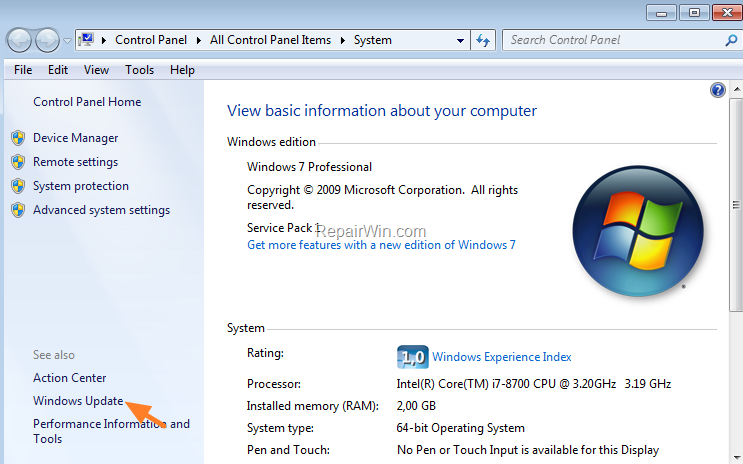
3. Click Installed Updates.

4. Sort the updates by the installed date, by clicking Installed On.
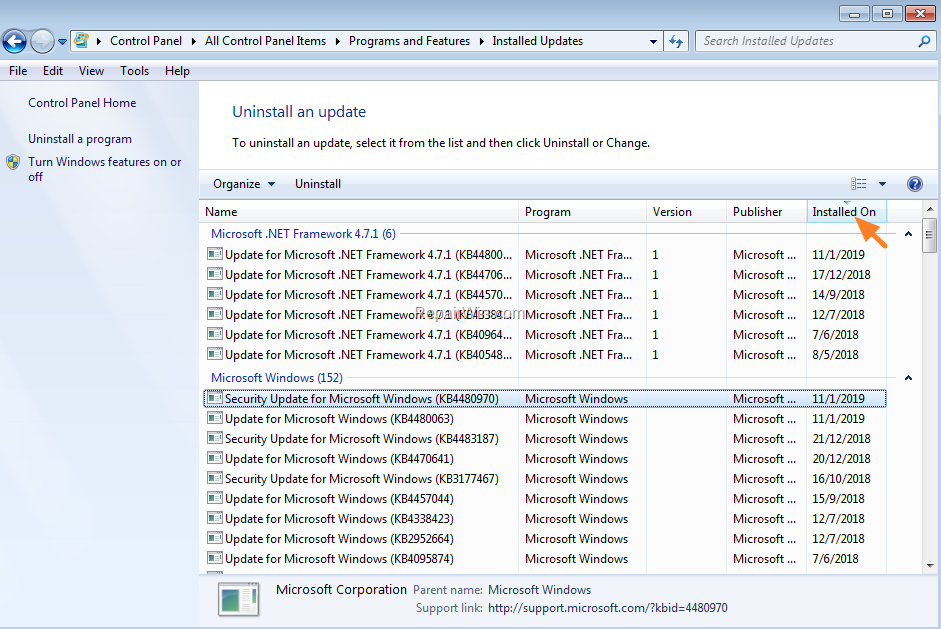
5. Highlight the latest installed update for Windows and click Uninstall. *
* e.g. If you face the share error in the middle of January 2019, then proceed and uninstall the "Security Update for Microsoft Windows KB4480970".
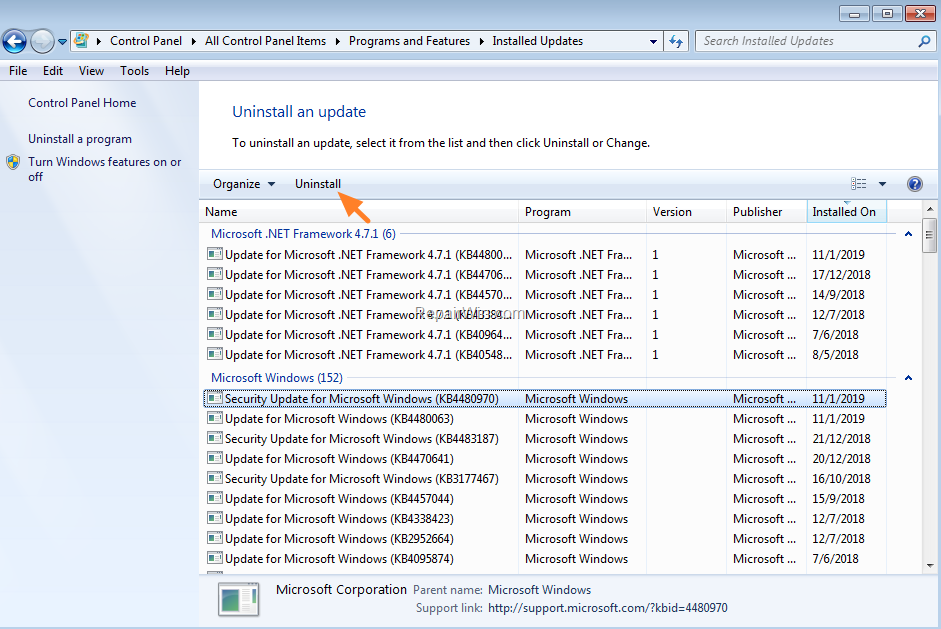
6. When the installation is completed, restart the computer.
7. After restart try again to access the shared folder from the client machine. Then apply the suggested actions according your case:
- Case A: If the problem persists, then proceed to uninstall all the latest installed updates or continue to method 2 below.
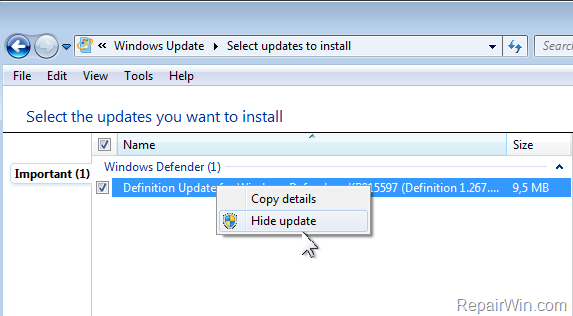
- Case B: If the problem is resolved, then prevent the removed update from being installed in the future. To do that:
1. Navigate to Windows Update and Check for updates.
2. Click on Important Updates.

3. Right-click on the problematic update and click Hide update.
4. Finally click OK and then close the Windows Update.
Method 2. Restore your PC to a Previous Working State.
On the machine with the shared folder:
1. Press Windows  + R keys to open the run command box.
2. Type rstrui & click OK to launch System Restore.

3. Click Next at the first screen.
4. Choose an earlier working state (Date/Time) and click Next to start the restore process.
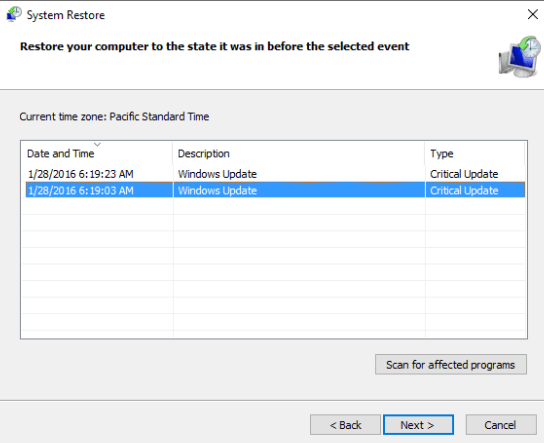
5. After system restore, try again to access the shared folder from the client machine.
That’s all folks! Did it work for you?
Please leave a comment in the comment section below or even better: like and share this blog post in the social networks to help spread the word about this problem.
Frequently Asked Questions
What does the error message 'Server is not accessible. You might not have permission to use this network resource. The handle is invalid.' mean?
This error message typically indicates a permission issue when trying to access a network shared folder. It suggests that the user might not have the required permissions needed to access the folder.
How can I resolve the issue if I suddenly cannot access a shared folder due to permission issues, even though permissions were previously correct?
If the issue appeared suddenly and permissions were previously correct, it might be due to a Windows Update. To resolve it, you can uninstall the latest Windows Update by going to the Installed Updates section in Windows, finding the latest update, and uninstalling it.
What should I do if uninstalling the latest update doesn’t fix the network shared folder access problem?
If uninstalling the latest update doesn't resolve the issue, you can either proceed to uninstall all recent updates or restore your PC to a previous working state using System Restore. Choose a restore point from when the shared folder access was functioning correctly.
How can I prevent a problematic Windows update from reinstalling once it’s uninstalled?
To prevent a problematic update from reinstalling, check for updates in Windows Update, right-click on the update that caused issues, and select 'Hide update.' This will ensure the update doesn't reinstall automatically.




January 21, 2019 @ 10:09 am
method one worked… thanls
February 5, 2019 @ 3:28 pm
method one worked ……………….thanls
January 21, 2019 @ 10:25 pm
You literally saved me!, I tried all the methods that are around without expecting to be something Windows Update related, I hope they would include something that could point to this fix.
January 23, 2019 @ 12:14 am
Method one worked on my home network shares. I am an AD admin and tested this at work. The bug does not appear to affect AD members.
January 28, 2019 @ 2:47 am
Method one worked perfectly and saved me boatloads of time trying to pinpoint this, thank you, thank you, thank you!
January 30, 2019 @ 1:39 pm
Method one worked for me perfectly. Thanks
January 31, 2019 @ 12:53 pm
You are awesome. Method 1 worked perfectly. Thank you.