
FIX: OneDrive.exe – Bad Image: SyncEngine.DLL is either not designed to run on Windows (Solved)
The OneDrive error "OneDrive.exe Bad Image", may appear after upgrading Windows 7 or 8.1 to Windows 10 or after upgrading Windows 10 to its latest build: "OneDrive.exe – Bad Image. SyncEngine.DLL is either not designed to run on Windows or it contains an error. Try installing the program again using the original installation media or contact your system administrator or the software vendor for support: Error status 0xc000012f".
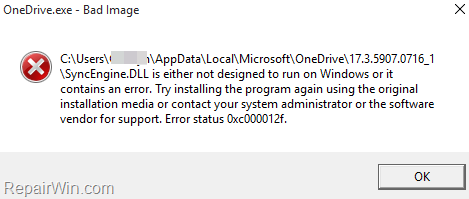
This tutorial contains instruction to fix the "Bad Image" error in OneDrive application, after updating Windows.
How to FIX OneDrive.exe – Bad Image in SyncEngine.DLL file.
Step 1. Uninstall OneDrive from Windows.
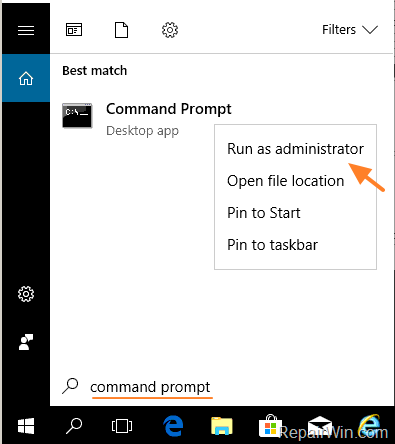
1. Open Command Prompt as Administrator. To do that:
- At the search box type: command prompt or cmd
- Right-click at Command Prompt result and select Run As Administrator.
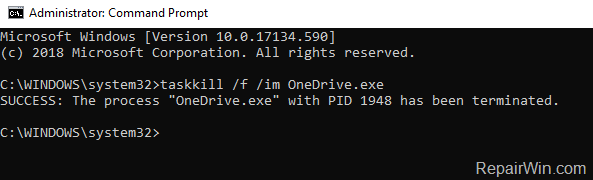
2. At command prompt give the following command to close OneDrive:
- taskkill /f /im OneDrive.exe
3. Proceed and remove the OneDrive app from your system, by using the below command, according your OS version (32 or 64bit):
- For Windows 64-bit:
- %Systemroot%\SysWOW64\OneDriveSetup.exe /uninstall
- For Windows 32-bit:
- %Systemroot%\System32\OneDriveSetup.exe /uninstall
Step 2. Download and Re-Install OneDrive from Microsoft.
1. Download the latest version of OneDrive.
2. Open the downloaded file (OneDriveSetip.exe) and install OneDrive to your computer.
3. Finally, sign-in to your account and start syncing.
That’s all folks! Did it work for you?
Please leave a comment in the comment section below or even better: like and share this blog post in the social networks to help spread the word about this solution.
Frequently Asked Questions
What is the "OneDrive.exe Bad Image" error?
The "OneDrive.exe Bad Image" error may occur after upgrading from Windows 7 or 8.1 to Windows 10, or after a Windows 10 build update. It indicates that SyncEngine.DLL is either not designed to run on Windows or contains an error.
How do I uninstall OneDrive to fix the "Bad Image" error?
Open Command Prompt as Administrator, type 'taskkill /f /im OneDrive.exe' to close OneDrive, then use '%Systemroot%\SysWOW64\OneDriveSetup.exe /uninstall' for 64-bit systems or '%Systemroot%\System32\OneDriveSetup.exe /uninstall' for 32-bit systems to uninstall OneDrive.
How can I reinstall OneDrive after uninstalling it?
Download the latest version of OneDrive from Microsoft, open the downloaded OneDriveSetup.exe file, and follow the installation process. Finally, sign in to your account and start syncing.
What can I do if the solution worked for me?
If this solution worked for you, please leave a comment, like, and share the blog post on social networks to help spread the word about this solution.



