
FIX: Office not listed in Programs and Features list (Add/Remove programs).
If you want to uninstall Microsoft Office from your Windows computer, but Office does not appear in the list of installed programs in the Programs and Features section, then continue reading below to resolve the problem.
As you may know, the Programs and Features tool (aka "Add/Remove Programs") in Control Panel, shows a list of all installed applications in Windows. In addition, "Program and features" helps you to easily remove or repair any installed application with a few clicks.
Recently I had to uninstall Office on one of my client computers, but Office did not appear in the list of installed programs in Windows 10. After solving the problem I decided to write the solution for others who may have it.
FIX: Microsoft Office does not appear on the installed Programs on Windows 10/11.
If you can open any Microsoft Office application (Word, Excel, PowerPoint, etc.), but still cannot uninstall or repair Office because is not showing in the list of installed Windows programs, follow the instructions below:
1. Download the Microsoft Support and Recovery Assistant (SARA) utility.
2. When the download is completed double click to run the SaraSetup.exe application.
3. Click Install to install the SARA utility.

4. Click I Agree at Microsoft Agreement to continue.

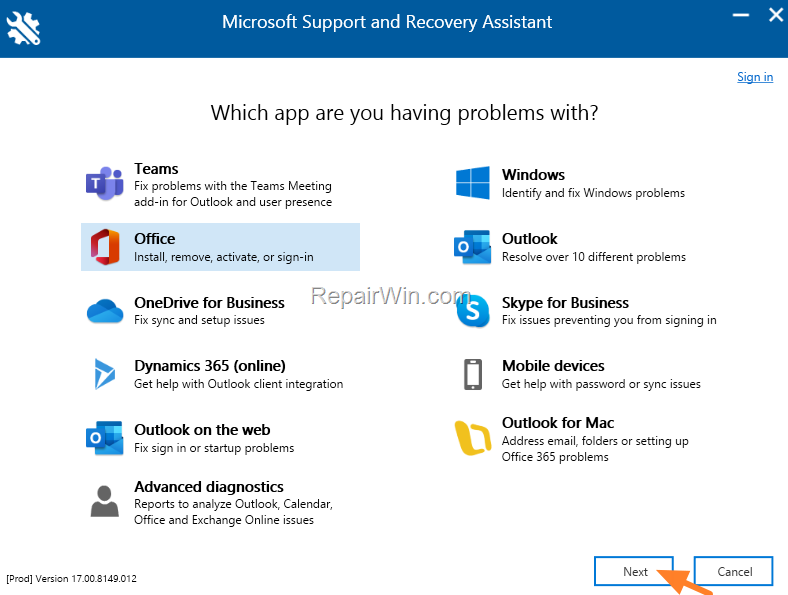
5. At the next screen, choose Office and click Next.
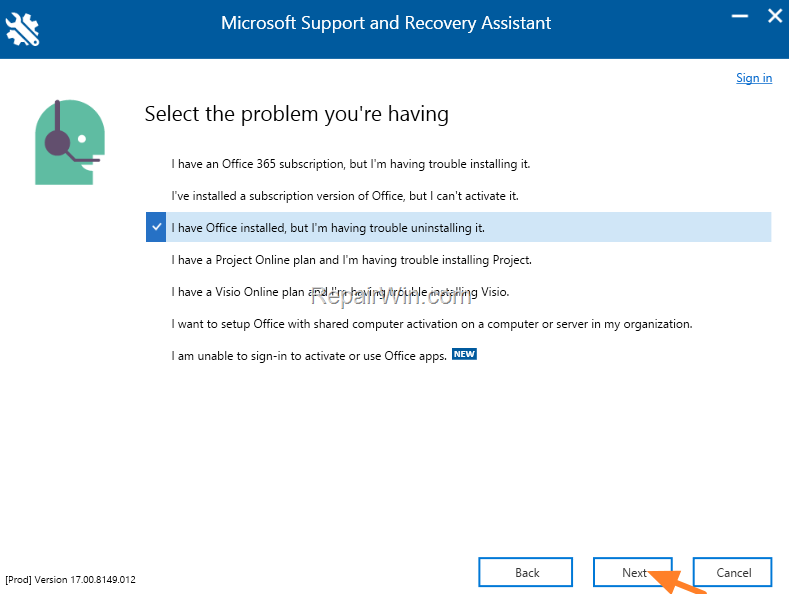
6. At next screen select I have Office installed but I'm having trouble uninstalling it and click Next.
7 Choose Yes on "Is this the affected machine?" question and click Next.

8. Wait until the 'Microsoft Support and Recovery Assistant' troubleshooting the issue.
9. Select the checkbox, at the left of the Office product name to select all the installed Office products and click Next.

10. Now wait until the Office removal process to complete and when this is done, restart your computer.
11. After restart, proceed and reinstall Office by following the instructions from this link: Download and install or reinstall Office 2019, Office 2016, or Office 2013.
That's all folks! Did it work for you?
Please leave a comment in the comment section below or even better: like and share this blog post in the social networks to help spread the word about this problem.
Frequently Asked Questions
Why doesn't Microsoft Office appear in the list of installed programs on my Windows PC?
Microsoft Office might not appear in the list of installed programs due to issues with Windows registry or corrupted installation files.
How can I uninstall Microsoft Office if it's not listed in the Programs and Features?
You can use the Microsoft Support and Recovery Assistant (SARA) utility to uninstall Office. Download SARA, follow the prompts, and select 'I have Office installed but I'm having trouble uninstalling it' to proceed with the removal process.
What is the Microsoft Support and Recovery Assistant (SARA)?
The Microsoft Support and Recovery Assistant is a tool that helps diagnose and fix problems with Microsoft Office and other Microsoft products. It can assist in uninstalling Office if it doesn't appear in the usual program list.
What should I do after uninstalling Microsoft Office using SARA?
After using SARA to remove Office, restart your computer and then reinstall Office using the instructions provided in the link: Download and install or reinstall Office 2019, Office 2016, or Office 2013.




June 10, 2023 @ 12:52 pm
it worked!