
FIX: High CPU or DISK Usage issues on Windows 10. (Solved)
In this tutorial you 'll find detailed instructions to resolve the high CPU and Disk usage issues on Windows 10. Many users complains that their Windows 10 computers run slow without an obvious reason and without having any open programs. During this behavior, the Task Manager shows that the disk or the CPU is always running at 100%.
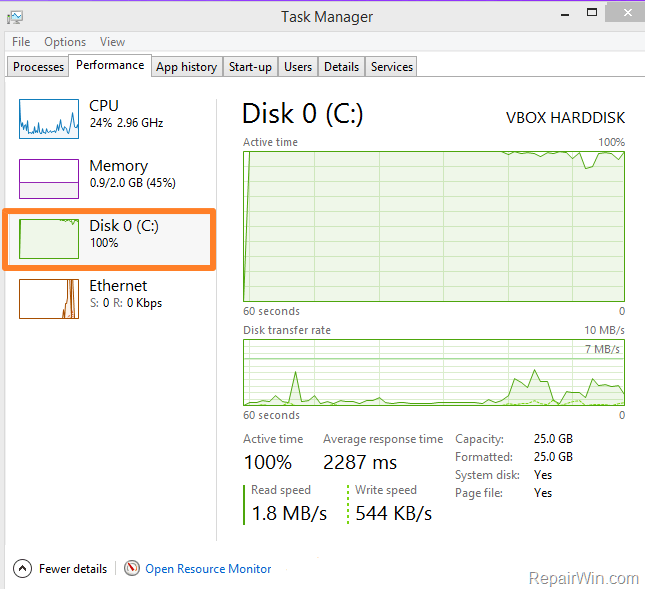
In this tutorial you will find several methods to solve the High CPU and DISK Usage issues on Windows 10 OS.
HOW TO FIX: High CPU and DISK Usage issues on Windows 10.
-
Solution 1. Scan your computer for viruses.
-
Solution 2: Disable Windows notifications.
-
Solution 3. Disable Paging File.
-
Solution 4. Rebuild Search Index.
Method 1. Scan your computer for viruses.
Important: Many viruses or malicious programs can cause your Hard disk to work at 100%. So, before you continue to troubleshoot the hard disk's 100% usage issue, use this Malware Scan and Removal Guide to check and remove viruses or/and malicious programs that may be running on your computer.
Method 2: Disable Windows notifications.
I have tried this solution several times in Windows 10 systems with successful results, but I haven't test it in Windows 8 or 8.1 systems.
– To disable notifications on Windows 10. (For Windows 8, 8.1 instructions click here).
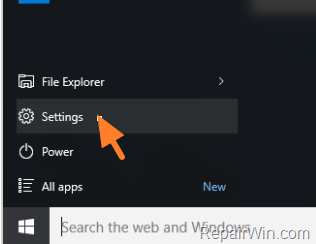
1. Click on the Windows flag (Start menu) and open Settings.
2. At settings window, select System.

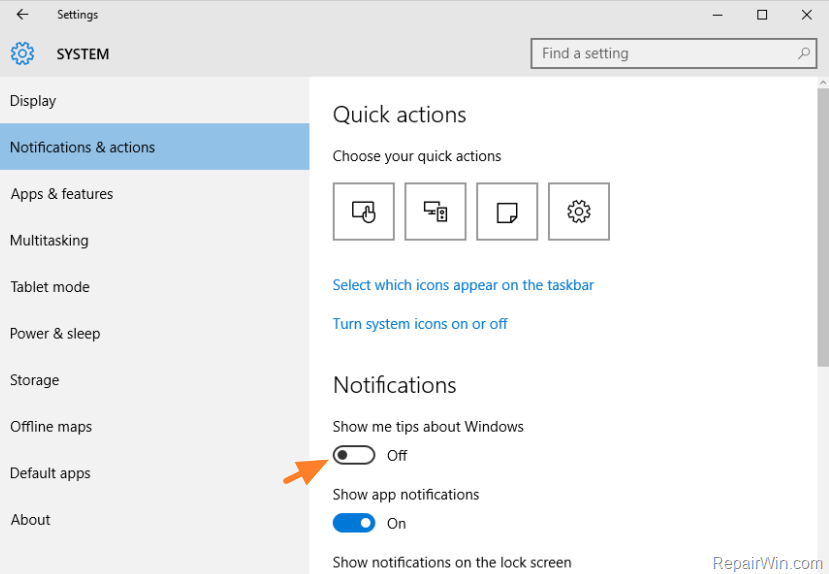
3. Select Notifications & actions at the left and then set the Show me tips about Windows notifications to OFF.
4. Close settings window and check if the HDD 100% usage problem persists. If persists, then try to turn off all other notifications.
Method 3. Disable Paging File.
Another method to solve the high Disk or CPU usage problems on Windows 10, is to deactivate the Paging File. To do that:
1. Right click on My PC and select Properties.
2. Click Advanced system settings on the left.
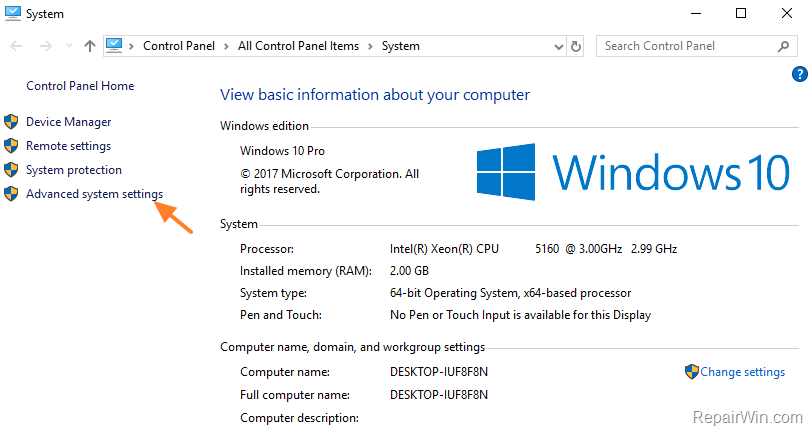
3. At 'Advanced' tab click Settings at 'Performance' section.
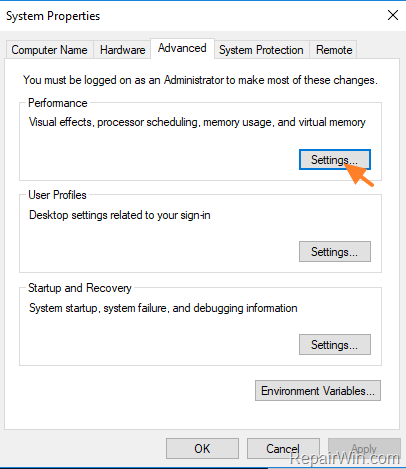
4. At 'Performance Options' select the Advanced tab and then click Change.
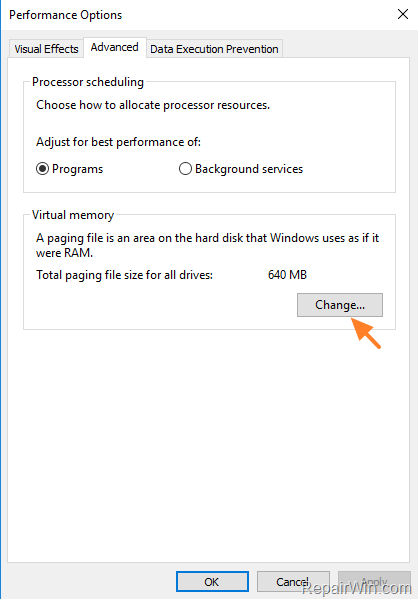
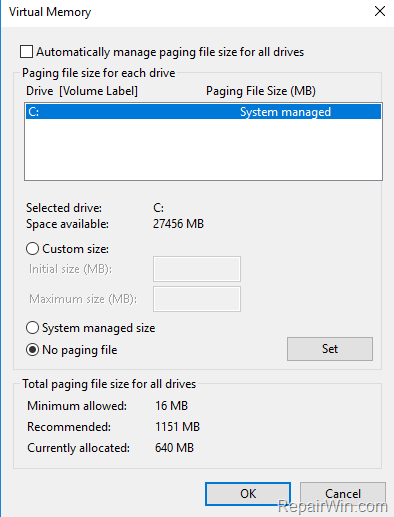
5. Unselect the "Automatically manage paging file size for all drives" option.
6. Select No paging file.
7. Click OK.
8. Restart your computer.
Method 4. Rebuild Search Index.
– Another solution to resolve the 100% high usage issue on your hard disk, CPU or Memory is to rebuild the Index.
1. Navigate to Windows Control Panel and open Indexing Options.*
* If you don’t see the Indexing Options, set the View (View by) to Small icons.
2. At Indexing Options click Modify.
3. Uncheck Offline Files* and press OK.
4. Then click Advanced.
5. At Troubleshooting section, click the Rebuild button.

6. Press OK to rebuild the Index.
7. Wait until the index rebuilding is completed and then restart your computer.
That’s all! Did it work for you?
Please leave a comment in the comment section below or even better: like and share this blog post in the social networks to help spread the word about this solution.
Frequently Asked Questions
What should I do first to resolve high CPU and Disk usage on Windows 10?
First, you should scan your computer for viruses as many malicious programs can cause the hard disk to work at 100%.
How can I disable Windows notifications to resolve high disk usage?
To disable Windows notifications, click on the Start menu and open Settings, select System, then Notifications & actions, and turn off 'Show me tips about Windows' notifications.
What is the process to disable the Paging File on Windows 10?
Right-click on My PC, select Properties, click Advanced system settings, under the 'Advanced' tab click Settings in the 'Performance' section, select the Advanced tab and click Change, unselect the option to automatically manage paging file size, choose No paging file, and then restart your computer.
How do I rebuild the search index to fix high CPU usage?
Go to Windows Control Panel, open Indexing Options, click Modify, uncheck Offline Files, press OK, click Advanced in the Troubleshooting section, and then click the Rebuild button. Wait for the index rebuilding to complete and restart your computer.




June 10, 2020 @ 3:20 am
Second solution worked beautiful. Disable Windows notifications. Thanks
December 29, 2020 @ 1:48 am
#2 worked GREAT !! The problem all started with Microsoft Edge being installed. After removing it and following #2 everything is back to normal………