
FIX: Firefox Print Output is blank – Print Preview is Blank (Solved)
The following issue was faced on a Windows 7 based computer when printing from Mozilla Firefox Web browser: The print output is blank. In fact, only the header and the footer are printed at the paper but the main print body is empty. However, the printer is printing correctly from all other browsers or programs (e.g. Internet Explorer, Chrome, Word, etc.).
This tutorial contains instructions to fix the following printing problem(s) when printing from the Firefox browser: Print Preview and Pint Output is blank (Windows 7, 8 or 10 OS).
How to resolve Firefox Printing Problems.
Method 1. Start Firefox in Safe Mode and Disable Firefox’s Extensions (Add-ons).
1. Start Firefox in Safe Mode (without plugins), by following this procedure:
- Hold down the SHIFT key and then double click to open the Firefox application.
- Choose Start in Safe Mode

2. Try to print a page.
– If the printing problems persists, then continue to the next method.
– If the print output is OK, then probably a Firefox extension (add-on) causes the print problem. At this case, disable one-by-one the installed Add-ons and then close and start Firefox normally, until you find out which plugin causes the problem.
- To disable plugins in Firefox: From the main menu
 choose Add-ons

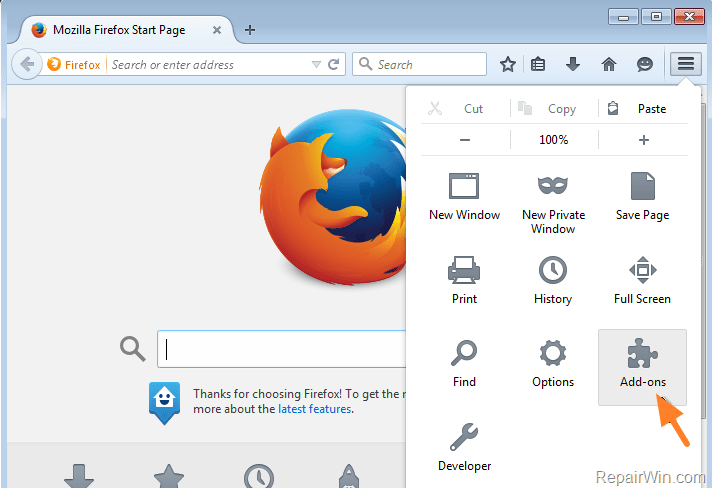
- At Extensions pane, Disable the installed Add-ons, (one every time) and then restart Firefox normally until you find out which extension causes the problem.
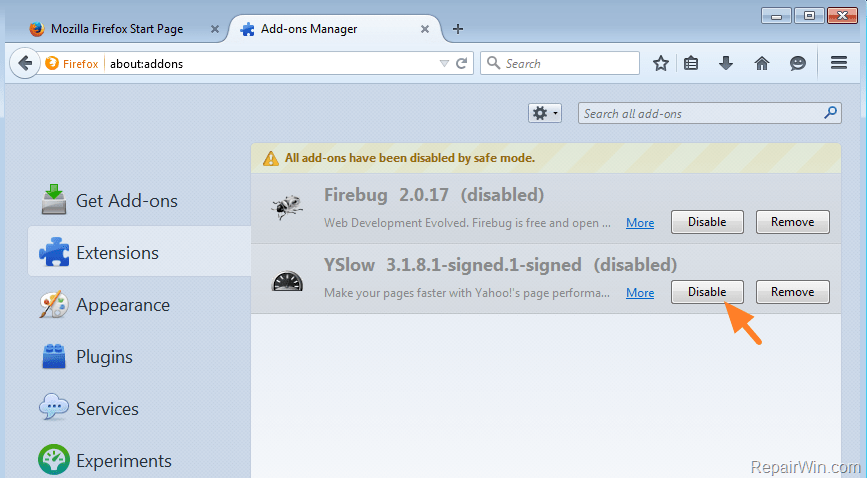
- When you find out which Firefox extension causes the problem, then remove it completely.
Method 2. Reset Firefox Settings to Default (Refresh Firefox).
The next method, to fix printing problems in Firefox, is to reset Firefox's Settings. To do that:
1. Hold down the SHIFT key and then double click to open the Firefox application.
2. Choose Refresh Firefox.
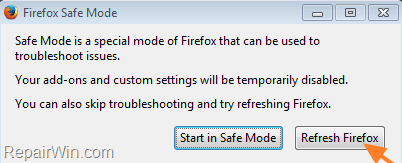
3. Choose Refresh Firefox again. *
* Note: The refresh Firefox feature restores all browser settings to default, by creating a new user profile and by removing all Firefox’s Add-ons (extensions) and customization (preferences, plugins, added search engines). The Firefox Refresh doesn’t remove these items:
- Bookmarks
- Browsing history
- Passwords
- Open windows and tabs
- Cookies
- Web form auto-fill information
- Personal dictionary

4. After refreshing Firefox, try to print again.
Method 3. Change Print Margins.
In some cases, the print output or the print preview is blank, because the page margins are incorrect. To check if the margins are correct:
1. Open Page Setup.

2. Then select the Margins & Header/Footer tab and ensure that all margins (Top, Bottom, Left & Right) have the default value 12,7.
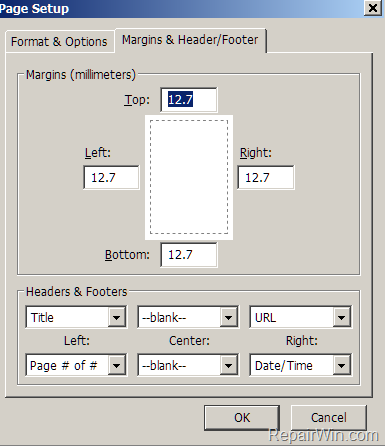
3. If the values are correct, then try to change the values to a lower value and then try to print again.
Method 4. Reset Print Uninstall and Re-install Firefox from your System.
1. At Firefox URL address box, type about:config & press Enter.
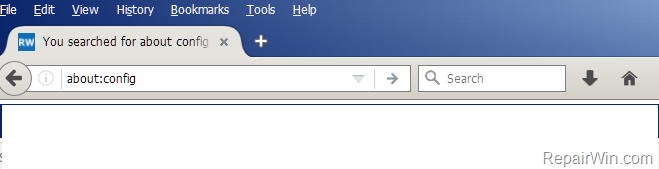
2. Click I accept the risk!

3. At the Search box type: print
4. Right click at every listed line that starts with the "print." value and click Reset.
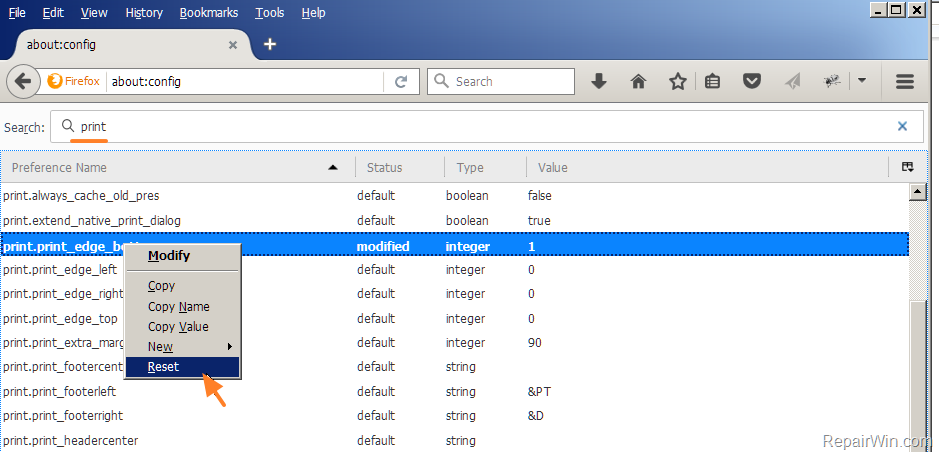
5. When done, restart Firefox and try to print.
Method 5. Uninstall and Re-install Firefox on your System.
Finally, if none of the above methods resolves the Firefox printing problem, then:
1. Backup your Firefox Passwords, Bookmarks, Settings, etc.
2. Completely remove Firefox application and folders from your computer.
3. Install the latest Firefox version.
4. Restore your Firefox settings.
That’s all folks! Did it work for you?
Please leave a comment in the comment section below or even better: like and share this blog post in the social networks to help spread the word about this solution.
Frequently Asked Questions
Why is my print output blank when printing from Firefox on Windows 7?
Your print output might be blank because a Firefox extension (add-on) could be causing the issue. Try starting Firefox in Safe Mode and disabling extensions one-by-one to identify the problematic add-on.
How can I reset Firefox to fix printing problems?
To reset Firefox, start the application while holding down the SHIFT key and select 'Refresh Firefox' from the menu. This will restore browser settings to default, creating a new user profile and removing all extensions and customization.
What should I do if the margins cause printing issues in Firefox?
Check the page margins by opening the Page Setup and selecting the Margins & Header/Footer tab. Ensure all margins have the default value of 12.7 and adjust to a lower value if necessary, then try printing again.
What steps should I take if none of the methods solve my printing problem in Firefox?
If previous methods fail, uninstall Firefox completely, back up your data, and reinstall the latest version. This should resolve the printing issue.



