
How to Resolve Error 0X80072F8F – 0X20000 in Media Creation Tool on Windows 7.
I recently encountered the error code "0X80072F8F – 0X20000" when attempting to upgrade a Windows 7 SP1 machine to Windows 10 using the Media Creation Tool. After resolving the issue, I compiled this comprehensive guide to assist users facing the same error.
The Windows 10 Media Creation Tool is a utility that enables users to update their systems to the latest version of Windows 10 or upgrade Windows 7 systems to Windows 10. However, many Windows 7 users have reported encountering the error 0X80072F8F – 0X20000 when attempting this upgrade.
"We're not sure what happened, but we're unable to run this tool on your PC. If you continue experiencing problems, reference the error code when contacting customer support: Error code: 0X80072F8F – 0X20000"
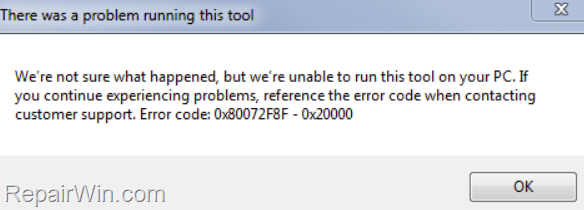
-
Related article: How to Upgrade Windows 7 To Windows 10.
How to FIX: Media Creation Tool error 0X80072F8F – 0X20000 On Windows 7 systems.
The 0X80072F8F – 0X20000 error arises because the Media Creation Tool attempts to communicate with Microsoft servers using TLS 1.1 and 1.2 protocols, which are disabled by default in Windows 7. To enable TLS 1.1 and 1.2 in Windows 7 so that the Media Creation Tool can run without issues, follow these steps:
Step 1. Install all Windows 7 updates.
Ensure that all available Windows 7 updates are installed. This step is crucial as it ensures your system has the latest security patches and system improvements, which might include updates to the system's communication protocols required for the Media Creation Tool to function correctly.
Step 2. Uninstall Third-party Antivirus Program.
Remove any third-party antivirus or firewall software temporarily. These programs can interfere with the Media Creation Tool's operations by blocking necessary network communications or system modifications. Reinstall your antivirus software after upgrading to Windows 10 to maintain security.
Step 3. Install KB3140245 Update for Windows 7.
Depending on your system architecture (32-bit or 64-bit), download and install the Update KB3140245 for Windows 7 from the Microsoft Update Catalog. This update is critical as it introduces support for the TLS 1.1 and 1.2 protocols, which are necessary for secure communication with Microsoft servers. After installation, restart your PC.
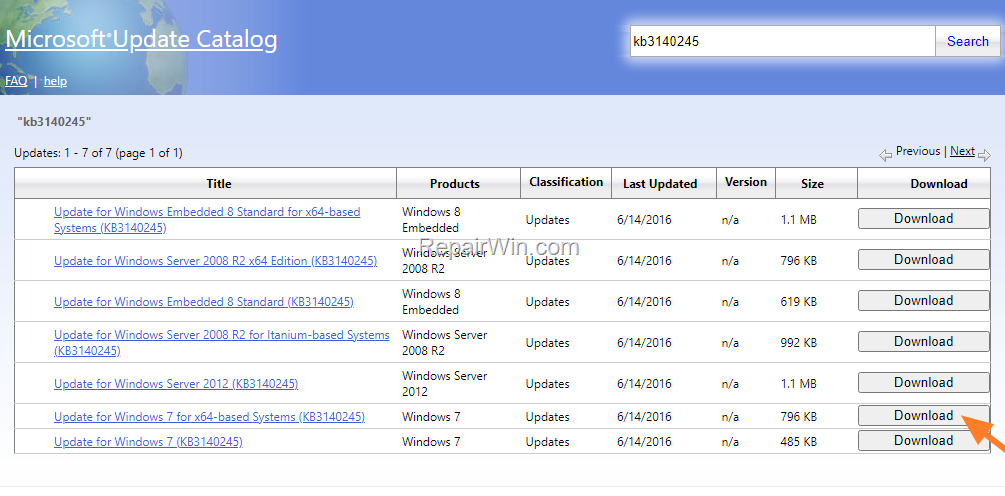
Step 4. Enable TLS 1.1 and 1.2 on Windows 7.
Download and install this Easy Fix from Microsoft (Source), and restart your PC again. This fix will enable TLS 1.1 and TLS 1.2 protocols, allowing your system to establish secure connections required by the Media Creation Tool.
Step 5. Run the Media Creation Tool as Administrator.
1. Right-click on "MediaCreationTool.exe" and select Run as Administrator. Running the tool with administrative privileges ensures it has the necessary permissions to modify system files and settings during the upgrade process.
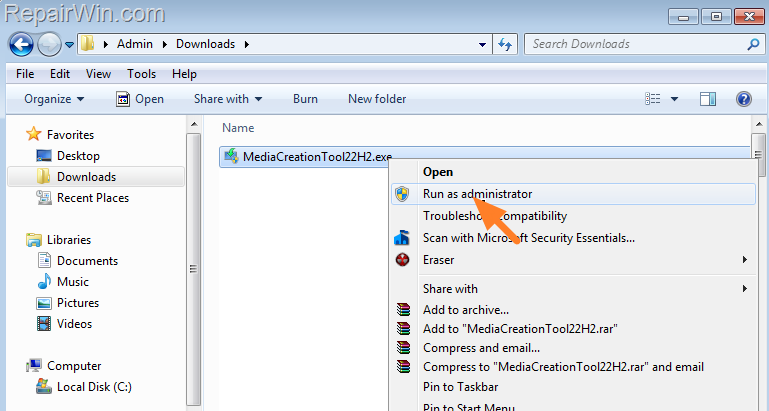
2. Accept the license terms.
3. At the next screen, select Upgrade this PC now and click Next.
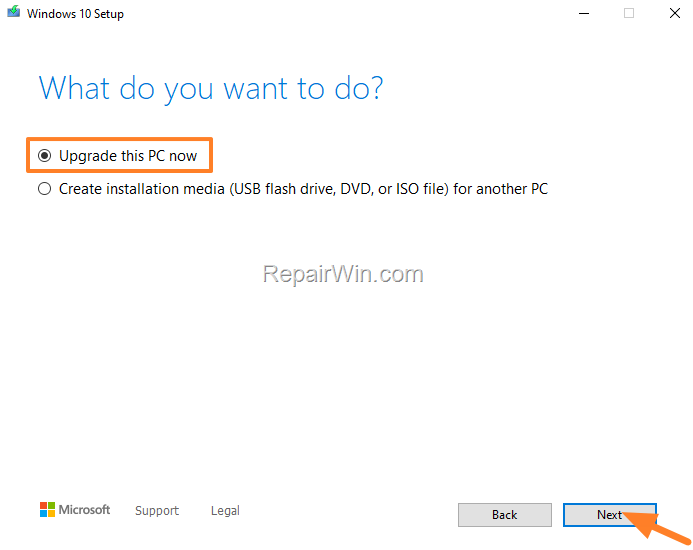
4. Finally, click Install to upgrade your system to Windows 10, while retaining your personal files and apps. This step initiates the installation process, which will upgrade your operating system to Windows 10.
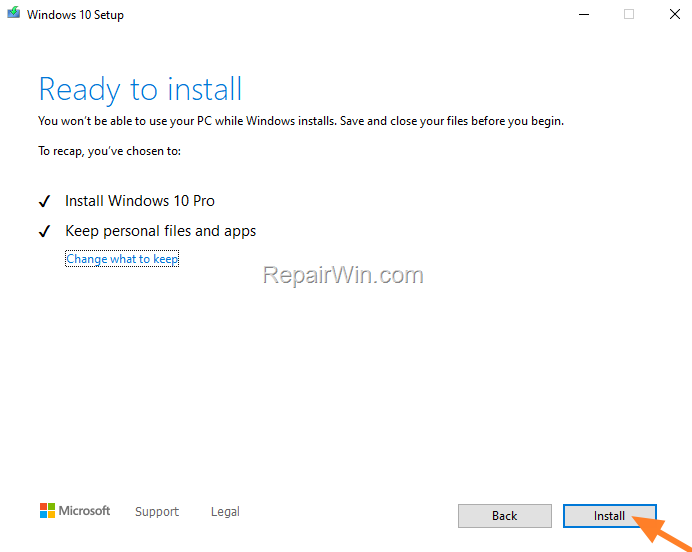
5. Wait for the Windows 10 installation to complete. The update process will take approximately an hour, depending on your system specifications, and your PC will restart several times during the process.
Additional Solution: Modify Registry Settings
If the above steps do not resolve the issue, you can manually enable TLS 1.1 and 1.2 by modifying the Windows Registry. This involves adding specific keys to the registry to ensure these protocols are enabled. Follow these steps with caution:
- Open the Registry Editor by typing
regeditin the Start menu search bar and pressingEnter. - Navigate to
HKEY_LOCAL_MACHINE\SOFTWARE\Microsoft\Windows\CurrentVersion\Internet Settings\WinHttp. - Create a new key named
DefaultSecureProtocolsand set its value to0xA00to enable both TLS 1.1 and 1.2. - Restart your computer to apply the changes.
Summary
To resolve the 0X80072F8F – 0X20000 error when using the Media Creation Tool on Windows 7, ensure all system updates are installed, temporarily disable third-party antivirus software, install the necessary KB3140245 update, and enable TLS 1.1 and 1.2 protocols. Running the tool as an administrator and modifying registry settings can further aid in resolving this issue. Following these steps will facilitate a smooth upgrade to Windows 10.
That's all folks! Did it work for you? Please leave a comment in the comment section below or even better: like and share this blog post on social networks to help spread the word about this solution.
Frequently Asked Questions
What causes the error code 0X80072F8F - 0X20000 when upgrading Windows 7 to Windows 10?
The error code 0X80072F8F - 0X20000 occurs because the Media Creation Tool tries to communicate with Microsoft servers using TLS 1.1 and 1.2, which are disabled by default in Windows 7.
How can I fix the Media Creation Tool error 0X80072F8F - 0X20000 on Windows 7?
To fix this error, ensure all Windows 7 updates are installed, uninstall any third-party antivirus, install the KB3140245 update, enable TLS 1.1 and 1.2, and run the Media Creation Tool as an administrator.
Is it necessary to uninstall third-party antivirus programs before upgrading to Windows 10?
Yes, it is recommended to uninstall any third-party antivirus or firewall software before upgrading to Windows 10, and then reinstall it after the upgrade is successful.
How do I enable TLS 1.1 and 1.2 on Windows 7?
Download and install the Easy Fix from Microsoft to enable TLS 1.1 and TLS 1.2 protocols on Windows 7, and then restart your PC for the changes to take effect.



