
How to Display Email Message Size in Office 365 Outlook Web App (OWA)
This comprehensive guide will walk you through the steps to display email sizes in Office 365 Outlook Web App (OWA). By default, Microsoft Outlook desktop client shows the size of each email message, but this feature is not readily available in the Outlook Web App (OWA). This article provides detailed instructions and additional methods to enable this functionality.

How to View the Size of an Email Message in Outlook for Web (Office 365, Exchange Online)
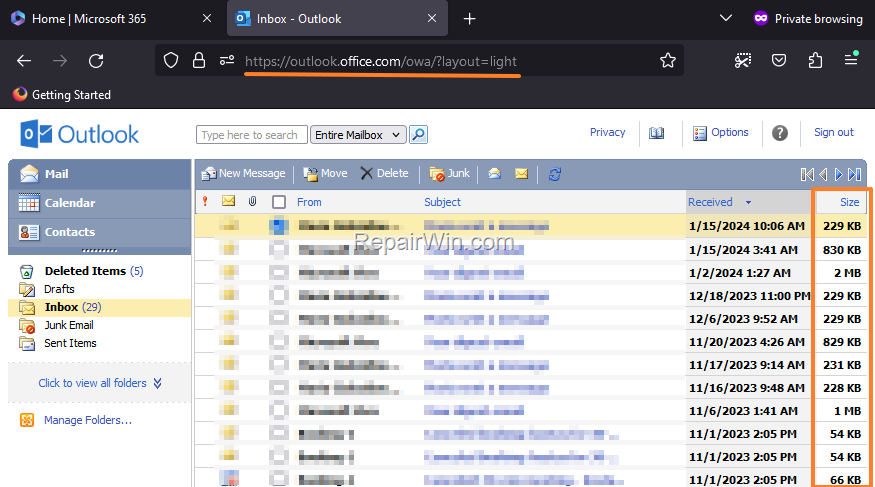
To view email sizes in Office 365 Outlook for web or Exchange Online (OWA), you need to switch to the Light version of Outlook OWA. This version provides a simplified interface where email sizes are visible. Follow these steps:
- Open your web browser and enter the following URL in the address bar, then press Enter:
https://outlook.office.com/owa/?layout=light
This URL directs you to the Light version of Outlook OWA, which is a streamlined version of the web app designed for faster performance and accessibility. It displays email sizes directly in the message list.
- In the Light version of Outlook OWA, you will now see the size of each email message similar to the desktop version of Microsoft Outlook.
How to Always Open Outlook OWA in Light Version?
If you prefer to always use the Light version of Outlook OWA, you can set it as your default view:
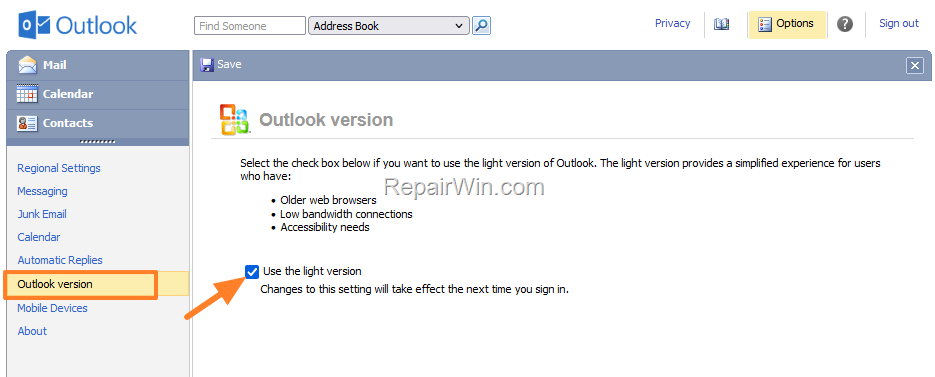
1. Click the Options menu to access the settings.

2. In the left pane, click Outlook version, then on the right, check the option Use the light version. *
* This setting ensures that every time you log into Outlook OWA, it defaults to the Light version, providing a consistent experience with email sizes displayed.
How to Switch from Outlook OWA Light Version to Standard Version of Outlook Web App?
If you decide to switch back to the standard version of Outlook OWA, follow these steps:
- In the Outlook version settings, uncheck the "Use the light version" option if it is enabled.
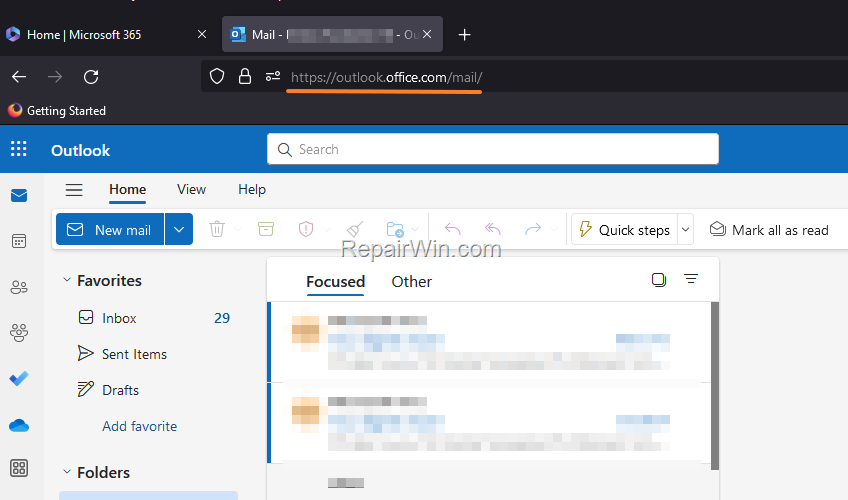
- Enter the following URL in the address bar and press Enter:
https://outlook.office.com/mail/
This URL redirects you to the standard version of Outlook OWA, which offers a full-featured interface with advanced functionalities.
Additional Methods to View Email Size in Outlook OWA
While the Light version is a straightforward method, here are additional ways to manage email sizes:
- PowerShell Commands: For administrators, using PowerShell to extract email size data from Exchange Online can be effective. Commands such as
Get-MailboxStatisticscan provide detailed information about mailbox sizes and item counts. - Third-Party Tools: Consider using third-party email management tools that integrate with Office 365 to provide detailed analytics, including email sizes.
Summary
In summary, displaying email sizes in Office 365 Outlook Web App requires switching to the Light version of OWA. This guide also covered how to make this change permanent and revert to the standard version if needed. Additional methods include using PowerShell for detailed mailbox statistics and third-party tools for enhanced email management.
We hope this guide helps you manage your emails more efficiently. Please share your experiences or any additional tips in the comments below.
Frequently Asked Questions
How can I view the size of emails in Office 365 Outlook Web App (OWA)?
To view the size of emails in Office 365 OWA, you need to switch to the light version of Outlook by typing https://outlook.office.com/owa/?layout=light in your browser's address bar.
Can I set the Outlook OWA to always open in the light version to see email sizes by default?
Yes, you can make it permanent by opening the Options menu, selecting Outlook version, and checking the 'Use the light version' option.
How do I revert back to the standard Outlook OWA version from the light version?
To switch to the standard version, uncheck 'Use the light version' in Outlook version settings and visit https://outlook.office.com/mail/.



