
How to Fix Snipping Tool Not Covering Full Screen in Windows 11. (Solved)
Microsoft's Snipping Tool is a versatile utility for capturing, annotating, and sharing screenshots. However, some users with dual monitor setups have reported issues where the Snipping Tool does not cover the entire screen as expected in Windows 11. This problem often arises after upgrading from Windows 10 or when the monitors are not scaled uniformly.
Since I have encountered this issue with several clients, I have observed that the Snipping Tool fails to cover the entire screen when the primary display is set at 100% scale and the secondary display at 125%. This discrepancy in scaling can lead to incomplete screen captures.
How to FIX: Windows 11 Snipping Tool does not cover the entire screen.
Method 1. Reset & Repair Snipping Tool.
If the Snipping Tool doesn't cover the full screen after upgrading from Windows 10 to Windows 11, or following Windows Updates, try resetting and repairing the Snipping Tool app. This process reinstalls the app's core files and settings, potentially resolving any corruption or misconfiguration.
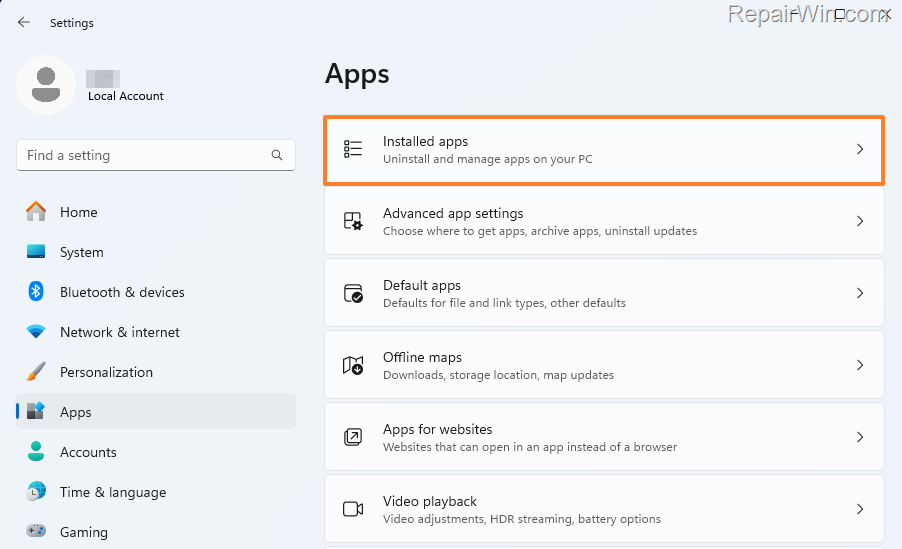
1. Go to Start > Settings > Apps > Installed Apps.
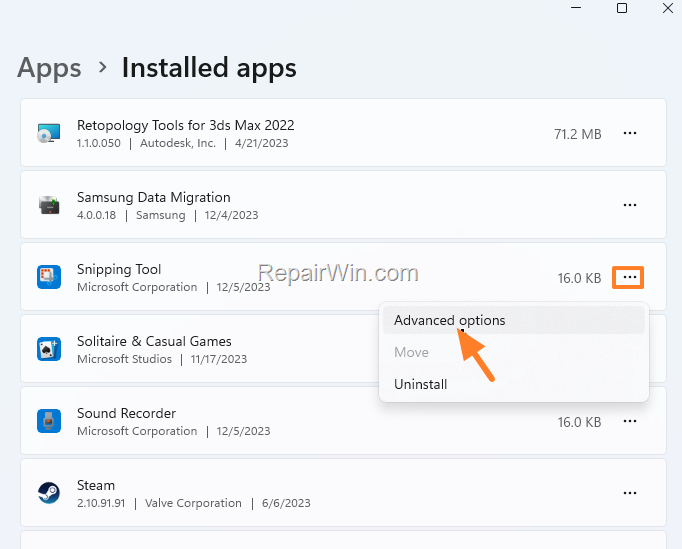
2. Scroll down to locate the Snipping Tool and then click on the three dots next to it and click Advanced options.
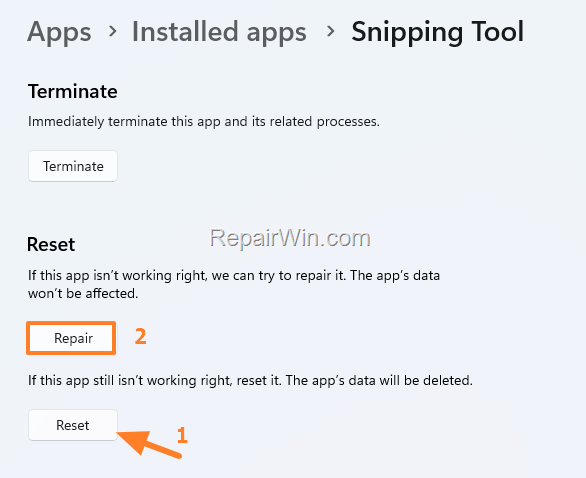
3. Scroll down, click the Reset button and wait for the operation to complete. Once done, click the Repair button above. This action will attempt to fix any issues by restoring the app to its default state.
4. Now open Snipping Tool and check if it covers the full screen.
Method 2. Adjust Scale to 100%
Another approach to resolve this issue is to ensure both monitors are set to the same scale, preferably 100%. This uniformity ensures consistent screen rendering across displays.
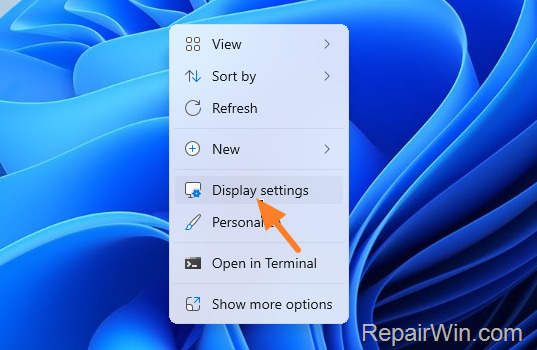
1. Right-click on an empty area on your desktop and choose Display settings. Alternatively, go to Start > Settings > Display.
2. Set the Scale to 100% (Recommended). This adjustment ensures that both displays render content at the same size, avoiding any scaling discrepancies.
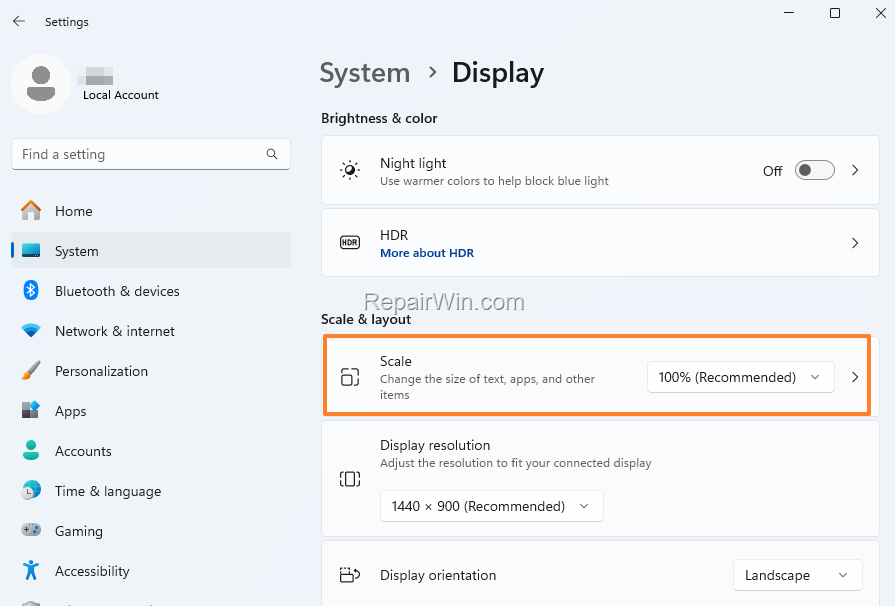
3. Now, restart your PC and then check if the Snipping Tool covers the entire screen.
Method 3. Install the Latest Version of Snipping Tool.
If the above methods do not resolve the issue, you may need to uninstall and reinstall the Snipping Tool to ensure you have the latest version, which might contain fixes for known bugs.
1. Go to Start > Settings > Apps > Installed Apps.
2. Click on the three dots next to Snipping Tool app and click Uninstall.
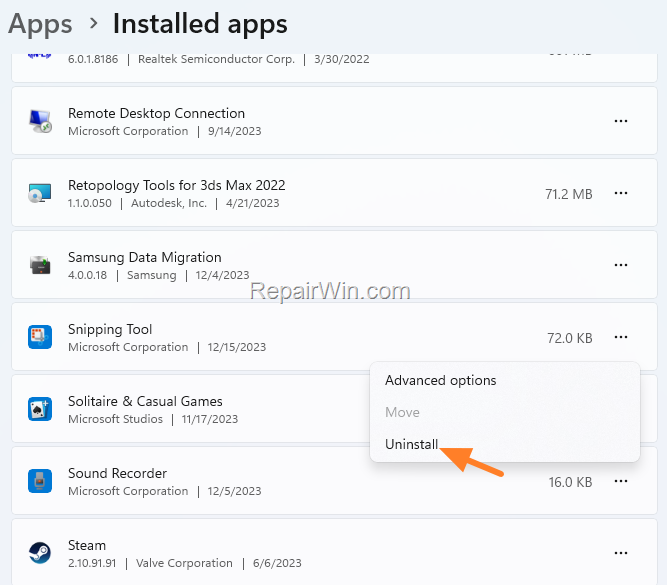
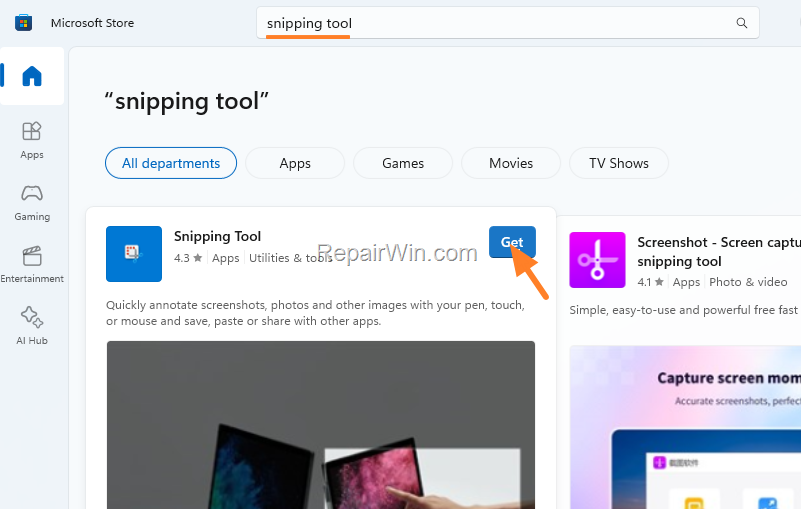
3. After uninstalling, open Microsoft Store and search for "Snipping Tool".
4. Click on the Get button to install the latest version of the Snipping Tool app on Windows 11. This ensures you have the most updated version with potential bug fixes.
Other things to try:
1. If you're using a laptop, set your laptop's monitor as the Primary display in Display Settings. This can sometimes correct display issues by prioritizing the laptop's native resolution and scaling.
2. Set the same resolution in both monitors to ensure consistency in display rendering.
Method 4. Update Graphics Drivers
Outdated or incompatible graphics drivers can also cause display issues. Ensure your graphics drivers are up-to-date to maintain optimal compatibility with Windows 11.
1. Open Device Manager by right-clicking the Start button and selecting it from the list.
2. Expand the Display adapters section, right-click your graphics card, and select Update driver.
3. Choose Search automatically for drivers to let Windows find and install the latest drivers.
Summary
In summary, resolving the Snipping Tool's inability to cover the full screen in Windows 11 can often be achieved by resetting and repairing the app, ensuring consistent scaling across monitors, reinstalling the latest version, or updating graphics drivers. These steps address common configuration and compatibility issues, ensuring a smooth and effective screen capturing experience.
We hope this guide has been helpful. If you have any questions or feedback, please leave a comment below.
Don't forget to share this article with others who might benefit from it!
Frequently Asked Questions
Why does the Snipping Tool not cover the entire screen on Windows 11 when using multiple monitors?
This issue typically occurs if the monitors have different scaling settings or after upgrading from Windows 10 to Windows 11. If one screen is set at 100% scale and another at 125%, the Snipping Tool may not capture the full screen area.
How can I reset and repair the Snipping Tool to resolve coverage issues?
To reset and repair the Snipping Tool, navigate to Start > Settings > Apps > Installed Apps. Find the Snipping Tool, click on the three dots next to it, and select Advanced options. Scroll down to click the Reset button, then click Repair. Reopen the Snipping Tool to see if this resolves the issue.
What steps can I take if resetting the Snipping Tool does not work?
If resetting doesn't work, try adjusting the scale of both monitors to 100%. Right-click on your desktop, choose Display settings, and set the Scale to 100%. Restart your PC and check if the Snipping Tool covers the whole screen. Alternatively, uninstall and reinstall the latest version of Snipping Tool from the Microsoft Store.
Are there additional tips for fixing Snipping Tool coverage problems without changing scale settings?
Yes, consider setting your laptop's monitor as the Primary display if you're using a laptop, and ensure both monitors have the same resolution.



