
FIX: Error 0x81000203 in System Restore. (Solved)
If you are struggling with the System Restore error 0x81000203 on Windows 10 or Windows 11, this guide will provide you with detailed solutions to resolve the issue effectively. This error typically arises due to issues with necessary services, registry settings, or insufficient disk space.
The System Restore error 0x81000203 indicates a malfunction in the services required for System Restore operations. It may also be caused by inadequate disk space or registry settings that disable System Restore.
There was an unexpected error in the property page. System Restore encountered an error. Please try to run System Restore again (0x81000203). Please close the property page and try again.
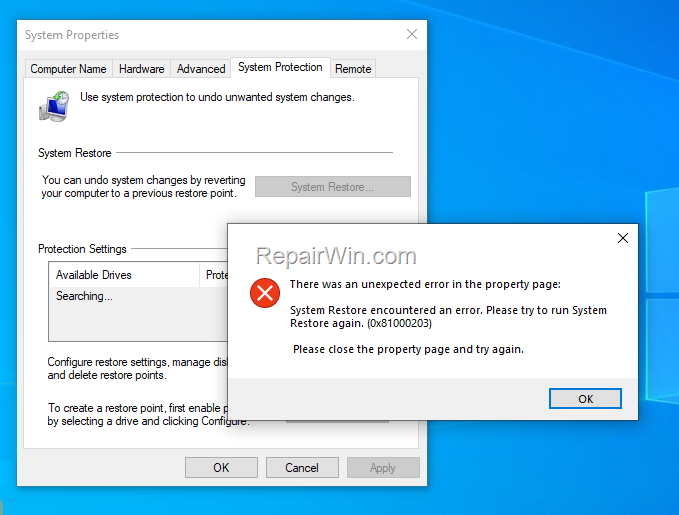
How to FIX System Restore Error 0x81000203 on Windows 10/11
Important: Before proceeding with the methods below, ensure the following prerequisites are met:
- Verify that you have sufficient free disk space to create restore points, ideally at least 5% of the total storage capacity.
- Ensure that all available Windows updates are installed to maintain system compatibility and security.
Method 1. Enable Required Services for System Restore
For System Restore to function correctly, the following services must be set to "Manual" or "Automatic" and not be disabled:
- Microsoft Software Shadow Copy Provider (swprv)
- Volume Shadow Copy (VSS)
- Press Windows
 + R to open the Run command box.
 - Type
services.mscand press Enter to open the Services management console.
 + R to open the Run command box.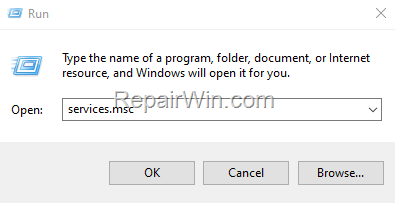
3. In the Services window, ensure that the aforementioned services are not set to Disabled and have a "Startup Type" of Manual or Automatic.
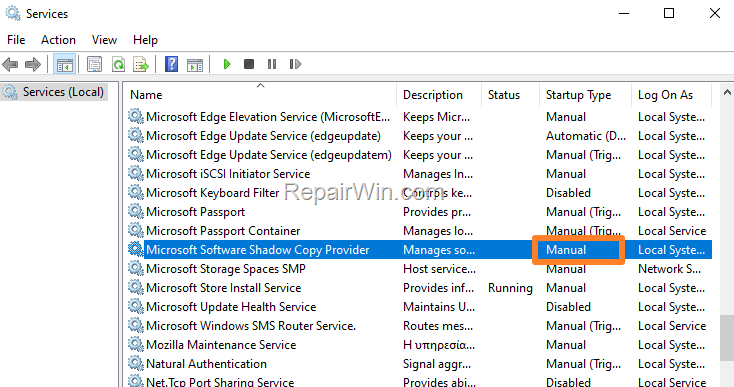
4. If either of these services is disabled, double-click on the service, change the Startup Type to Manual or Automatic, and click OK.
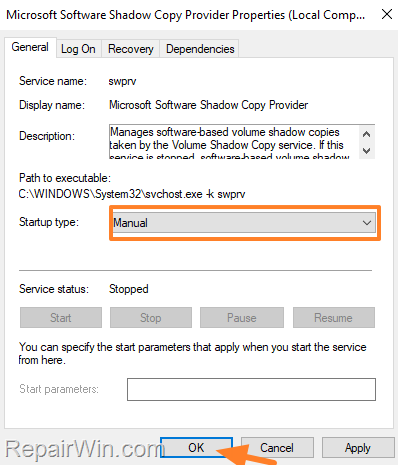
5. Attempt to open System Restore again to verify if the issue is resolved.
Method 2. FIX System Restore Error 0x81000203 in Registry
- Press Windows + R to open the Run command box.
- Type
regeditand press Enter to open the Registry Editor.
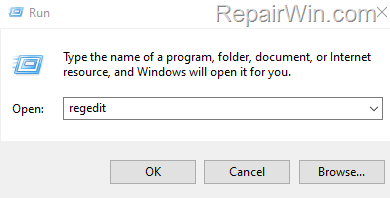
3. Navigate to the following registry key:
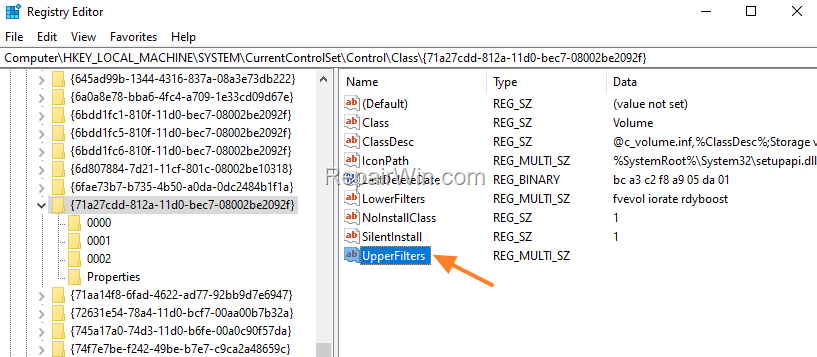
HKEY_LOCAL_MACHINE\SYSTEM\CurrentControlSet\Control\Class\{71a27cdd-812a-11d0-bec7-08002be2092f}
4. In the right pane, check if the UpperFilters value exists and contains the data volsnap. If it does, proceed to the next step.
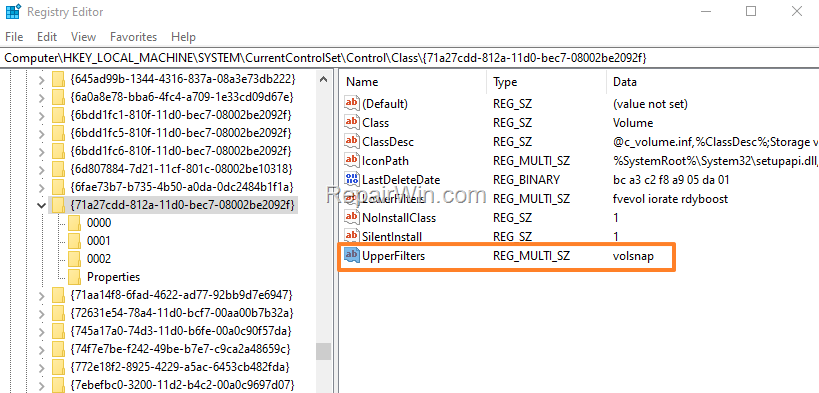
5. If the "UpperFilters" value is empty, double-click on it and type "volsnap" in the Value data field.
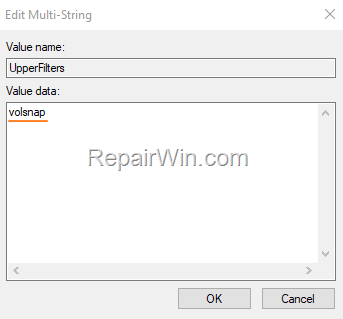
* Note: If the "UpperFilters" value does not exist, create it as follows:
a. Right-click on the {71a27cdd-812a-11d0-bec7-08002be2092f} key, select New > Multi-String Value.
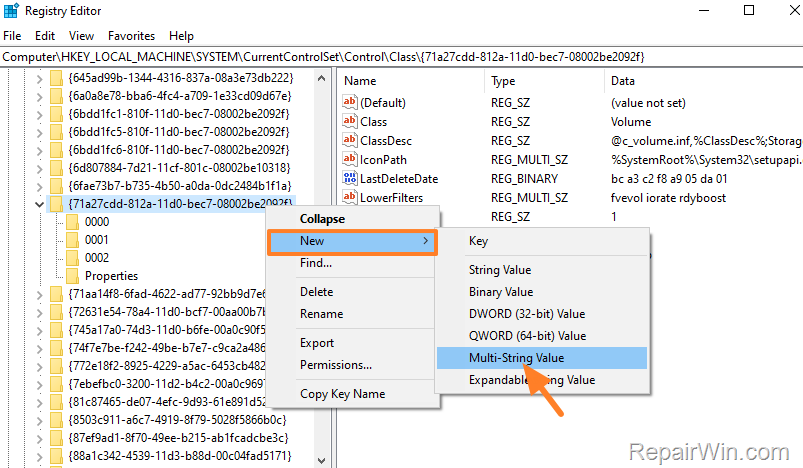
b. Rename "New Value #1" to "UpperFilters".
c. Open the "UpperFilters" value, type "volsnap" in the data field, and click OK.
6. Close the Registry Editor and restart your PC.
7. After restarting, verify if System Restore is operational.
Method 3. Enable System Restore in Registry
1. Open the Registry Editor and navigate to the following key:
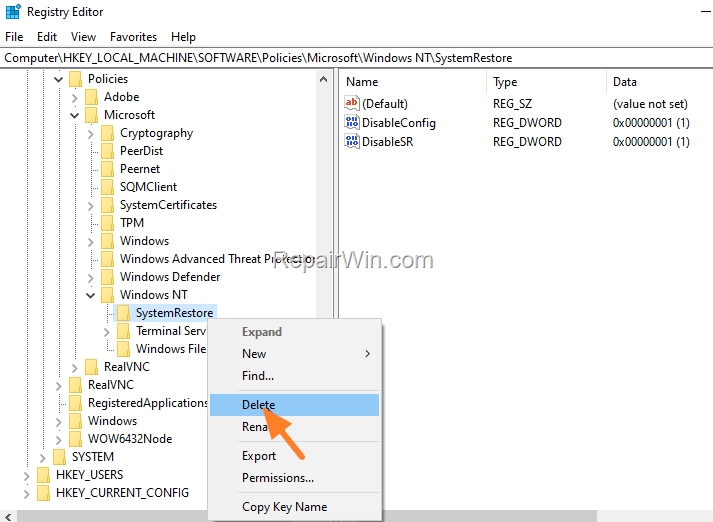
HKEY_LOCAL_MACHINE\SOFTWARE\Policies\Microsoft\Windows NT
2. Under the "Windows NT" key, check for a subkey named System Restore. Depending on its presence, proceed as follows:
- If the 'System Restore' key is absent, proceed to the next method.
- If the 'System Restore' key exists, right-click on it and Delete it. Then, close the Registry Editor and restart your PC.
Method 4. FIX System Protection Error 0x81000203 by Repairing Windows System Files
Repairing Windows system files using the DISM and SFC tools is a common method to resolve various Windows issues.
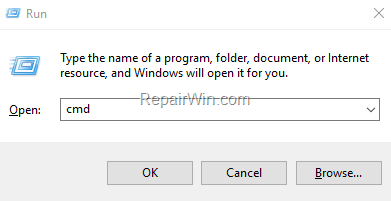
- Open Command Prompt as Administrator. To do so:
- Press Windows + R to open the 'Run' command box.
- Type
CMDand then press CTRL + SHIFT + ENTER.
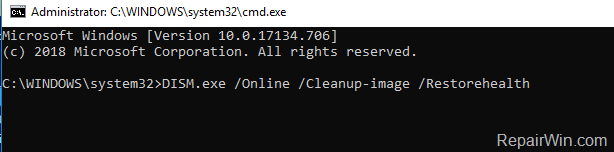
2. Enter the following DISM command and press Enter:
DISM.exe /Online /Cleanup-image /Restorehealth
3. Once the DISM operation completes, type the following command and press Enter:
sfc /scannow

4. Wait for the System File Checker to repair the Windows System Files.
5. Once completed, restart your computer.
Method 5. Perform a Windows Repair/Upgrade
If the error 0x81000203 persists after attempting the above methods, consider performing a Windows repair or upgrade. Follow the instructions in the respective articles for your Windows version:
Summary
In summary, resolving the System Restore error 0x81000203 involves ensuring sufficient disk space, enabling necessary services, modifying registry settings, repairing system files, and potentially performing a Windows repair or upgrade. These steps should help restore the functionality of System Restore on your Windows 10/11 system.
Did these solutions work for you? Share your experience in the comments below, and don't forget to like and share this guide to help others.
Frequently Asked Questions
What does System Restore error 0x81000203 indicate?
The error typically indicates a problem with the related services required for system restore in Windows 10/11, insufficient disk space, or that system restore is disabled through the Windows registry.
What is the first step to fix System Restore error 0x81000203?
Ensure that you have enough free space (at least 5% of total storage) to create restore points and install all available Windows updates.
How can I enable the necessary services for System Restore?
Open the 'Run' command box by pressing Windows + R, type 'services.msc', and check that the 'Microsoft Software Shadow Copy Provider' and 'Volume Shadow Copy' services are not disabled and set to 'Manual' or 'Automatic'.
How do I use the registry to fix System Restore error 0x81000203?
Open the Registry Editor and navigate to the appropriate keys (such as HKEY_LOCAL_MACHINE\SYSTEM\CurrentControlSet\Control\Class\{71a27cdd-812a-11d0-bec7-08002be2092f}) to ensure the 'UpperFilters' value is set correctly to 'volsnap'. You may also need to delete the 'System Restore' key under HKEY_LOCAL_MACHINE\SOFTWARE\Policies\Microsoft\Windows NT, if it exists.




May 22, 2026 @ 4:07 pm
Thank you so very much.
This solved the VSS error in Macrium Reflect