
How to Resolve TEAMS Sign-in error on Mac 'Selected user account does not exist in tenant Microsoft Services and cannot access the application' (Solved)
If you are encountering the error message "Selected user account does not exist in tenant 'Microsoft Services' and cannot access the application" while trying to sign in to Microsoft Teams on your Mac, follow the steps below to resolve the issue.
The "Account does not exist" error typically occurs when you have previously logged into Microsoft Teams using a personal account that shares the same email address as your Microsoft 365 account.
How to Fix: Account Doesn't Exist Error When Signing into Microsoft Teams on Mac
Before proceeding with the methods below, ensure that you can sign into your Microsoft 365 account using Microsoft Teams on the web. Then, follow these instructions to troubleshoot the issue on your Mac.
Method 1. Reset Microsoft Teams Cache
Clearing the Microsoft Teams cache can resolve the login error by removing potentially corrupted or outdated data that may interfere with the authentication process.
- Right-click the Teams icon in the dock and select Quit, or press Command (⌘) + Q to shut down MS Teams.
- Go to Finder and navigate to Applications > Utilities folder.
- Open the Terminal app and enter the following command to remove the Teams cache:
rm -r ~/Library/Application\ Support/Microsoft/Teams
- Press Enter to execute the command, which will delete all cached data associated with Microsoft Teams. Close the Terminal window once done.
- Reopen Teams and attempt to sign in again.
Method 2. Remove Old Microsoft Teams Accounts
If resetting the cache does not resolve the issue, you may need to delete old Teams accounts and credentials from your Mac. This ensures that any conflicting authentication data is removed.
- Right-click the Teams icon in the dock and select Quit, or press Command (⌘) + Q to shut down MS Teams.
- Open Finder and navigate to Applications > Utilities folder.
- Open Keychain Access.
- Find and delete all keys (credentials) related to MS teams.
- Search for all keys related to Microsoft and delete the following:
com.microsoft.oneauthcom.microsoft.adalcache
- Return to Finder, navigate to Applications > Utilities, and open the Terminal app.
- Execute the following command to ensure the Teams cache is reset:
rm -r ~/Library/Application\ Support/Microsoft/Teams
- Launch Teams and attempt to sign in to your Microsoft 365 account.
Method 3. Remove and Re-install Teams App
If the error persists, a complete removal and reinstallation of Microsoft Teams can help by ensuring that all components of the application are freshly installed.
- Right-click the Teams icon in the dock and select Quit, or press Command (⌘) + Q to shut down MS Teams.
- Open Finder and go to the Applications folder.
- Select the Microsoft Teams folder and delete it by moving it to the Trash.
- In Finder, select Go > Go to Folder and enter the following path:
~/Library/Caches/
- Delete the following items:
com.microsoft.teamscom.microsoft.teams.shipit
- Navigate to the following folder:
~/Library/Application Support/Microsoft/
- Delete (move to trash) the Teams folder.
- From Finder, go to Applications > Utilities folder.
- Open Keychain Access.
- Find and delete all keys (credentials) related to teams.
- Search for all keys related to Microsoft and delete the following:
com.microsoft.oneauthcom.microsoft.adalcache
- Download and reinstall Microsoft Teams.
Method 4. Remove & Re-Add Microsoft Office License
If none of the above methods work, removing and re-adding the Microsoft Office license can help resolve any licensing issues that may be causing the sign-in error.
-
- Download the Office License removal tool (Source).
- Run the tool, click Continue, and then click Install.
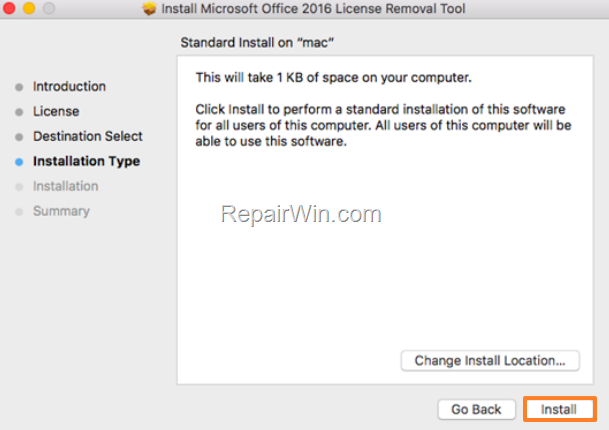
- When prompted, enter your Mac's admin account password to proceed with removing the Office license. Close the tool once the process is complete.
- Open Microsoft Teams or any other Office application and sign in to your Microsoft 365 account to activate the license.
Method 5. Verify Account Permissions
Ensure that your account has the necessary permissions to access Microsoft Teams. This can be verified by contacting your IT administrator or checking your account settings in the Microsoft 365 admin center.
Summary
To resolve the "Selected user account does not exist in tenant 'Microsoft Services'" error on Mac, you can try resetting the Teams cache, removing old accounts, reinstalling the Teams app, or adjusting your Microsoft Office license. Additionally, verifying account permissions may also help. Following these steps should help you regain access to Microsoft Teams on your Mac.
Frequently Asked Questions
How can I fix the 'Account does not exist' error when signing into Microsoft Teams on Mac?
This error usually happens if you've previously logged into Teams using a personal account with the same email as your Microsoft 365 account. Firstly, ensure you can sign in to your Microsoft 365 account using Microsoft Teams on the web. Then, try methods such as resetting the Teams cache, removing old Teams accounts, or reinstalling the Teams app.
How do I reset the Microsoft Teams cache on my Mac?
To reset the Teams cache, quit MS Teams, open Terminal from Applications > Utilities, and enter the command: rm -r ~/Library/Application\ Support/Microsoft/Teams. Press Enter, close Terminal, and then try opening Teams again.
What should I do if clearing Teams cache doesn't resolve the sign-in error?
If clearing the cache doesn't work, remove any old Microsoft Teams accounts and their credentials from Keychain Access, and try signing in again. Alternatively, uninstall and reinstall the Teams app to ensure a fresh setup.
How can I remove and reinstall the Microsoft Teams app on my Mac?
To reinstall Teams, quit the app and delete its folder from Applications. Remove related cache files from ~/Library/Caches/ and ~/Library/Application Support/Microsoft/. Finally, delete all related keys in Keychain Access, then download and reinstall Teams.



