
How to FIX "Signer certificate mismatch. The install of filename.tmp" failed (Solved)
If you encounter the "The install of C:\Users\ User\ AppData\Local\Temp\%filename%.tmp failed. (Signer certificate mismatch)" error message while using your PC, follow this comprehensive guide to resolve the issue effectively.
The "Signer certificate mismatch" error is often triggered by a uTorrent update. To address this problem, implement one of the following methods.
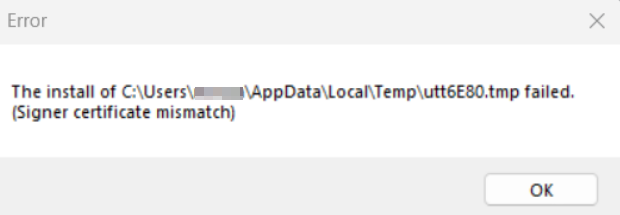
How to Resolve "The install of C:\Users\ Username\AppData\LocalTemp\%File%.tmp failed. Signer certificate mismatch" error on Windows 10/11.
Method 1. Disable Protocol Enhancements in uTorrent.
The first method to resolve the error "Signer certificate mismatch" is to disable the "Protocol Enhancements" in the uTorrent client's preferences. Disabling this feature can prevent the client from using advanced protocol features that might not be compatible with certain certificates, thereby eliminating the mismatch error.
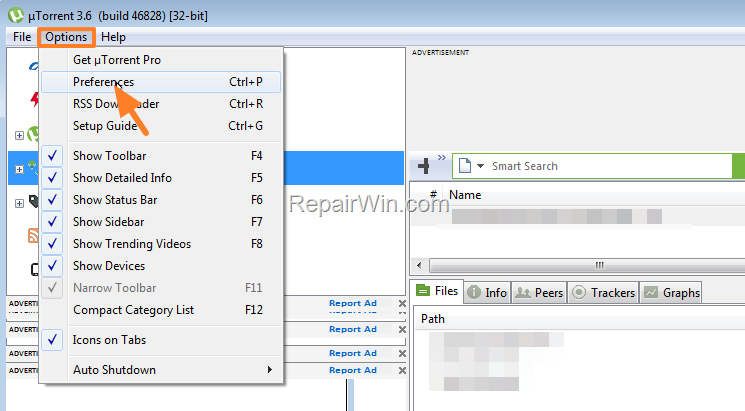
1. Open uTorrent (or μTorrent/BitTorrent) and go to Options > Preferences.
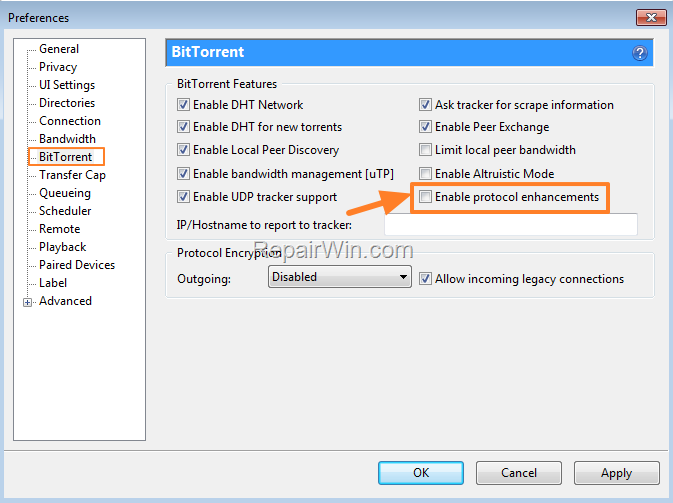
2. Select BitTorrent on the left pane and then on the right uncheck the option Enable Protocol Enhancements. Then click Apply > OK. This change modifies the client’s behavior, ensuring it does not use protocol enhancements that might conflict with the current certificate setup.
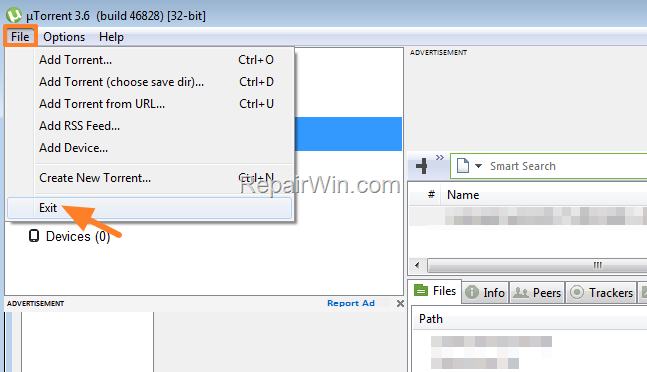
3. Exit from uTorrent and restart it to apply the change. Restarting the application ensures that all settings are reloaded and the protocol adjustments take effect immediately.
Method 2. Install Latest Version of uTorrent/BitTorrent.
The second method to resolve the error "Signer certificate mismatch" is to uninstall the currently installed version of uTorrent or BitTorrent and install the latest version. Newer versions often include patches and updates that resolve compatibility issues, including those related to certificate mismatches.
To uninstall uTorrent/BitTorrent:
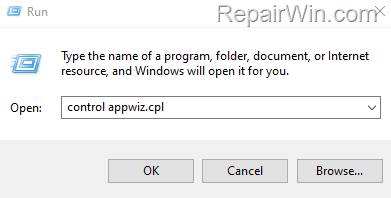
- Press Windows
 + R keys to open the Run command box.
 - Type
control appwiz.cpland press OK (or Enter) to open Program & Features in the control panel. This command directly accesses the Programs and Features panel, allowing you to manage installed applications.

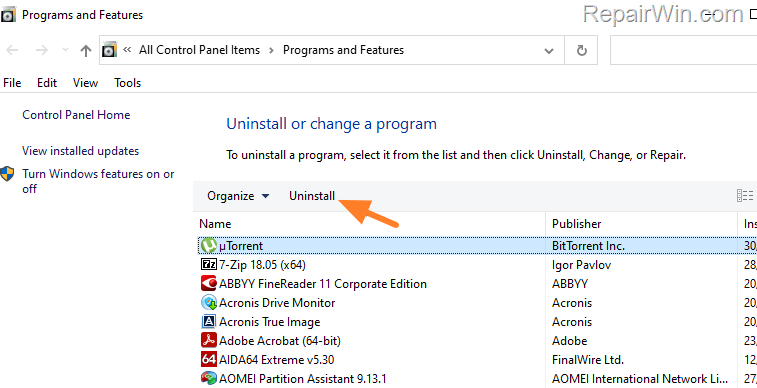
3. Select the installed torrent client (e.g., "μTorrent") and click Uninstall. Removing the outdated version helps eliminate any persistent bugs or compatibility issues.
Method 3. Verify and Update Windows Certificates.
Another potential solution is to ensure that your Windows system certificates are up-to-date. Outdated or corrupted certificates can lead to mismatches during software installations.
- Open the Run dialog by pressing Windows + R, type
certmgr.msc, and hit Enter. This command opens the Certificate Manager, allowing you to manage certificates for the current user. - Navigate through the certificate categories and ensure there are no expired or corrupted certificates. If you find any, consider updating or removing them.
- To update certificates, visit the official Microsoft website and download the latest root certificate updates.
Summary
In summary, to resolve the "Signer certificate mismatch" error, you can disable Protocol Enhancements in uTorrent, install the latest version of your torrent client, or verify and update your Windows certificates. Each of these solutions addresses different potential causes of the error, ensuring a comprehensive approach to troubleshooting.
Did it work for you? If so, by what method?
Please leave a comment in the comment section below or even better: like and share this blog post in the social networks to help spread the word about this problem.
Frequently Asked Questions
What causes the 'Signer certificate mismatch' error in uTorrent?
The 'Signer certificate mismatch' error is typically caused by a uTorrent update.
How can I fix the 'Signer certificate mismatch' error by changing uTorrent settings?
You can fix the error by disabling 'Protocol Enhancements' in uTorrent's preferences. Go to Options > Preferences, select BitTorrent, and uncheck the 'Enable Protocol Enhancements' option.
What should I do if disabling Protocol Enhancements doesn’t fix the error?
If disabling Protocol Enhancements doesn’t work, try uninstalling your current version of uTorrent or BitTorrent and then install the latest version.
How do I uninstall uTorrent or BitTorrent from my computer?
Press Windows + R to open the Run command, type 'control appwiz.cpl', and press Enter. In the Programs and Features window, select your torrent client (e.g., 'μTorrent') and click 'Uninstall.'



