
How to Disable your Laptop's Keyboard in Windows 10/11.
Under typical circumstances, disabling a laptop's keyboard may not be necessary. However, there are specific scenarios where doing so can be beneficial. Below, we explore these scenarios and provide detailed methods for disabling your laptop keyboard on Windows 10/11.
There can be several reasons why someone might want to disable a laptop keyboard. Here are a few common scenarios:
- External Keyboard: If you prefer using an external keyboard with your laptop, disabling the built-in keyboard can help prevent accidental keystrokes.
- Laptop's keyboard is malfunctioning: When the built-in keyboard malfunctions, turning it off is a simple solution to avoid interference between the two keyboards.
- Security reasons: In some cases, you may need to disable the laptop's keyboard to prevent unauthorized access, such as when the laptop is in a public place.
How to Disable Laptop's Built-in Keyboard on Windows 10/11
Method 1. Temporarily Disable Laptop's Keyboard (Until Restart)
If you want to temporarily turn off only the laptop's keyboard (until the laptop restarts), you can uninstall the Keyboard device from Windows. This method effectively removes the keyboard driver from the system, rendering the keyboard non-functional until the system is rebooted.
1. Press Windows  + R keys to open the run command box.
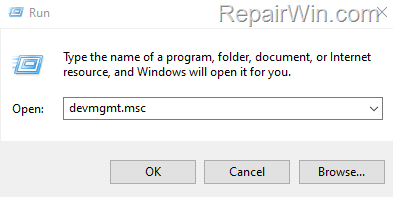
2. Type devmgmt.msc and press Enter to open Device Manager.
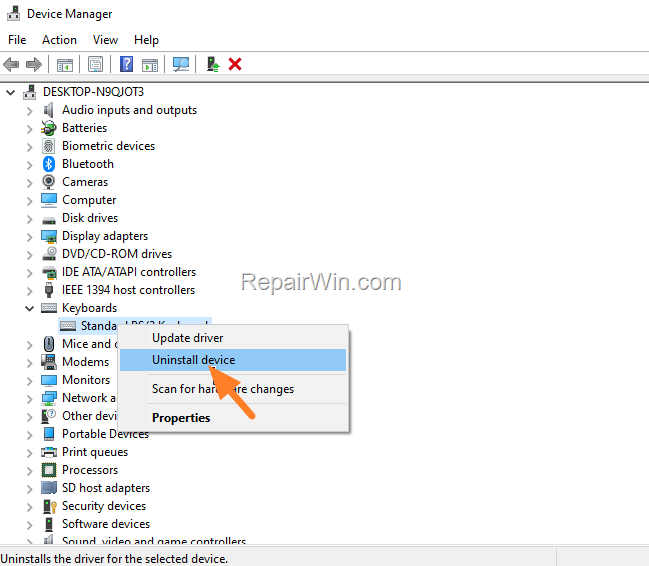
3. In Device Manager, expand Keyboards. Then right-click on Standard PS/2 Keyboard and click Uninstall device. Confirm by clicking Uninstall.
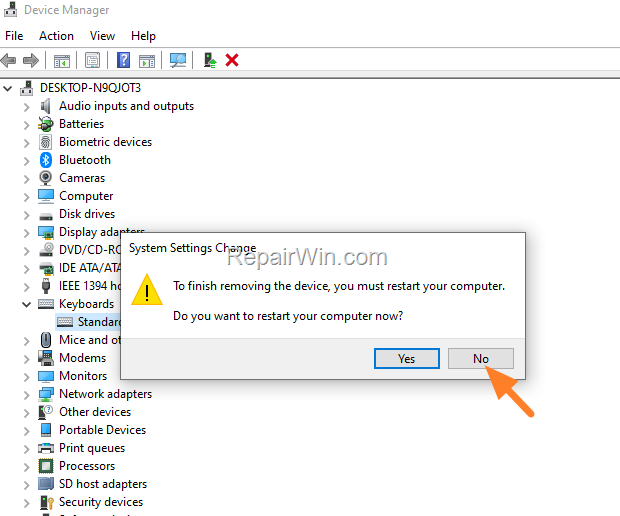
4. When asked to restart your computer, click No. Your laptop keyboard will not work until you restart your computer.
Method 2. Disable Laptop's Built-In Keyboard & Touchpad by Changing Keyboard's Driver
This method involves changing the keyboard driver to a non-functional one, which also disables the touchpad. This is useful for permanent keyboard deactivation, but requires an external USB keyboard and mouse.
1. Press Windows + R keys to open the run command box.
2. Type devmgmt.msc and press Enter to open Device Manager.

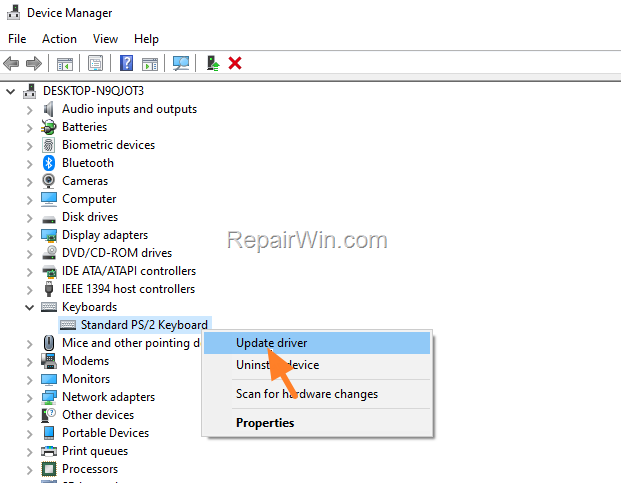
3. In Device Manager, expand Keyboards. Then right-click on Standard PS/2 Keyboard and click Update driver.
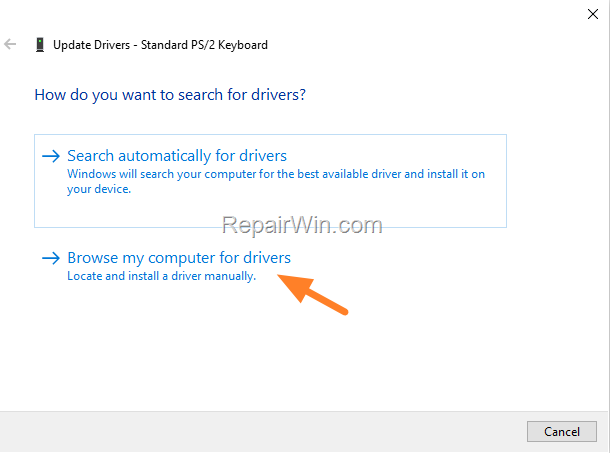
4. Click Browse my computer for drivers.
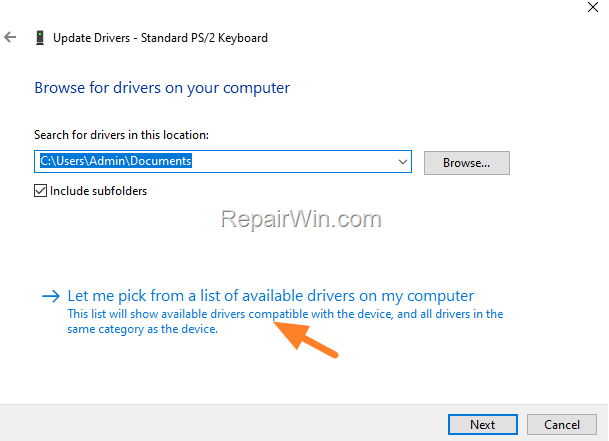
5. Choose Let me pick from a list of available drivers on my computer.
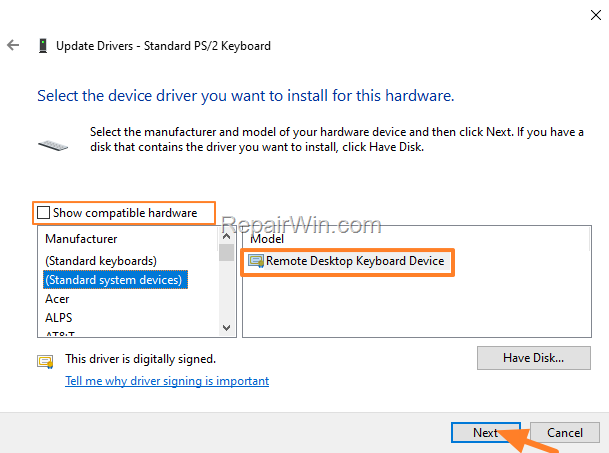
6. In the "Select the device driver…" window:
-
-
- Uncheck Show compatible hardware.
- Under Manufacturer, select: Standard system devices.
- Select Remote Desktop Keyboard Device on the right and click Next.
-
7. Click Yes at the 'Update Driver Warning' message.

8. Close the "Update drivers" window and click Yes to restart your laptop.

9. After restart, check if your laptop keyboard still works. If it does, proceed to the next method. If not, you're done!
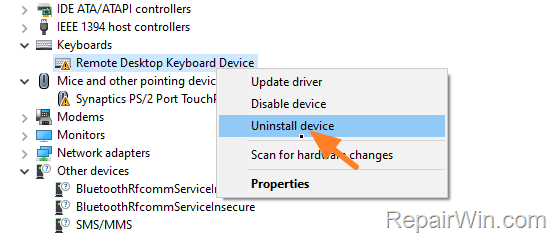
Note: To re-enable your keyboard, open Device Manager, uninstall the Remote Desktop Keyboard Device, and restart your computer.
Method 3. Turn-off Laptop Keyboard & Touchpad using a Command
This method involves using a command to disable the keyboard driver from starting. This is a more advanced technique that requires administrative privileges and will also disable the touchpad, necessitating an external USB keyboard and mouse.
- Open Command Prompt as Administrator. To do this:
- Press the Windows
+ R keys to open the 'Run' command box.
- Type
CMDand then press CTRL + SHIFT + ENTER.
 + R keys to open the 'Run' command box.
2. In the command prompt, type the following command and hit Enter:
-
-
sc config i8042prt start= disabled
-
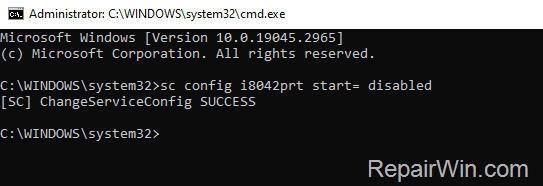
3. Restart the PC. After restart, the laptop keyboard shouldn't work.
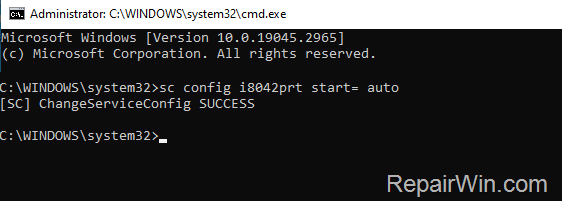
4. To enable the laptop keyboard again, open an admin command prompt, type the below command, and restart your PC:
-
-
sc config i8042prt start= auto
-
Summary
Disabling a laptop keyboard in Windows 10/11 can be achieved through various methods, each with its own level of complexity and permanence. Temporary solutions involve uninstalling the keyboard driver, while more permanent methods include changing the driver, using command prompts, or leveraging the Group Policy Editor. Ensure you have an external input device available when disabling the built-in keyboard and touchpad.
We hope this guide has been helpful. If you have any questions or feedback, please leave a comment below.
Don't forget to share this article with others who might benefit from it!
Frequently Asked Questions
Why would someone want to disable their laptop keyboard?
There are several reasons to disable a laptop keyboard, such as preferring to use an external keyboard to prevent accidental keystrokes, addressing a malfunctioning built-in keyboard, or for security reasons to prevent unauthorized access.
How can I temporarily disable my laptop's built-in keyboard?
To temporarily disable a laptop keyboard until the next restart, open Device Manager by pressing Windows + R, typing devmgmt.msc, and hitting Enter. In Device Manager, expand Keyboards, right-click on Standard PS/2 Keyboard, and select Uninstall device. Click Uninstall and choose not to restart your computer.
Is it possible to disable both the laptop keyboard and touchpad?
Yes, you can disable both by changing the keyboard driver or using a command. Both methods require an external USB keyboard and mouse, as they will disable the touchpad as well. For changing the driver, update to the Remote Desktop Keyboard Device in Device Manager. For using a command, type 'sc config i8042prt start= disabled' in Command Prompt as Administrator and restart the PC.
How do I re-enable the laptop keyboard after disabling it with a command?
To re-enable the laptop keyboard, open Command Prompt as Administrator and type 'sc config i8042prt start= auto'. Then, restart your PC.



