
How to Check Device Encryption Status on Windows 10/11.
In this comprehensive guide, you'll learn how to check the device encryption status on Windows 11/10 devices, ensuring your data is protected from unauthorized access.
Device Encryption with BitLocker, is a critical feature in Windows 10/11 that protects your data by encrypting it. This encryption makes it impossible for unauthorized users to access it, even if the drive is physically removed and installed on another computer.
However, there are scenarios where device encryption might cause compatibility issues or interfere with Windows updates, necessitating its deactivation. For more details, refer to this article for reasons to disable device encryption.
How to View Device Encryption Status on Windows 11/10
1. Check Device Encryption on Windows 11 Home
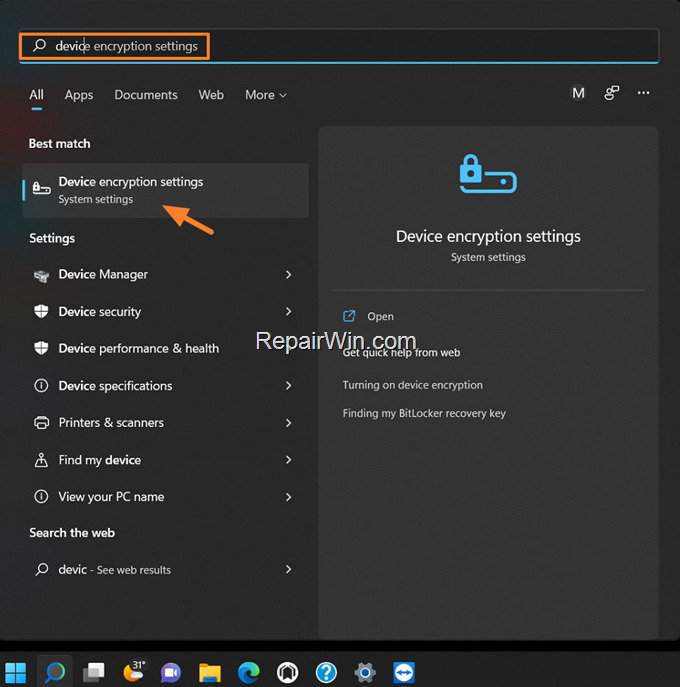
In the Search, type "device encryption settings" and then Open them.
Note: If 'device encryption settings' are not found, your system may not support encryption.
2. If the Device encryption switch is OFF, your data is not encrypted. To secure your data, toggle the switch to On. This action initiates the encryption process, ensuring that all data on the device is protected by cryptographic keys.
3. If the Device encryption switch is ON, your data is encrypted and secure. To disable encryption:
a. Set the Device Encryption switch to OFF. This action will begin the decryption process, reverting your data to an unencrypted state.
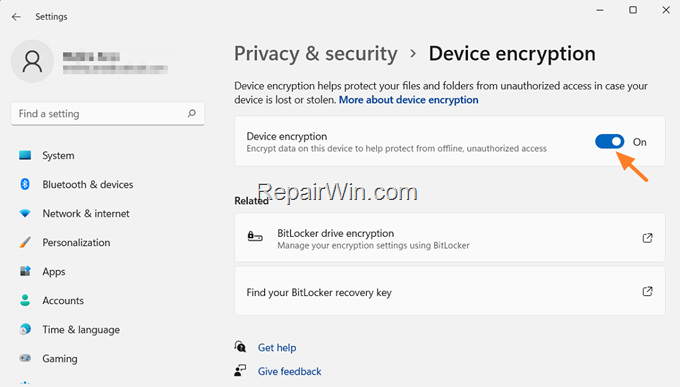
b. Click Turn off when prompted to remove device encryption, and wait for the decryption process to complete. This step ensures all encrypted data is converted back to its original form.

2. Check Device Encryption Status on Windows 11/10 Pro
If you have Windows 10/11 Professional, follow these steps to verify the device or BitLocker encryption status:
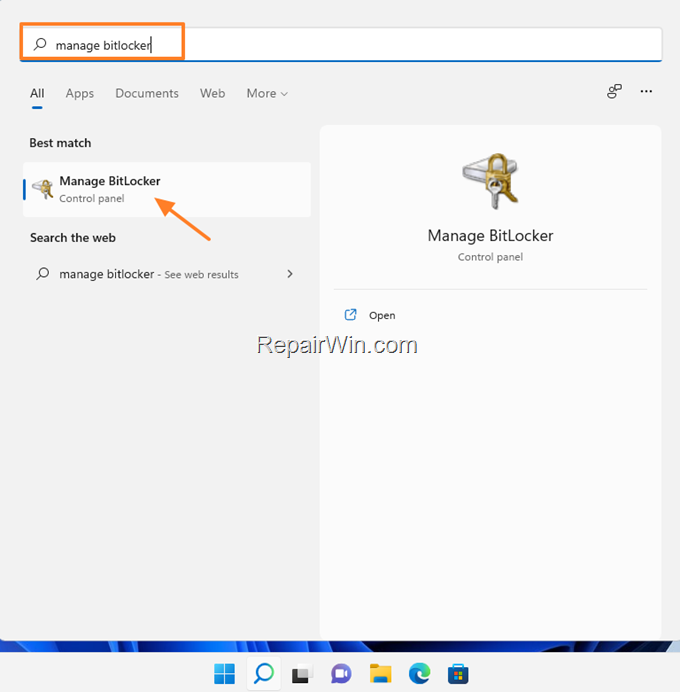
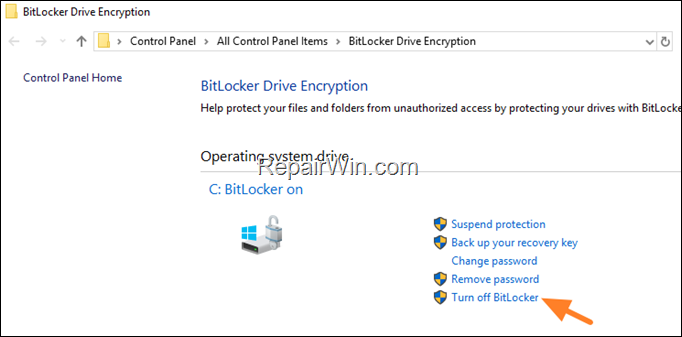
1. In the search bar, type "manage bitlocker" and click Open. This command opens the BitLocker Drive Encryption panel, where you can manage encryption settings.
2. On the 'BitLocker Drive Encryption' screen, if BitLocker is Off, your data is not encrypted. To encrypt it, click Turn on BitLocker and follow the instructions in this tutorial. This process encrypts the drive using a secure algorithm, ensuring data integrity and confidentiality.
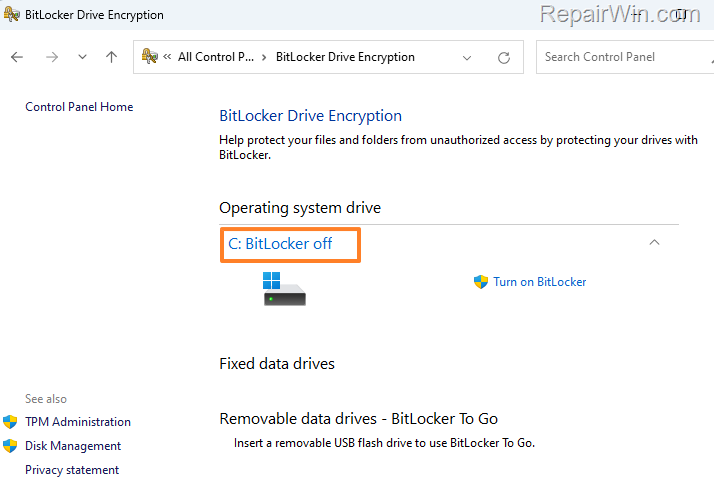
3. If BitLocker is On, your data is encrypted. To decrypt your data, click Turn off BitLocker and wait for BitLocker to complete the decryption process. This action will restore your data to its unencrypted state, allowing unrestricted access.
Note: If "Turn Off BitLocker" is unavailable, consult this article: How to Disable BitLocker in Windows 10.
Additional Methods to Verify Encryption Status
Using Command Prompt
Another method to check encryption status is through the Command Prompt. Open Command Prompt as an administrator and type the following command:
manage-bde -status
This command provides detailed information about the encryption status of all drives, including whether BitLocker is enabled and the encryption percentage completed.
Using PowerShell
PowerShell can also be used to verify encryption status. Run PowerShell as an administrator and enter:
Get-BitLockerVolume
This command retrieves the BitLocker status for each volume, showing you which drives are encrypted and their respective encryption states.
Summary
In summary, checking the device encryption status on Windows 10/11 is essential for ensuring data security. Whether using the device encryption settings on Windows Home or managing BitLocker on Windows Pro, these steps help maintain the integrity of your data. Additionally, Command Prompt and PowerShell offer alternative methods for verifying encryption status, providing flexibility in managing your system's security.
We hope this guide was helpful. Please leave a comment below or share this post to spread the word about device encryption.
Frequently Asked Questions
How can I check the device encryption status on Windows 11 Home?
To check the device encryption status on Windows 11 Home, type 'device encryption settings' in the search bar and open it. If the Device encryption switch is OFF, your data isn't encrypted. To protect your data, turn the switch ON. If the switch is ON, your data is encrypted and protected.
What should I do if I cannot find 'device encryption settings'?
If you cannot find 'device encryption settings', it means your system doesn't support encryption.
How do I check BitLocker encryption status on Windows 11/10 Pro?
To check BitLocker encryption status on Windows 11/10 Pro, type 'manage bitlocker' in the search bar and open it. If BitLocker is Off, your data are not encrypted, and you can turn on BitLocker to encrypt them. If BitLocker is On, your data is encrypted.
What should I do if the 'Turn Off BitLocker' option is unavailable?
If the 'Turn Off BitLocker' option is unavailable, follow the instructions in the article: How to Disable BitLocker in Windows 10.



