
FIX: Request failed with status code 500 in Office 365 eDiscovery Export.
If you try to perform an eDiscovery export in Office 365 and encounter the error "Client error. Request failed with status code 500," continue reading below to fix the problem.
As you may know, in Office 365, the eDiscovery tool (Microsoft Purview eDiscovery) allows you to search for and export information across the entire Office 365 environment, including Exchange Online, SharePoint Online, OneDrive for Business, and Microsoft Teams.
One of the common errors of the eDiscovery tool is the error "Request failed with status code 500" when you try for the first time to export data from Microsoft 365 (e.g., to export a user's mailbox to a PST file). If you are facing the same issue, follow the instructions below to fix it.
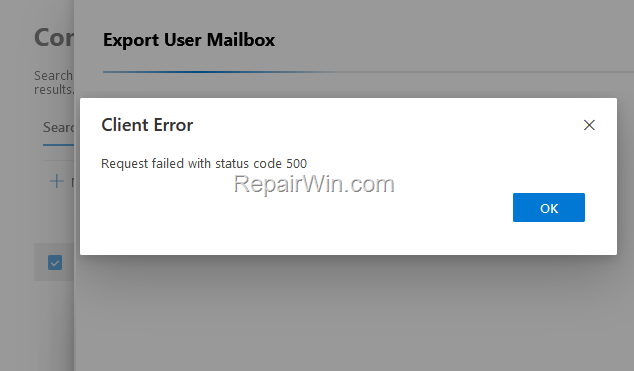
How to FIX: Microsoft Purview eDiscovery Export Fails with Error "Request Failed with Status Code 500"
Step 1. Use Microsoft EDGE
If you're using a third-party browser and not Microsoft Edge, then that's probably the cause of the problem. Microsoft Edge is optimized for Office 365 applications, and using it can help avoid compatibility issues that might arise with other browsers. So, open Microsoft Edge and try to export the information you requested again. If the problem persists, continue to the next step.
Important: The error "Request failed with status code 500" usually occurs when using the eDiscovery export tool with Chrome or Firefox. Therefore, do not skip this step and always use the Microsoft Edge browser when using the eDiscovery tool.
Step 2. Download and Install the Latest .NET Framework
To run the eDiscovery Export tool, you must have .NET Framework 4.5 or later installed. The .NET Framework provides a comprehensive and consistent programming model for building applications. Ensure you have the latest version by proceeding to install the latest .NET Framework version. This ensures compatibility and access to the latest features and security updates.
Step 3. Add Yourself to eDiscovery Manager Administrators
1. Navigate to the Office 365 Compliance Roles and Permissions center.
2. Open the eDiscovery Manager role.
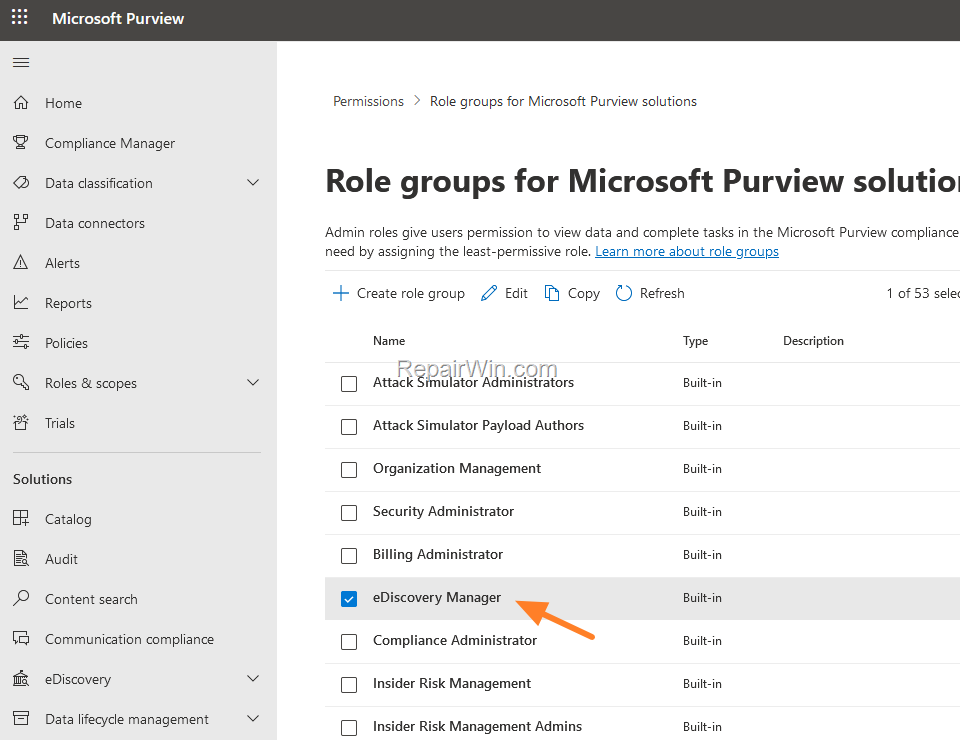
3. Click Edit.

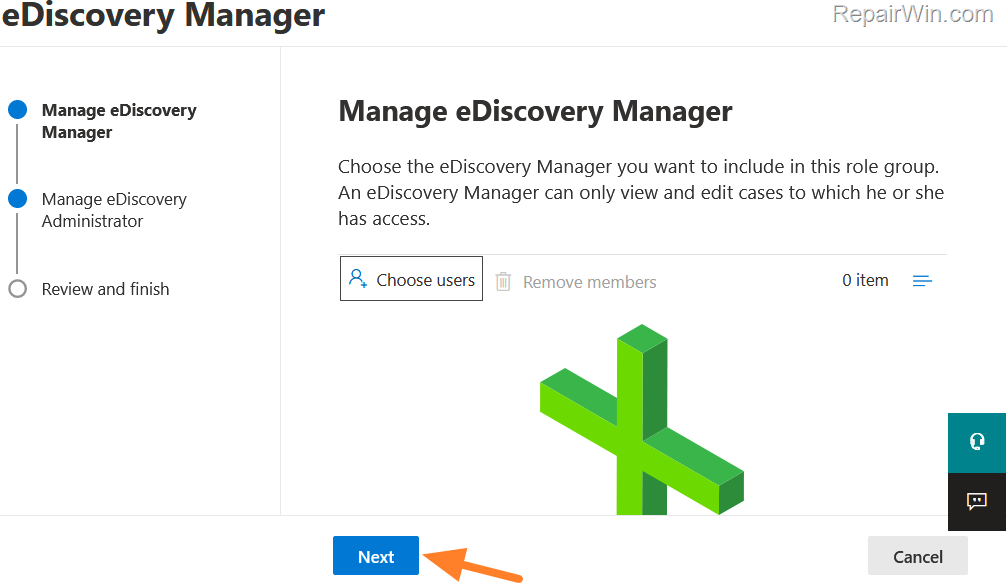
4. At the Manage eDiscovery screen, click Next.
5. At the Manage eDiscovery Administrator screen, click Choose Users.
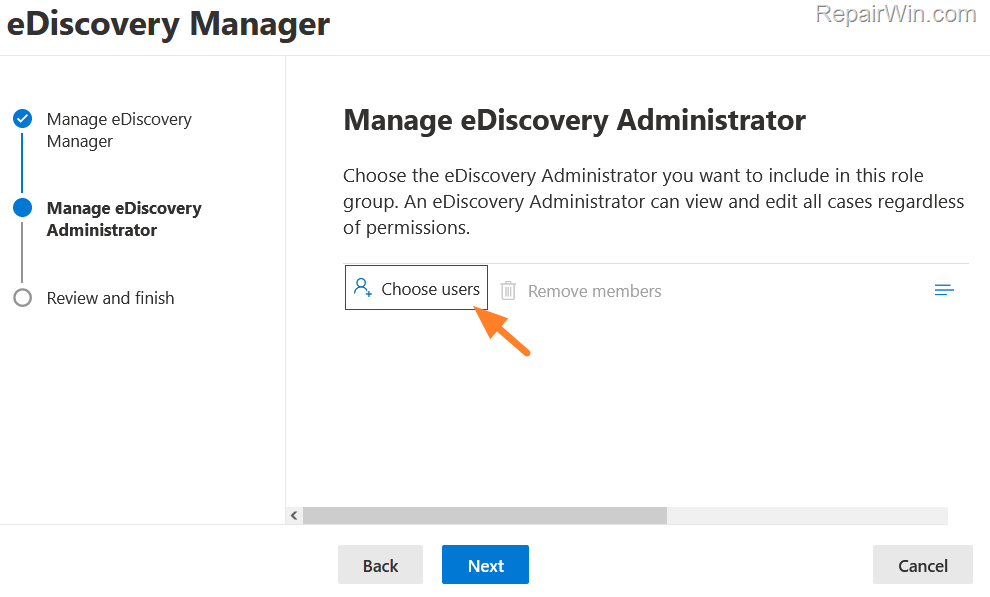
6. Choose your user and click Select. Then click Next
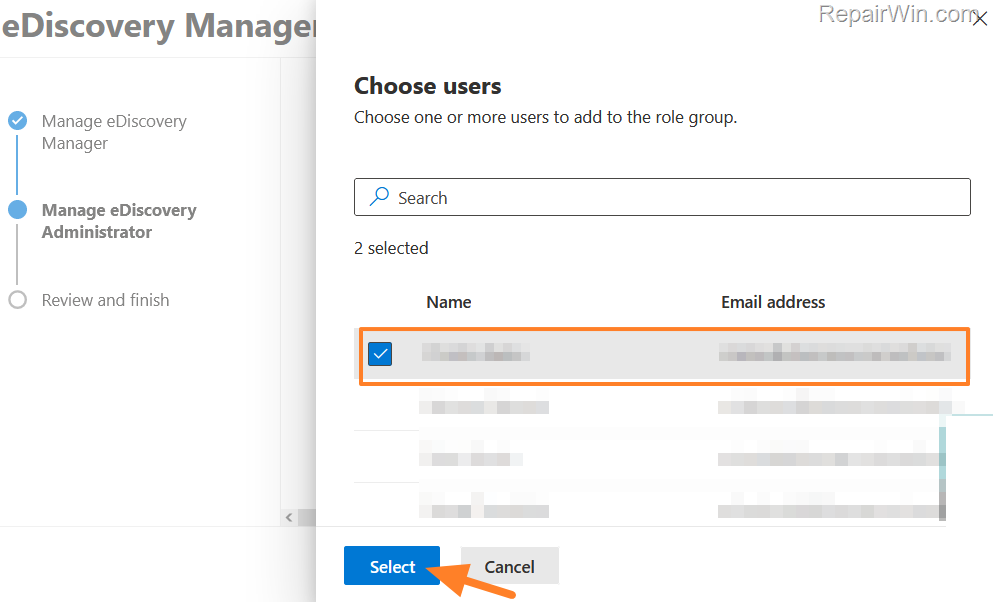
7. Click Save to apply the change.

8. Now wait at least one hour for the change to take effect, and then try the eDiscovery Export again.
Additional help: If you have added your Office 365 account as an "eDiscovery Manager Administrator" and still face the error code 500, then remove your account from "eDiscovery Manager Administrators" and add it to "eDiscovery Manager". Then try again to export the Office 365 data.
Step 4. Verify Office 365 Service Health
Sometimes, the issue might be due to a temporary service disruption on Microsoft's end. Check the Office 365 Service Health dashboard for any ongoing issues or maintenance activities that could be affecting eDiscovery exports.
Step 5. Clear Browser Cache and Cookies
Clearing your browser's cache and cookies can resolve issues related to corrupted or outdated data stored by the browser. In Microsoft Edge, you can do this by navigating to Settings > Privacy, search, and services > Clear browsing data. Select Cookies and other site data and Cached images and files, then click Clear now.
Summary
To resolve the "Request failed with status code 500" error in Office 365 eDiscovery Export, ensure you are using Microsoft Edge and have the latest .NET Framework installed. Add yourself to the eDiscovery Manager Administrators in the Compliance Center, and verify the Office 365 service health. Additionally, clear your browser's cache and cookies to eliminate any potential browser-related issues. Following these steps should help you successfully perform eDiscovery exports in Office 365.
We hope this guide has been helpful. If you have any questions or feedback, please leave a comment below. Don't forget to share this article with others who might benefit from it!
Frequently Asked Questions
What might cause an eDiscovery export error with status code 500 in Office 365?
The error 'Request failed with status code 500' often occurs when using the eDiscovery export tool with non-Microsoft browsers like Chrome or Firefox.
How can I fix the eDiscovery export error 500 using Office 365?
Firstly, use Microsoft Edge as your browser to perform the eDiscovery export. If the error persists, ensure you have the latest .NET Framework installed, and verify your permissions by adding yourself to the eDiscovery Manager Administrators.
What should I do if I've added myself as an eDiscovery Manager Administrator and still encounter the error?
If adding yourself as an eDiscovery Manager Administrator doesn't resolve the issue, try removing your account from 'eDiscovery Manager Administrators' and adding it to 'eDiscovery Manager' to see if it resolves the error.
How long should I wait after changing my role before attempting the eDiscovery export again?
After you have made changes to your role, you should wait at least one hour for the changes to take effect before trying the eDiscovery export again.



