
FIX: Outlook 'Remember my credentials' option is missing (Solved)
If you're using Outlook to connect to an Office365 Online mailbox, and always you asked for your login credentials because the Remember my credentials option is missing, then continue reading below to fix the problem.
Problem in details: In Outlook for Office 365, Outlook 2019, Outlook 2016, Outlook 2013 & Outlook 2010, the user is prompted for credentials each time Outlook is opened and there is no option to "remember credentials" in the credential prompt window. ("Remember my credentials" option/checkbox is missing).
FIX: 'Remember my credentials' option missing in Outlook 2013, 2016, 2019 & Outlook for Office365.
If Outlook always asks for credentials and the "Remember my credentials" option is missing, then Outlook is configured to always prompt the credentials every time you open it.
To fix the problem, proceed and modify the value of the EnableRememberPwd DWORD from 0 to 1, in one of the following locations:
- HKEY_CURRENT_USER\Software\Microsoft\Office\xx.0\Outlook\Security\
- HKEY_CURRENT_USER\Software\Policies\Microsoft\Office\xx.0\Outlook\Security\
* Note: Where xx.0 is "16.0" for Outlook 2016, 2019 & Outlook for Office 365, "15.0" for Outlook 2013 & "14.0" for Outlook 2010.
To do that:
1. According to the version of Outlook you have, go to the following 2 locations in the registry and check if the EnableRememberPwd DWORD exists or not:
Outlook 2016, 2019 and Outlook for Office 365
- HKEY_CURRENT_USER\Software\Microsoft\Office\16.0\Outlook\Security\
- HKEY_CURRENT_USER\Software\Policies\Microsoft\Office\16.0\Outlook\Security\
Outlook 2013
- HKEY_CURRENT_USER\Software\Microsoft\Office\15.0\Outlook\Security\
- HKEY_CURRENT_USER\Software\Policies\Microsoft\Office\15.0\Outlook\Security\
Outlook 2010
- HKEY_CURRENT_USER\Software\Microsoft\Office\14.0\Outlook\Security\
- HKEY_CURRENT_USER\Software\Policies\Microsoft\Office\14.0\Outlook\Security\
2. Then, according the result proceed as follows:
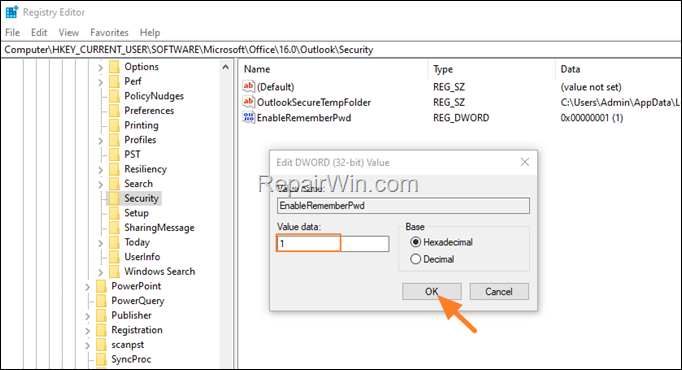
- If the EnableRememberPwd DWORD exists, in one of the above 2 locations open it, set its value data to 1, hit OK and close the registry editor. Then open Outlook.
Value Description
0 Remember password check box is hidden (Credentials not remembered).
1 Remember password check box is visible.
- If the EnableRememberPwd DWORD doesn't exist, then proceed to create it, in one of the above locations. To do that:
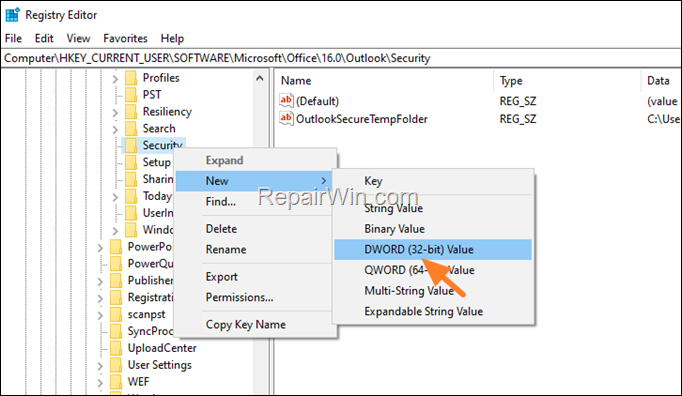
1. Right-Click at Security key and select New > DWORD (32-bit value)
2. Name the new value as EnableRememberPwd and hit Enter.
3. Then, open the EnableRememberPwd DWORD and set the value data to 1.
4. Close the registry editor and open Outlook
That’s all! Did it work for you?
Please leave a comment in the comment section below or even better: like and share this blog post in the social networks to help spread the word about this solution.
Frequently Asked Questions
Why does Outlook keep asking for my credentials every time I open it?
Outlook prompts for credentials each time it is opened if it is configured to not remember credentials. The 'Remember my credentials' option may be missing in Outlook 2013, 2016, 2019, and Office 365 versions due to certain registry settings.
How can I enable the 'Remember my credentials' option in Outlook?
To enable the 'Remember my credentials' option, modify the EnableRememberPwd DWORD value in the registry. Set its value data to 1 in either of these registry paths:
- HKEY_CURRENT_USER\Software\Microsoft\Office\xx.0\Outlook\Security\
- HKEY_CURRENT_USER\Software\Policies\Microsoft\Office\xx.0\Outlook\Security\ Replace 'xx.0' with the appropriate version number for your Outlook.
What steps should I follow if the EnableRememberPwd DWORD does not exist?
If the EnableRememberPwd DWORD does not exist, you need to create it. Right-click on the 'Security' key in the registry path, select 'New > DWORD (32-bit) value,' name it EnableRememberPwd, and set its value data to 1.
What registry paths should I check based on my Outlook version?
For Outlook 2016, 2019, and Office 365, check these paths:
- HKEY_CURRENT_USER\Software\Microsoft\Office\16.0\Outlook\Security\
- HKEY_CURRENT_USER\Software\Policies\Microsoft\Office\16.0\Outlook\Security\
For Outlook 2013, use '15.0' in place of '16.0'. For Outlook 2010, use '14.0'.



