
How to Delete Temporary files in Windows 10/11.
Windows over time, save a large number of temporary files (temporary files) which as their name says are used only temporarily and then are useless. As you understand, these temporary files can take up valuable disk space, cause delays in the operation of your computer, or cause problems with your applications.
To keep your computer healthy and gain storage space, it is recommended that you periodically clear temporary files from your computer.
How to Delete Temp Files in Windows 10/11/8.1/7 OS.
Step 1. Delete Windows Temporary Files.
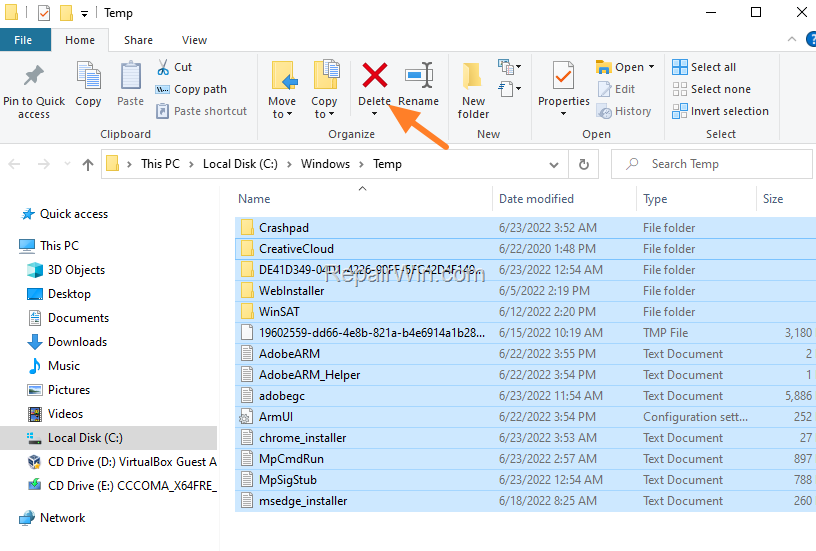
To delete the Windows temp files (C:\Windows\Temp):
1. Press Windows  + R keys to open the run command box.
2. Type temp and press Enter. *
* Note: If prompted click Continue to give permission to access the folder.

3. Press CTRL + A to select all files and choose Delete.
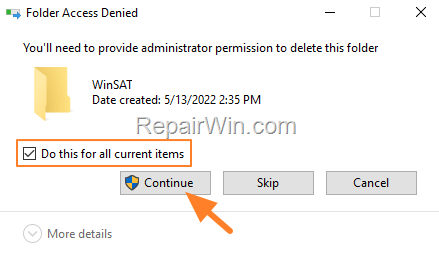
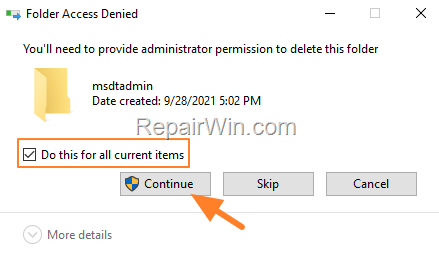
4. At 'Folder Access Denied' window, check Do this for all current items and click Continue.
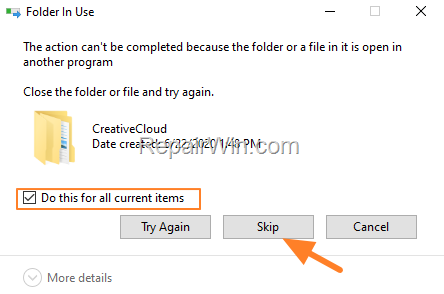
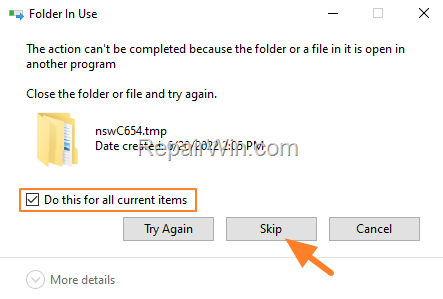
5. At 'Folder in Use' (or 'File in Use') window, check Do this for all current items and click Skip.
Step 2. Delete Temporary Files from User Profile.
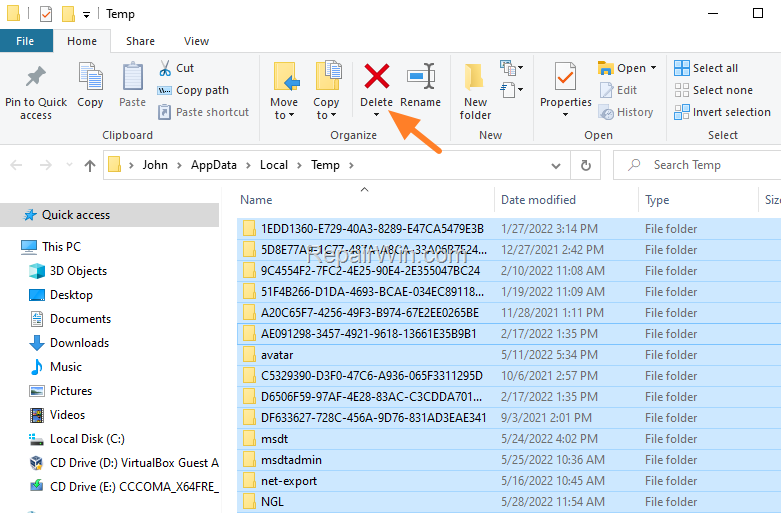
To delete the temp files on user's profile (C:\Users\Username\AppData\Local\Temp):
1. Press Windows + R keys to open the run command box.
2. Type %TMP% & press Enter.

3. Press CTRL + A to select all files and choose Delete.
4. At 'Folder Access Denied' window, check Do this for all current items and click Continue.
5. At 'Folder in Use' (or 'File in Use') window, check Do this for all current items and click Skip.
Step 3. Remove other unnecessary system files with Disk Cleanup.
Disk Cleanup, is a Windows utility that allows you to remove temporary system files, and other junk files such as files from Windows Update.
1. Press Windows + R keys to open the run command box.
2. Type cleanmgr & press Enter.

3. In Disk Cleanup window, click Clean up system files.

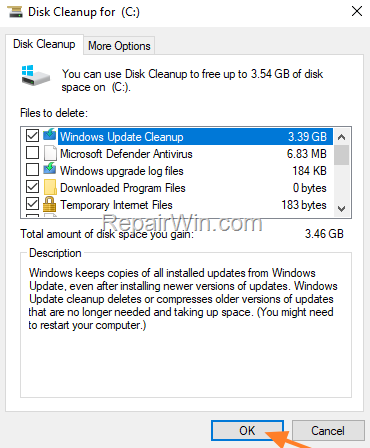
4. At the next window check the following boxes and click OK:
- Windows Update Cleanup
- Downloaded Program Files
- Temporary Internet Files.
- Recycle Bin files
- Temporary Files
- Thumbnails
-
Read next: How to Delete your Browser History.
That's all folks! Which method worked for you?
Please leave a comment in the comment section below or even better: like and share this blog post in the social networks to help spread the word about this solution.



