
How to Find Drivers for Unknown Devices on Windows 10.
This tutorial contains instructions on how to easy install the drivers for all unknown devices on Windows 10. After installing Windows 10, you may see under "Other devices" in Device Manager, one or more devices marked with a yellow mark (exclamation). This means that Windows doesn't have a driver for these devices because they cannot recognize them.
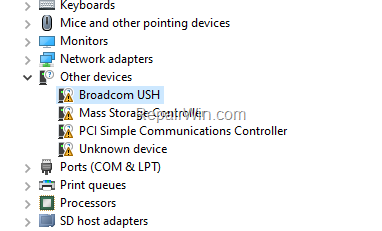
In this tutorial I'll show three methods to find and install the drivers for the unknown devices on Windows 10.
How to Find & Install Drivers for Unknown Devices in Windows 10.
Method 1. Install Optional Updates & Drivers from Windows Update.
The first step in finding and installing drivers for unknown devices is to check if Windows has found optional drivers for your computer that need to be installed manually.
1. Go to Settings -> Update and Security -> and click Check for Updates.
2. When the check for updates is completed, click View optional Updates.
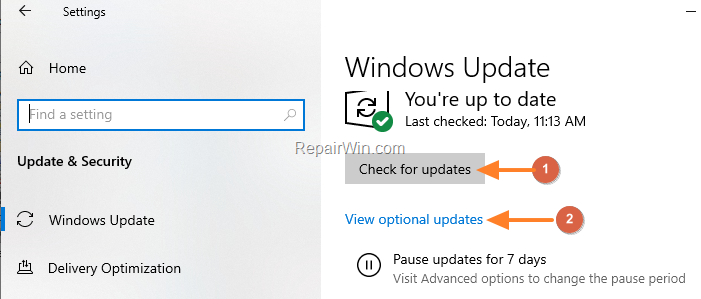
3. Expand Driver updates, select all available drivers and click Download and install.

4. When the installation is complete, restart your computer and go to Device Manager to see if the drivers for all unknown devices are installed.
Method 2. Install Missing Drivers from Device's Manufacturer Website.
The second method to find a driver for a device that Windows cannot recognize is from device manufacturer's support website. So, navigate to the device's manufacturer website to download & install all the available drivers from your pc.
Method 3. Find Missing Drivers using Device's Instance Path.
1. Right-click on the Unknown Device and select Properties.

2. Select the Details tab and change the Property to "Device instance path" or to "Hardware ids".

3. Right-click and copy the given value on the clipboard.

4. Open your browser and paste (CTRL + V) the value on the search bar & hit Enter.
5. Check the results to find the missing driver for your device.

That's all folks! Did it work for you?
Please leave a comment in the comment section below or even better: like and share this blog post in the social networks to help spread the word about this problem.



