
How to View Message Headers without Opening the Email Message in Outlook 2016/2019.
As you may know, "Message Headers" (aka "Message Source", or "Internet Headers" in Outlook), contains all the technical details of a received email message. More specifically, the "Message Headers" of an e-mail message contain, in addition to the usual information (sender, sending time, etc.), the software used to compose the message and the servers that passed before it was delivered to you.
To view the Message Source/Headers in Microsoft Outlook desktop application, you can use one of the following ways:
- How to view the Message Headers in Outlook 2016/2019 after opening Email Message
- How to view the Message Headers in Outlook 2016/2019 without Opening the Email Message.
How to view the Message Headers in Outlook 2016/2019 after opening email.
The usual way to display the message source of an email message in Microsoft Outlook 2016/2019, is to open the email and view its properties:
1. Open the email message (on its own window) and click the File menu.

2. From File menu, click Properties.
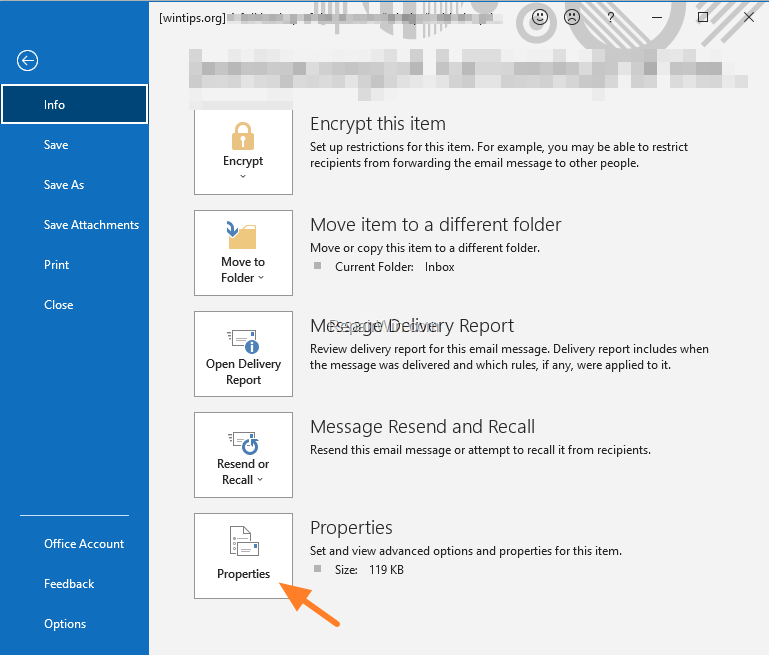
3. Look at Internet headers, to view the email's message source (details).
* Note: Select and copy the Internet Headers text in Notepad, for easier reading.

How to view the Message Headers in Outlook 2016/2019 without Opening Email Message.
The problem of viewing the message source (Internet Headers) after opening the email message, is that if the message contains a malware you may expose your computer to risk. To avoid this, proceed and follow the instructions bellow in order to be able to read the message source without opening the email.
1. In the main Outlook window, choose File -> Options.
2. Select Customize Ribbon on the left and on the right:
a. At Choose commands from dropdown list, select Commands Not in the Ribbon.
b. Make sure that at Main Tabs the Home (Mail) is selected and click New Group and then click Rename.

c. Rename the "New Group" to "Internet Headers" and click OK.

d. Now choose Message Options from the list of commands and click Add.

e. Now you should see the 'Message Options' under the new group you created ("Internet Headers"). Click OK to apply changes.

3. Now on your Home tab, you should see a new button named "Message Options – Internet Headers".
5. From now on, just highlight the message that you want to view its message source and click the "Message Options" button to view its message source without having to open the message on its own window.

That’s all folks! Did it work for you?
Please leave a comment in the comment section below or even better: like and share this blog post in the social networks to help spread the word about this solution.
Frequently Asked Questions
How can I view Message Headers in Outlook 2016/2019 after opening an email?
To view Message Headers in Outlook 2016/2019 after opening an email, open the email message in its own window, click on the File menu, then select Properties. Look at the Internet headers section to view the email's details. You can copy the Internet Headers text into Notepad for easier reading.
Is it possible to view Message Headers in Outlook 2016/2019 without opening the email?
Yes, it is possible. In the main Outlook window, choose File -> Options, then select Customize Ribbon. Choose 'Commands Not in the Ribbon' from the dropdown list and add 'Message Options' to a new group named 'Internet Headers' under the Home tab. Highlight the email and click the 'Message Options' button to view its message source without opening the email.
Why should I view Message Headers without opening the email message?
Viewing Message Headers without opening the email message is advisable to avoid potential exposure to malware that might be present in the email content. By following the instructions to view headers without opening, you can safely inspect the technical details.
What should I do if the provided steps don't work for me?
If the steps don't work for you, consider leaving a comment in the comment section of the source article or share your experience on social networks to seek further assistance or spread the solution to help others.




February 27, 2023 @ 4:25 pm
thank you, very well and clear post. The so called Cybersecurity people the company employs counts people opening an email as wrong. Viewing the headers after opening the email counts against our "rating". They send email to me that "I fell for the scam by opening". So anyway, I can now view the internet headers in outlook without opening the email using the default method of viewing headers.
April 13, 2023 @ 10:21 pm
Wonderful! It worked first time for me with Outlook 2010.
April 25, 2023 @ 2:56 pm
well done, clear and very usefull write up.
August 26, 2024 @ 12:42 pm
Super! Especially the last option. Thank you very much indeed.