FIX: Trust Relationship Between this Workstation and the Primary Domain Failed (Solved)
If you receive the error "The Trust Relationship Between this Workstation and the Primary Domain Failed" when you try to login in your domain or when you try to access a shared folder on another machine on the domain, continue reading below to resolve the problem.
The error "Trust Relationship Between Workstation and Primary Domain Failed", can appear for the following reasons:
- The Computer has the same name as another computer in the Domain.
- The Domain Credentials (Username or Password) are invalid.
- The computer's account has expired. *
* Note: Some organizations prebuild computers (or computer clones) for later use. If the computer's account has expired, it will no longer be able to authenticate with the domain. At such cases, computers that cannot authenticate with the domain must be removed from the domain and rejoined to it. (step-4)
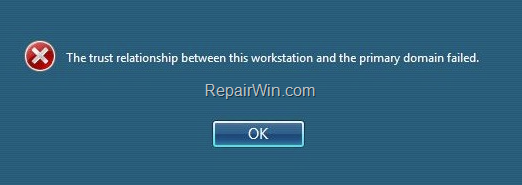
How to FIX: Trust Relationship Between Workstation and Domain Failed.
Method 1. Verify that Domain Credentials are Correct.
First of all make sure the credentials are correct and especially the password. if you have cloned the machine from a computer image taken in the past and since then the code has changed.
Method 2. Check for Duplicate Computer Names.
Make sure that the computer name is unique and there is no other computer on the network with the same name.
Method 3. Check for Duplicate IP addresses.
Ensure that the Computer's IP Address is unique and does not conflict with another IP Address on the Network.
Method 4. Remove and Re-Join the Computer in the Domain.
The usual method for correcting a trust relationship between a computer and a domain is to remove and re-add the affected computer to the domain.
Step 1. Delete Computer Account from the Domain.
1. Login to the Active Directory Server.
2. Open Active Directory Users and Computers.
3. Expand the Computers container.
4. Right-click on the affected computer and select Delete.

Step 1. Remove and re-Join Computer in the Domain.
1. Login to the affected computer with the LOCAL Administrator account (Computer name\Administrator).
2. Press Windows  + R keys to open the run command box.
2a. Type sysdm.cpl & click OK.
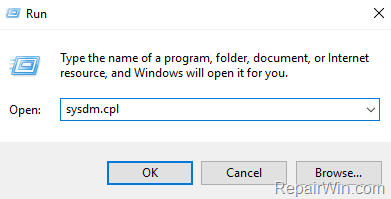
3. At 'Computer Name' tab, click Change.

4. At Member of, select Workgroup, type a workgroup name (e.g." WORKGROUP") and click OK.

5. Type the Administrator's credentials and click OK.
6. Restart the computer.
7. Perform the steps 1-4 again but this time, at step-4, select Domain, type the Domain Name and click OK.

8. Type the Domain Administrator credentials and click OK.
9. Restart your PC and login to domain using the domain user account.
Method 5. Reset Computer Account in Domain.
1. Login to the Active Directory Server.
2. Open Active Directory Users and Computers.
3. Expand the Computers container.
4. Right-click on the affected computer and select Reset Account.
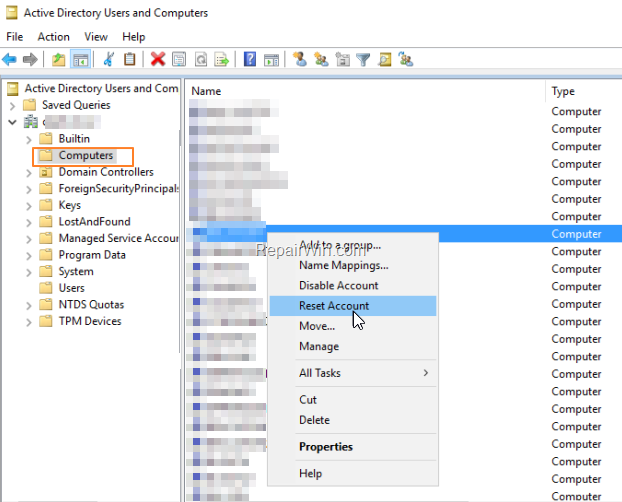
5. Finally, restart the affected machine and login in Domain.
That's all folks! Which method worked for you? Please leave a comment in the comment section below or even better: like and share this blog post in the social networks to help spread the word about this solution.
Frequently Asked Questions
What causes the error 'The Trust Relationship Between this Workstation and the Primary Domain Failed'?
This error can occur due to a duplicate computer name in the domain, invalid domain credentials, or an expired computer account.
How can I fix the 'Trust Relationship Between Workstation and Domain Failed' error?
To fix this error, ensure domain credentials are correct, check for duplicate computer names or IP addresses, and possibly remove and rejoin the computer to the domain.
How do I remove and rejoin a computer to the domain?
Log into the affected computer using the local administrator account, change its group to a Workgroup, restart the computer, then join it back to the domain and restart again.
What should I do if the computer account in the domain is expired?
Remove the computer from the domain and then rejoin it, or reset its computer account in the Active Directory Users and Computers.