
FIX: Just-In-Time Debugger An unhandled win32 exception occurred in Outlook.exe, or in Another program. (Solved)
In this tutorial you 'll find instructions to stop the Just-In-Time Debugger dialog box from appearing. The dialog box "Just-In-Time Debugger: An unhandled win32 exception occurred in Outlook.exe" (or at any other program), appears because the reported application in the dialog box, cannot start.
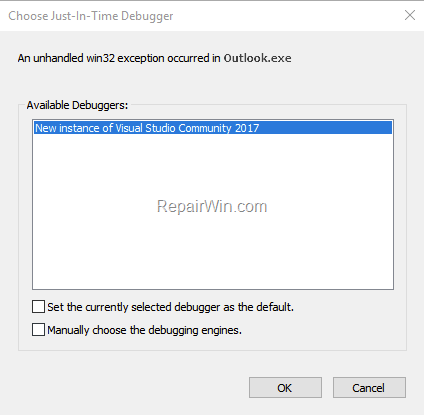
The 'Choose Just-In-Time Debugger" dialog box, gives you the option to launch Visual Studio to debug the error. But, if the Visual Studio is not installed or it cannot debug the error, the reported application crashes and closes.
If you want to prevent the "Choose Just-In-Time Debugger" dialog from appearing, then you have to disable the Just-In-Time Debugger, by following the instructions below.
How to Stop the Just-In-Time Debugger. *
* Note: If the "Just-In-Time Debugger – An unhandled win32 exception occurred…" dialog box appears when launching Outlook, then, before proceeding to the methods below, apply the following actions:
1. Repair the Outlook PST data file and then open Outlook.
Method 1. Modify the Data Execution Prevention (DEP) to Default Settings.
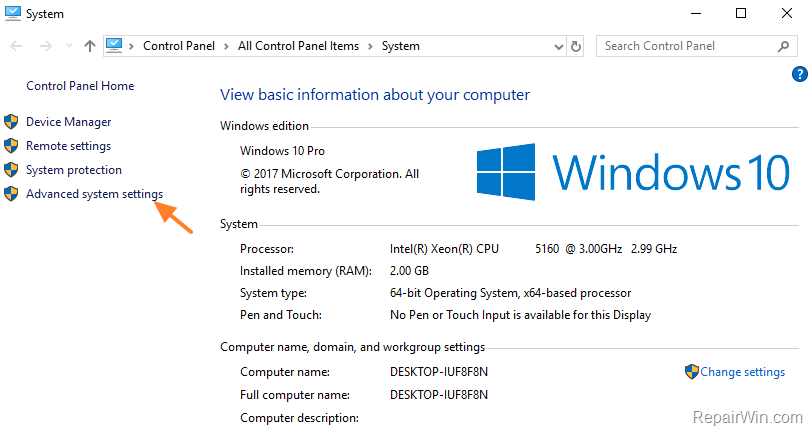
1. Right click on My PC and select Properties.
2. Click Advanced system settings on the left.
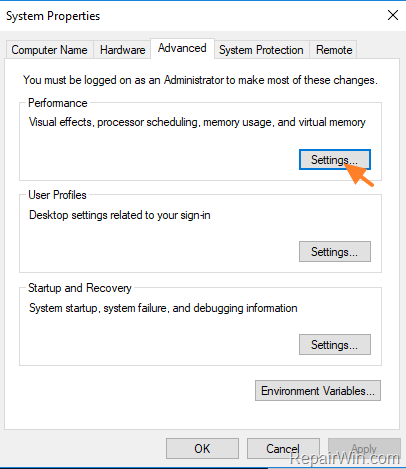
3. At 'Advanced' tab click Settings at 'Performance' section.
4. At 'Performance Options' select the Data Execution Prevention tab.
5. Choose Turn On DEP for Essentials for Essentials Windows programs and services only and click OK.
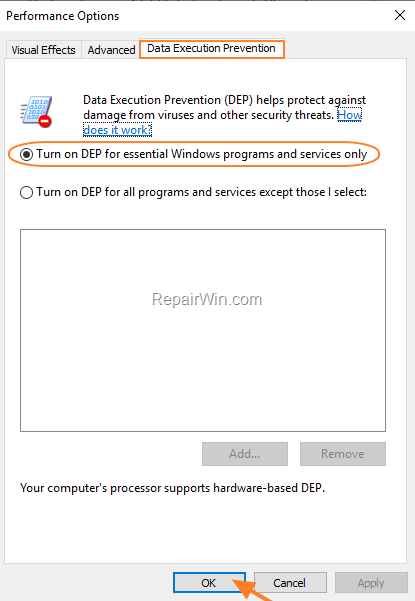
6. Restart your PC and check if the Just-In-Time Debugger dialog box has stopped appearing.
Method 2. Disable Just-In-Time Debugger in Visual Studio.
If you have the Visual Studio installed, then proceed and disable the Just-In-Time Debugger in Visual Studio. To do that:
1. navigate to Control Panel -> Programs and features.
2. Highlight the Visual Studio and click Change.
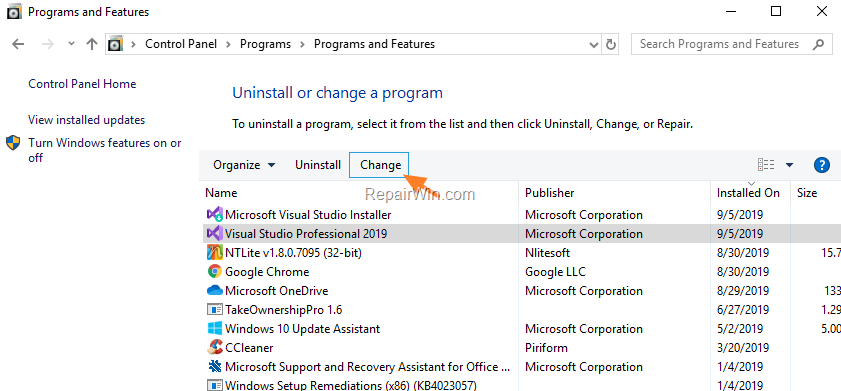
3. On a new opened window choose the Individual Components tab.
4. Uncheck the Just in Time Debugger and click Modify.

Method 3. Disable the Just-In-Time Debugger from Registry.
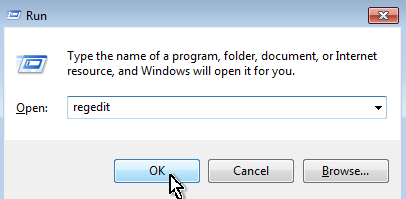
1. Open Registry editor. To do that:
1. Press Windows
+ R keys to open the run command box.
2. In the "Open" box, type: regedit & click OK.

2. Find and Delete the following registry entries (in bold letters):
- HKEY_LOCAL_MACHINE\SOFTWARE\Microsoft\.NETFramework\DbgManagedDebugger
- HKEY_LOCAL_MACHINE\SOFTWARE\Microsoft\Windows NT\CurrentVersion\AeDebug\Debugger
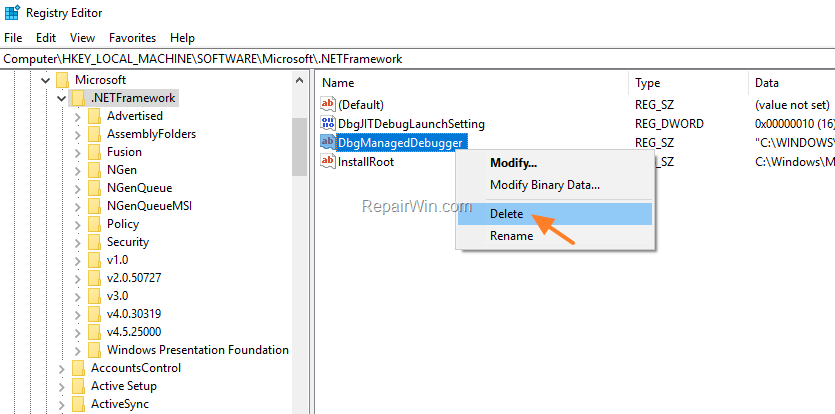
3. If you have 64-bit Operating System, delete also the following registry entries (in bold letters):
- HKEY_LOCAL_MACHINE\SOFTWARE\Wow6432Node\Microsoft\.NETFramework\DbgManagedDebugger
- HKEY_LOCAL_MACHINE\SOFTWARE\Wow6432Node\Microsoft\Windows NT\CurrentVersion\AeDebug\Debugger
4. Close Registry Editor and restart the computer.
5. After restart the "Just-In-Time Debugger – An unhandled win32 exception occurred…" will disappear.
* Note: If the Just-In-Time Debugger dialog box, still appears, navigate to Control Panel -> Programs and features and uninstall the Microsoft Visual Studion 2010 Shell (Isolated).
That's all folks! Did it work for you?
Please leave a comment in the comment section below or even better: like and share this blog post in the social networks to help spread the word about this solution.
Frequently Asked Questions
What causes the 'Just-In-Time Debugger' dialog box to appear?
The 'Just-In-Time Debugger' dialog box appears when the reported application cannot start due to an unhandled exception, often urging you to debug the error using Visual Studio.
How can I prevent the 'Just-In-Time Debugger' dialog from appearing when launching Outlook?
First, repair the Outlook PST data file and then proceed to repair the Office installation. If the issue persists, follow the methods to disable the Just-In-Time Debugger.
How do I disable the Just-In-Time Debugger using Visual Studio?
Navigate to Control Panel -> Programs and features, highlight Visual Studio, click Change, then choose the Individual Components tab, uncheck the Just-In-Time Debugger, and click Modify.
What should I do if the 'Just-In-Time Debugger' dialog box still appears after trying the given methods?
If the dialog box persists, you may need to navigate to Control Panel -> Programs and features and uninstall the Microsoft Visual Studio 2010 Shell (Isolated).




July 1, 2023 @ 4:55 pm
Thank you it worked.!