
FIX: Windows 10 0x80070006 Update Error (Solved)
On a Windows 10-based computer, you receive the following error message when you try to check for new updates: "There were some problems installing updates, but we "ll try again later. If you keep seeing this and want to search the web or contact support for information, this may help: (0x80070006)".
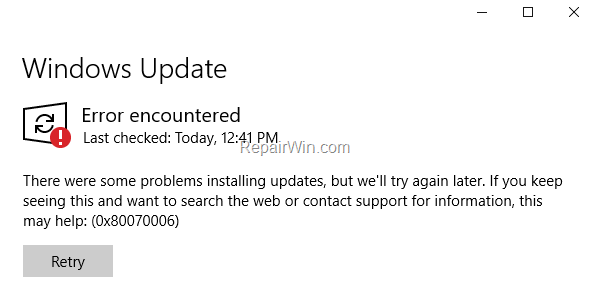
This tutorial contains instructions to resolve the error 0x80070006 in Windows 10 Update: "There were some problems installing updates, but we "ll try again later. If you keep seeing this and want to search the web or contact support for information, this may help: (0x80070006)".
How to Solve Error 0x80070006 in Windows 10 Update.
Step 1. Scan your computer for viruses.
Important: Many viruses or malicious programs can cause problems with Windows update. So before you continue to the troubleshooting steps below, use this Malware Scan and Removal Guide to check and remove viruses or/and malicious programs that may be running on your computer.
Step 2. Check if the Windows Update Service is Running.
1. Open Windows Services control panel: To do that:
- Press Windows
 + R keys to open the run command box.
 - In the Search box, type: services.msc & click OK.
- (Accept the UAC warning if appears).


2. At the right-pane make sure that the 'Status' of following services is Running. *
- Background Intelligent Transfer Service (BITS)
- DCOM Server Process Launcher
- Remote Procedure Call (RPC)
- Windows Defender Firewall
- Windows Update
![image_thumb[11]](https://www.repairwin.com/wp-content/uploads/2019/05/image_thumb11.png "image_thumb[11]")
* Note: If any of the above services is not running then:
a. Right-click on the service and choose Properties.
b. At General tab, set the Startup type to Automatic.
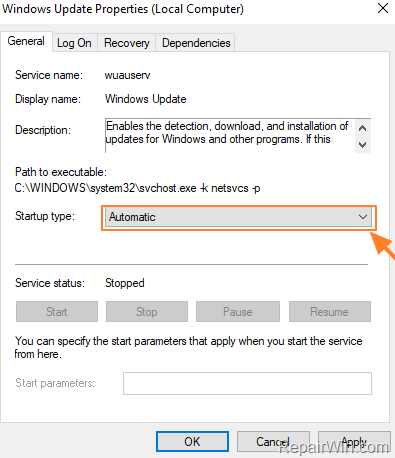
c. At Log On tab make sure that the Local System Account is checked.
d. Hit OK to apply changes.

3. Restart your computer.
8. After restart, check that the above mentioned services are up and running.
8. Proceed and Check for Updates. If you still receive the error 0x80070006 on Windows Update, then continue to the next step.
Step 3. Run the Windows Update Troubleshooter.
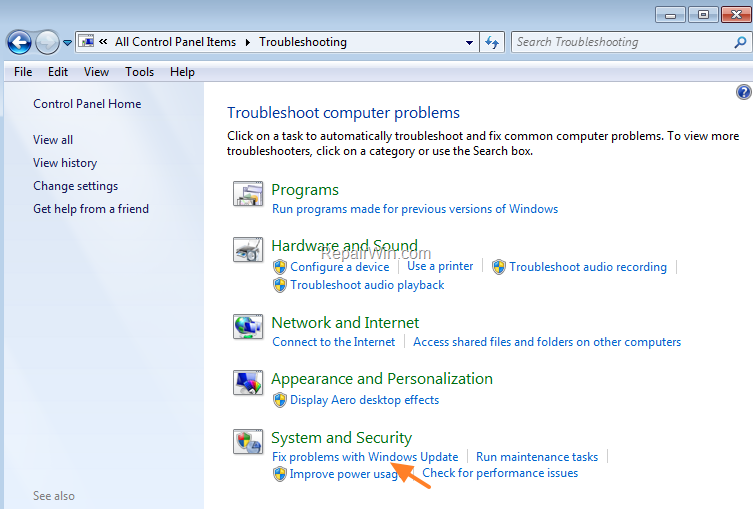
1. Navigate to Windows Control Panel, set the 'View By' to Small icons and open Troubleshooting.

2. In Troubleshooting options, click Fix problems with Windows Update.
3. Click Next to troubleshoot Windows update problems.
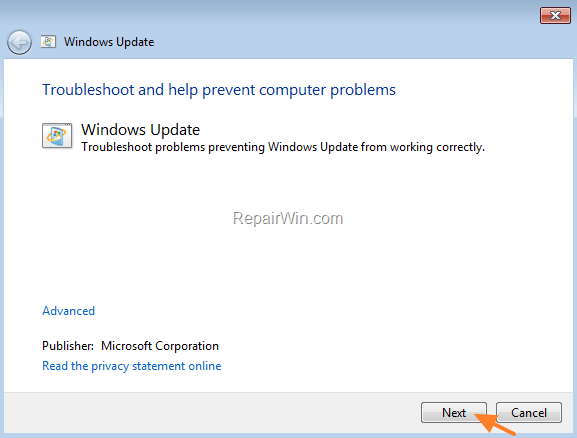
5. When the troubleshooting process is complete, close the troubleshooter and restart your PC.
6. Check for updates.
Step 4. Fix Windows Update Service in Registry.
1. Open Notepad application.
2. Select and copy the below text (in green letters) and paste it into the notepad:
Windows Registry Editor Version 5.00
[HKEY_LOCAL_MACHINE\SYSTEM\CurrentControlSet\Services\wuauserv]
"DependOnService"=hex(7):72,00,70,00,63,00,73,00,73,00,00,00,00,00
"Description"="@%systemroot%\\system32\\wuaueng.dll,-106"
"DisplayName"="@%systemroot%\\system32\\wuaueng.dll,-105"
"ErrorControl"=dword:00000001
"FailureActions"=hex:80,51,01,00,00,00,00,00,00,00,00,00,03,00,00,00,14,00,00,\
00,01,00,00,00,60,ea,00,00,00,00,00,00,00,00,00,00,00,00,00,00,00,00,00,00
"ImagePath"=hex(2):25,00,73,00,79,00,73,00,74,00,65,00,6d,00,72,00,6f,00,6f,00,\
74,00,25,00,5c,00,73,00,79,00,73,00,74,00,65,00,6d,00,33,00,32,00,5c,00,73,\
00,76,00,63,00,68,00,6f,00,73,00,74,00,2e,00,65,00,78,00,65,00,20,00,2d,00,\
6b,00,20,00,6e,00,65,00,74,00,73,00,76,00,63,00,73,00,20,00,2d,00,70,00,00,\
00
"ObjectName"="LocalSystem"
"RequiredPrivileges"=hex(7):53,00,65,00,41,00,75,00,64,00,69,00,74,00,50,00,72,\
00,69,00,76,00,69,00,6c,00,65,00,67,00,65,00,00,00,53,00,65,00,43,00,72,00,\
65,00,61,00,74,00,65,00,47,00,6c,00,6f,00,62,00,61,00,6c,00,50,00,72,00,69,\
00,76,00,69,00,6c,00,65,00,67,00,65,00,00,00,53,00,65,00,43,00,72,00,65,00,\
61,00,74,00,65,00,50,00,61,00,67,00,65,00,46,00,69,00,6c,00,65,00,50,00,72,\
00,69,00,76,00,69,00,6c,00,65,00,67,00,65,00,00,00,53,00,65,00,54,00,63,00,\
62,00,50,00,72,00,69,00,76,00,69,00,6c,00,65,00,67,00,65,00,00,00,53,00,65,\
00,41,00,73,00,73,00,69,00,67,00,6e,00,50,00,72,00,69,00,6d,00,61,00,72,00,\
79,00,54,00,6f,00,6b,00,65,00,6e,00,50,00,72,00,69,00,76,00,69,00,6c,00,65,\
00,67,00,65,00,00,00,53,00,65,00,49,00,6d,00,70,00,65,00,72,00,73,00,6f,00,\
6e,00,61,00,74,00,65,00,50,00,72,00,69,00,76,00,69,00,6c,00,65,00,67,00,65,\
00,00,00,53,00,65,00,49,00,6e,00,63,00,72,00,65,00,61,00,73,00,65,00,51,00,\
75,00,6f,00,74,00,61,00,50,00,72,00,69,00,76,00,69,00,6c,00,65,00,67,00,65,\
00,00,00,53,00,65,00,53,00,68,00,75,00,74,00,64,00,6f,00,77,00,6e,00,50,00,\
72,00,69,00,76,00,69,00,6c,00,65,00,67,00,65,00,00,00,53,00,65,00,44,00,65,\
00,62,00,75,00,67,00,50,00,72,00,69,00,76,00,69,00,6c,00,65,00,67,00,65,00,\
00,00,53,00,65,00,42,00,61,00,63,00,6b,00,75,00,70,00,50,00,72,00,69,00,76,\
00,69,00,6c,00,65,00,67,00,65,00,00,00,53,00,65,00,52,00,65,00,73,00,74,00,\
6f,00,72,00,65,00,50,00,72,00,69,00,76,00,69,00,6c,00,65,00,67,00,65,00,00,\
00,53,00,65,00,53,00,65,00,63,00,75,00,72,00,69,00,74,00,79,00,50,00,72,00,\
69,00,76,00,69,00,6c,00,65,00,67,00,65,00,00,00,53,00,65,00,54,00,61,00,6b,\
00,65,00,4f,00,77,00,6e,00,65,00,72,00,73,00,68,00,69,00,70,00,50,00,72,00,\
69,00,76,00,69,00,6c,00,65,00,67,00,65,00,00,00,53,00,65,00,4c,00,6f,00,61,\
00,64,00,44,00,72,00,69,00,76,00,65,00,72,00,50,00,72,00,69,00,76,00,69,00,\
6c,00,65,00,67,00,65,00,00,00,53,00,65,00,4d,00,61,00,6e,00,61,00,67,00,65,\
00,56,00,6f,00,6c,00,75,00,6d,00,65,00,50,00,72,00,69,00,76,00,69,00,6c,00,\
65,00,67,00,65,00,00,00,00,00
"ServiceSidType"=dword:00000001
"Start"=dword:00000003
"SvcHostSplitDisable"=dword:00000001
"SvcMemHardLimitInMB"=dword:000000f6
"SvcMemMidLimitInMB"=dword:000000a7
"SvcMemSoftLimitInMB"=dword:00000058
"Type"=dword:00000020
[HKEY_LOCAL_MACHINE\SYSTEM\CurrentControlSet\Services\wuauserv\Parameters]
"ServiceDll"=hex(2):25,00,73,00,79,00,73,00,74,00,65,00,6d,00,72,00,6f,00,6f,\
00,74,00,25,00,5c,00,73,00,79,00,73,00,74,00,65,00,6d,00,33,00,32,00,5c,00,\
77,00,75,00,61,00,75,00,65,00,6e,00,67,00,2e,00,64,00,6c,00,6c,00,00,00
"ServiceDllUnloadOnStop"=dword:00000001
"ServiceMain"="WUServiceMain"
[HKEY_LOCAL_MACHINE\SYSTEM\CurrentControlSet\Services\wuauserv\Security]
"Security"=hex:01,00,14,80,78,00,00,00,84,00,00,00,14,00,00,00,30,00,00,00,02,\
00,1c,00,01,00,00,00,02,80,14,00,ff,00,0f,00,01,01,00,00,00,00,00,01,00,00,\
00,00,02,00,48,00,03,00,00,00,00,00,14,00,9d,00,02,00,01,01,00,00,00,00,00,\
05,0b,00,00,00,00,00,18,00,ff,01,0f,00,01,02,00,00,00,00,00,05,20,00,00,00,\
20,02,00,00,00,00,14,00,ff,01,0f,00,01,01,00,00,00,00,00,05,12,00,00,00,01,\
01,00,00,00,00,00,05,12,00,00,00,01,01,00,00,00,00,00,05,12,00,00,00
[HKEY_LOCAL_MACHINE\SYSTEM\CurrentControlSet\Services\wuauserv\TriggerInfo]
[HKEY_LOCAL_MACHINE\SYSTEM\CurrentControlSet\Services\wuauserv\TriggerInfo\0]
"Type"=dword:00000005
"Action"=dword:00000001
"Guid"=hex:e6,ca,9f,65,db,5b,a9,4d,b1,ff,ca,2a,17,8d,46,e0
[HKEY_LOCAL_MACHINE\SYSTEM\CurrentControlSet\Services\wuauserv\TriggerInfo\1]
"Type"=dword:00000005
"Action"=dword:00000001
"Guid"=hex:c8,46,fb,54,89,f0,4c,46,b1,fd,59,d1,b6,2c,3b,50
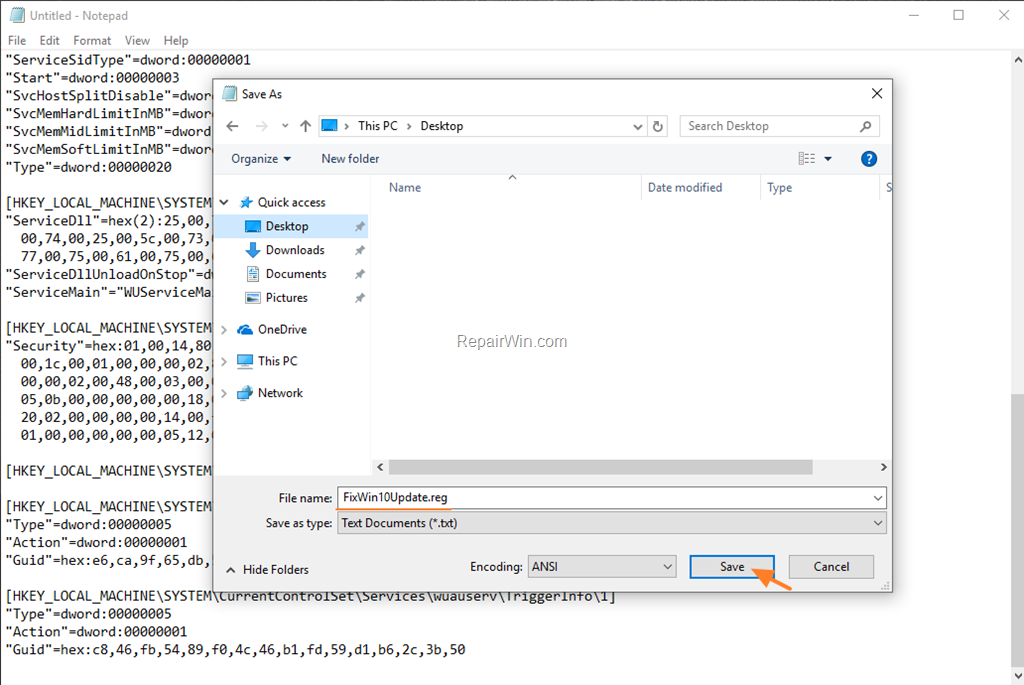
3. When done, go to File > Save as and save the file at your Desktop with the name: FixWin10Update.reg
4. Close Notepad.
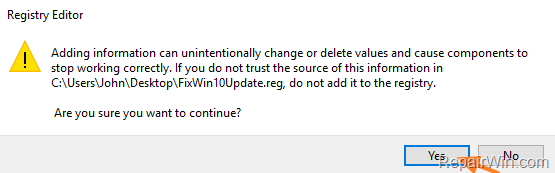
5. Double click at FixWin10Update.reg, accept the UAC warning message and click Yes.
6. Reboot your computer and check for Updates.
That’s all folks! Did it work for you?
Please leave a comment in the comment section below or even better: like and share this blog post in the social networks to help spread the word about this solution.
Frequently Asked Questions
What causes the Windows Update error 0x80070006?
The error 0x80070006 typically occurs due to issues with the Windows Update service, system files, or interference from malicious software.
How can I resolve the Windows Update error code 0x80070006?
To resolve error 0x80070006, you can follow these steps: scan your computer for viruses, ensure the Windows Update Service is running, run the Windows Update Troubleshooter, and fix the Windows Update Service in the registry.
How do I check if Windows Update Service is running on Windows 10?
To check if Windows Update Service is running, press Windows + R keys, type services.msc in the run command box, click OK, and ensure that services like BITS, DCOM Server Process Launcher, RPC, Windows Defender Firewall, and Windows Update are running.
What should I do if Windows Update Troubleshooter doesn't fix error 0x80070006?
If the Windows Update Troubleshooter doesn't resolve error 0x80070006, consider adjusting the Windows Update Service settings in the registry or seeking additional help from Microsoft Support.




March 24, 2020 @ 1:24 pm
Thank you! The step 4 worked for me. Keep in mind that messing with registry may ask for you the account's password instead of the PIN. At least that happened to me.
Thank you!
April 21, 2020 @ 1:42 pm
Thank you. Finally it works. The step 4 worked for me too.
April 22, 2020 @ 10:54 am
Yes! The 4th step DID work! Thank you so much!
April 23, 2020 @ 2:12 pm
Thanks! step 4 works!
April 30, 2020 @ 4:39 am
thank you very much it work for me thank you again
May 26, 2020 @ 2:47 am
eyw reis çalıştı
its working step 4
May 30, 2020 @ 1:14 pm
Thanks. After months looking for a solution step 4 did it all!
June 3, 2020 @ 7:32 pm
Step 4 did the trick. Finally! Thank you!
June 27, 2020 @ 6:11 pm
Worked, Thanks. :)
July 1, 2020 @ 6:47 pm
step 4 worked just fine!
thank you thank you thank you
July 29, 2020 @ 5:43 pm
whoever posted this, man/woman, i love you
God bless you, i was searching it from 1 and half year but no steps worked
but this 4th step of yours really work
thank you sooo much
August 6, 2020 @ 7:43 pm
You are an angel…step 4 finally worked for me…I was trying to fix this problems for 12 hours non stop…and finally this worked..thankyou
November 18, 2020 @ 1:56 pm
step 4 worked for me thx <3
December 24, 2020 @ 2:55 pm
You are great man or woman. God bless you. its working.
April 21, 2021 @ 2:51 am
Thank you so much! Step 4 worked for me.
June 30, 2021 @ 4:35 pm
step 4 worked for me. Thanks
July 22, 2021 @ 11:41 am
Step 4 worked. Thx!
November 9, 2021 @ 8:26 am
awesome! step 4 worked!!! thanks!
November 13, 2021 @ 7:34 am
thanks
December 14, 2021 @ 9:08 am
just step4 made it!
Thanks a lot
February 21, 2022 @ 2:30 pm
Thank You So Much
It Fixed My Problem With MS Store and The Same Error Code
October 3, 2022 @ 4:17 pm
Step4 made it! Thanks a lot!!!