
How to Update Chrome Components & Google Chrome Manually.
Whenever a new Chrome update is available, Google Chrome prompts the user to restart the browser in order to install the update. But sometimes, after the update is applied, Chrome may crashes or freezes. This is happens because Chrome includes several individual components that may haven't be updated yet and at this case you have to update them manually.
This tutorial contains instructions on how to update Chrome and Chrome individual components manually.
How to Manually Update Google Chrome & Chrome Components.
Part 1. How to Update the Google Chrome Manually.
To install the latest version of Google Chrome:
1. From Chrome menu  click Help -> About Google Chrome.
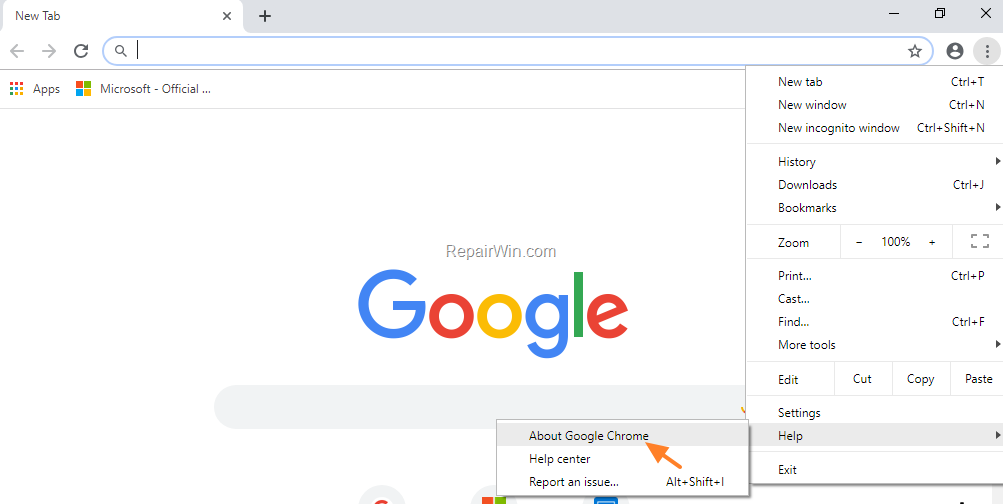
2. The Google Chrome will check for updates and then will install automatically the last update.
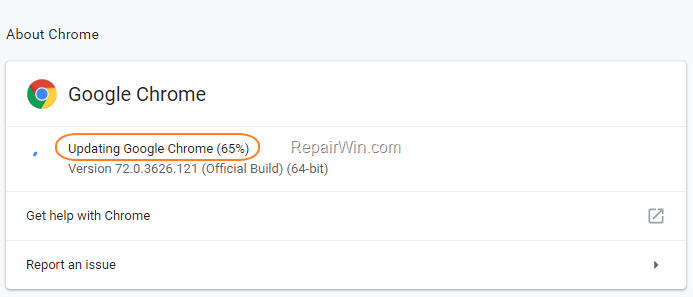
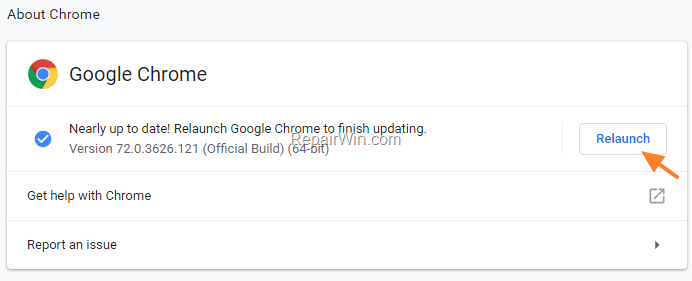
3. When the update is completed click the Relaunch button.
Part 2. How to Update Chrome Individual Components.
1. At Chrome's address bar, type:
- chrome://components
2. Click the Check for update button at each Chrome component that you want to update.
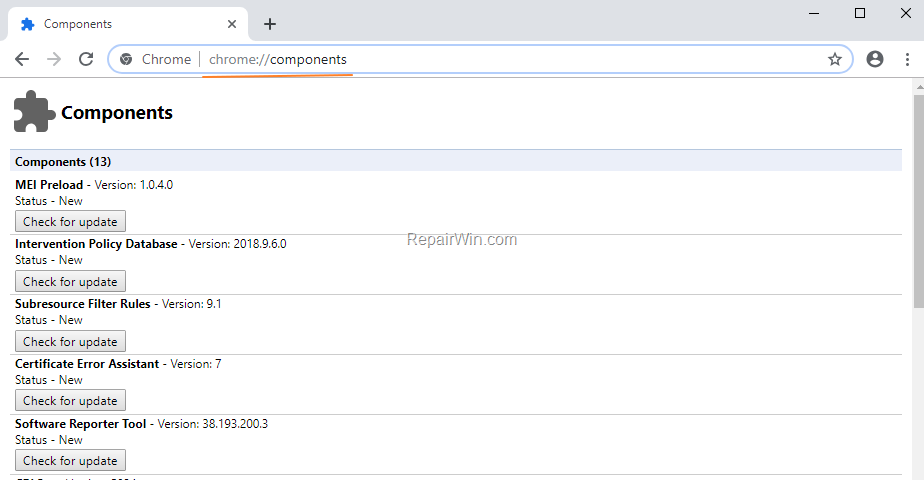
3. When you're done updating, restart Chrome.
Additional Help: If after updating Chrome and its components you face problems with your browser then proceed to completely remove and reinstall Chrome.
That’s all! Did it work for you?
Please leave a comment in the comment section below or even better: like and share this blog post in the social networks to help spread the word about this solution.
Frequently Asked Questions
How can I manually update Google Chrome to the latest version?
To manually update Google Chrome, open the Chrome menu, select 'Help', and then click 'About Google Chrome'. Chrome will automatically check for updates and install the latest version. Once the update is complete, click the 'Relaunch' button.
What should I do to update individual components of Google Chrome?
To update individual components of Google Chrome, type 'chrome://components' in the address bar and press Enter. Click 'Check for update' for each component you wish to update, and then restart Chrome once all updates are complete.
What steps should I take if Chrome continues to crash or freeze after updates?
If Chrome continues to crash or freeze after updating, consider completely removing and reinstalling Chrome to resolve any persistent issues.



