
How to Decrypt EFS Encrypted files and Remove EFS Encryption in Windows 10.
In a previous tutorial I had described the way to encrypt your files by using the EFS encryption. In this tutorial you 'll find out, how to remove the EFS encryption and how to decrypt the EFS encrypted files after transferring them to another computer.
How to Decrypt the EFS encrypted files and Disable the EFS Encryption.
Part 1. How to Disable and Remove the EFS Encryption.
When you encrypting your files with EFS, then the decryption key (certificate) is stored locally on your computer and the files are already decrypted. If you want to disable the EFS encryption in order to stop encrypting your files/folders:
1. Right click at the encrypted folder/file and change the File ownership to Personal.
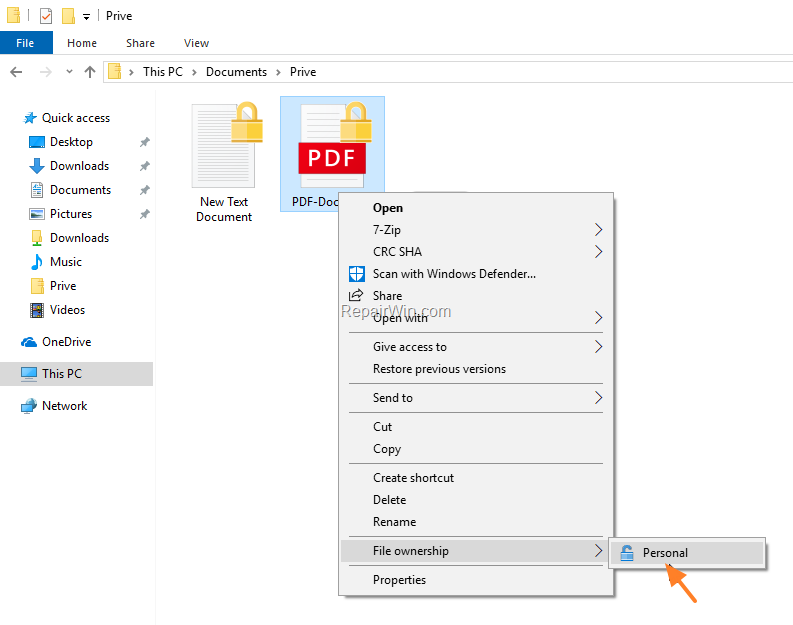
2. When done, you should see that the folder/file is unlocked. Just perform the same steps to remove the encryption on every other encrypted folder and file.
3. Now, if you don't use the EFS encryption to any other file/folder and you want to completely remove the EFS recovery key (aka "decryption key – certificate") from your PC:
1. Open Internet Explorer and from the Tools menu select Internet Options. (or, open Internet Options from Control Panel.)
2. At Content tab click Certificates.

3. At Personal tab, select the decryption certificate and click Remove. *
* Attention: Make sure that you have removed (stopped) the encryption for all the encrypted files before removing the certificate (decryption key)

4. Restart your computer.
Part 2: How to Decrypt the EFS encrypted files on Another computer.
If you have transferred the EFS encrypted files to another computer, then the only way to view (open) the EFS files, is to own the decryption key. The decryption key is the certificate .pfx file, you exported when you encrypted the files. If you don't have the EFS decryption key, there is not a way to decrypt the EFS files.
To Decrypt EFS encrypted files, by using the Decryption Key – Certificate:
1. Double click at the decryption key (certificate .pfx file) to install it.
2. At the Welcome screen of the Import Certificate Wizard click Next.
3. Then click Next again.
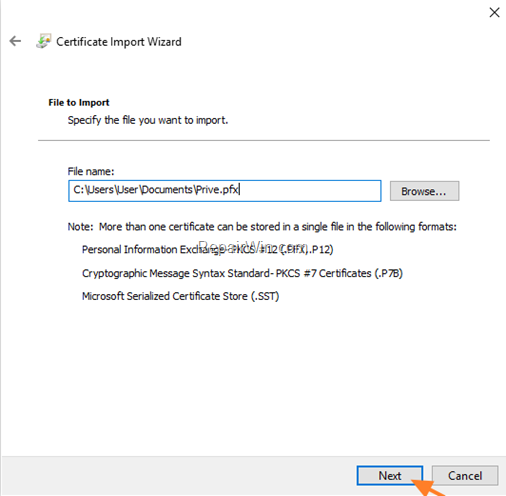
4. Type the password you used when you exported the certificate key and click Next.

5. Leave the default settings at Certificate Store options and click Next.
![image_thumb[40]](https://www.repairwin.com/wp-content/uploads/2019/02/image_thumb40.png "image_thumb[40]")
6. Finally click Finish.
![image_thumb[41]](https://www.repairwin.com/wp-content/uploads/2019/02/image_thumb41.png "image_thumb[41]")
7. Now you can open the encrypted files. *
* Note: After decrypting the files, follow the instructions at part-1 above, to completely remove the encryption if you want.
That’s all folks! Did it work for you?
Please leave a comment in the comment section below or even better: like and share this blog post in the social networks to help spread the word about this solution
Frequently Asked Questions
How can I disable and remove EFS encryption on the same PC?
To disable EFS encryption, right-click the encrypted file/folder, change File ownership to Personal, and ensure the folder/file shows unlocked. Repeat for other files. To remove the EFS recovery key, go to Internet Options, click Content, select Certificates, and under Personal, remove the decryption certificate. Ensure all files are decrypted before certificate removal, then restart your PC.
What steps should I follow to decrypt EFS files on another computer?
If you've transferred EFS encrypted files to another computer, you need the decryption key (.pfx file). Double-click the certificate to install it, proceed through the Certificate Wizard, enter the export password, and confirm settings. Once complete, you can access the encrypted files. After decryption, refer back to Part 1 to fully remove encryption if desired.
What should I do if I don't have the EFS decryption key for files transferred to another PC?
Unfortunately, without the EFS decryption key (certificate .pfx file), there is no way to decrypt and access EFS encrypted files on another computer.
Why is it important to remove the decryption certificate only after decrypting all files?
Removing the decryption key ensures you won't accidentally lose access to still-encrypted files. Always decrypt or remove encryption from files first to avoid data loss.



