
FIX: Chrome Always Open the Browse as Guest – Switch Person options at startup.
The tutorial contains instructions on how to prevent Chrome to display the "Switch Person – Browse as Guest" window at startup. Problem in details: On a Windows based computer the Google Chrome browser always open the "Browse as Guest" and "Add person" options at startup and the user has always to select his profile in order to use the Chrome browser.

How to Remove the "Browser As Guest – Add Person" options window at Chrome Startup.
Method 1. Check if Chrome is Set to Always Start in Guest Browsing Mode.
One of most useful features of Google Chrome browser, is to create multiple user profiles, especially if you share your computer with others, or if you want to have separated your bookmarks and settings between your multiple accounts. At this case you can always start Chrome with the "Switch Person" window, by adding one of the following switches (text entries) in Chrome shortcut:
- –profile-directory="Guest Profile"
- –bwsi
So first of all, check if Chrome is set to always open the "Switch Person/Browse as Guest" window. To do that:
1. Close Google Chrome.
2. Right Click on Chrome Shortcut on your desktop and select Properties.
3. At Shortcut tab, look at the Target text box and (if present) remove the above text entries at the end and then click OK.

4. Launch Chrome and at the "Switch Person" window, click at your profile icon/picture ("You").
5. Restart Chrome.
Method 2. Create a New Clean Google Chrome Profile.
By default Chrome stores all Profile settings (bookmarks, passwords, extensions, etc.) inside the "User Data" folder at the following location on your computer:
- C:\Users\%Username%\AppData\Local\Google\Chrome\User Data
If for some reason, the Chrome Profile folder, becomes corrupted or improperly modified by malware, then the best option you have, is to force Chrome to re-create a new (empty*) Chrome profile folder. To do that:
* Attention: Keep in mind that, by deleting your Chrome profile storage folder you delete all the stored data (Bookmarks, Settings, Extensions, History, etc.) . So prior deleting your Chrome profile, take a backup of your Chrome bookmarks in case that you want to re-install Chrome again.
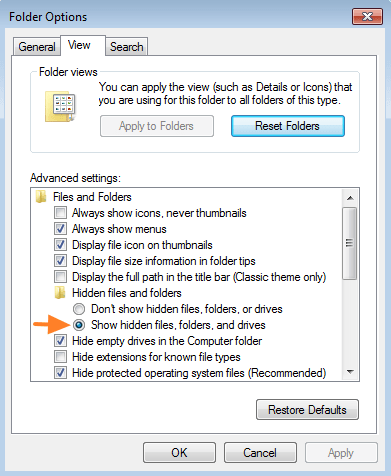
Step 1: Enable the Hidden files & folders view.
1. Open Folder Options.
2. At View tab, check the Show hidden files, folders, and drives check box and click OK.
Step 2. Force Chrome to Create a New (Clean) Profile Folder.
1. Close Google Chrome.
2. Open Windows Explorer and navigate to this location:
- C:\Users\%USERNAME%\AppData\Local\Google\Chrome\
* Where %USERNAME% = Your Username. (e.g. if your username is "Admin", then you have to navigate to this path: "C:\Users\Admin\AppData\Local\Google\Chrome")
3. Rename the "User Data" folder to "User Data.BAK".

4. Now open Google Chrome. (During startup Chrome will create automatically a new clean "User Data" folder to store your bookmarks and settings).
Additional Methods to Resolve Chrome problems.
1. Check your computer for viruses, malware, etc.
2. Completely uninstall and re-install Chrome.
That's all folks! Did it work for you?
Please leave a comment in the comment section below or even better: like and share this blog post in the social networks to help spread the word about this solution.
Frequently Asked Questions
How do I prevent Chrome from displaying the 'Switch Person - Browse as Guest' window at startup?
To stop Chrome from opening the 'Switch Person/Browse as Guest' window at startup, right-click on the Chrome shortcut on your desktop, select Properties, and in the Shortcut tab, remove any text entries like '--profile-directory="Guest Profile"' or '--bwsi' in the Target text box, then click OK.
What should I do if my Chrome profile folder is corrupted?
If your Chrome profile folder is corrupted, force Chrome to create a new profile by renaming the 'User Data' folder. Navigate to C:\Users\%USERNAME%\AppData\Local\Google\Chrome\, where %USERNAME% is your username, and rename 'User Data' to 'User Data.BAK'. Then, open Google Chrome for it to automatically create a new profile folder.
How can I show hidden files and folders on Windows to access the Chrome profile?
To view hidden files and folders, open Folder Options, go to the View tab, and check the 'Show hidden files, folders, and drives' option, then click OK.
What additional steps can I take if I encounter issues with Chrome?
If you experience persistent issues with Chrome, consider performing a virus and malware check on your computer or completely uninstalling and re-installing Chrome.




October 14, 2019 @ 9:56 pm
I had this issue and followed the directions above to have Chrome create a new profile Method 2. Create a New Clean Google Chrome Profile.) above.
That worked for me.
Thanks