
FIX: Drives Displayed Twice in Navigation Pane of Windows 10 (Solved)
In this tutorial you "ll instructions to fix the following weird issue in Windows 10: Drives displayed twice in Navigation Pane. The duplicate appearance of drives in navigation pane, is a new feature Windows 10, that helps the user to easily explore the contents of the attached drive, without having to expand the "This PC" menu. But this feature becomes annoying, because if you use to keep the "This PC" menu open, the same drive is displayed twice in the navigation pane.

If you see duplicate entries of your attached USB drives or of the fixed drives in Windows 10, then follow the instructions below to resolve the problem.
How to Remove the Duplicate Drive Letters in Windows 10 Explorer (Navigation Menu).
To prevent Windows 10, to display twice an attached or fixed drive, apply the following registry tweak:
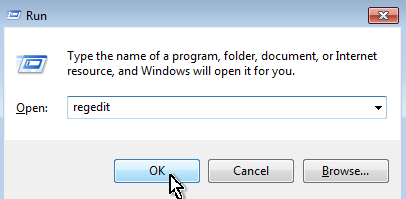
1. Open Registry Editor. to do that:
1. Press Windows
+ R keys to open the run command box.
2. In the Search box, type regedit and press Enter to launch the Registry Editor.

2. Then navigate to this registry key:
- HKEY_LOCAL_MACHINE\SOFTWARE\Microsoft\Windows\CurrentVersion\Explorer\Desktop\NameSpace\DelegateFolders
3. Then right click and delete the {F5FB2C77-0E2F-4A16-A381-3E560C68BC83} key.

4. Then navigate to this key: *
- HKEY_LOCAL_MACHINE\SOFTWARE\WOW6432Node\Microsoft\Windows\CurrentVersion\Explorer\Desktop\NameSpace\DelegateFolders
5. Delete the {F5FB2C77-0E2F-4A16-A381-3E560C68BC83} key.
6. Close Registry Editor.
* Note: If you cannot see the "WOW6432Node" key, then ignore the steps 4 & 5 above, because they only applies to 64bit versions of Windows 10.
TIP: If you change your decision in the future, just right click at 'DelegateFolders' at the above registry locations, select New -> Key, and recreate the deleted {F5FB2C77-0E2F-4A16-A381-3E560C68BC83} key(s).
That’s all! Did it work for you?
Please leave a comment in the comment section below or even better: like and share this blog post in the social networks to help spread the word about this solution.
Frequently Asked Questions
Why are my drives showing up twice in the Windows 10 Navigation Pane?
In Windows 10, the duplicate appearance of drives in the navigation pane is intended as a feature to help users access drive contents more easily without expanding the 'This PC' menu. However, it may become annoying as drives can appear twice if you keep 'This PC' expanded.
How can I remove duplicate drive entries in my Windows 10 Explorer?
You can prevent Windows 10 from displaying duplicate drive entries by editing the registry. Open Registry Editor, navigate to HKEY_LOCAL_MACHINE\SOFTWARE\Microsoft\Windows\CurrentVersion\Explorer\Desktop\NameSpace\DelegateFolders, and delete the {F5FB2C77-0E2F-4A16-A381-3E560C68BC83} key. For 64-bit systems, also navigate to HKEY_LOCAL_MACHINE\SOFTWARE\WOW6432Node\Microsoft\Windows\CurrentVersion\Explorer\Desktop\NameSpace\DelegateFolders and delete the same key.
What should I do if I don't see the 'WOW6432Node' key in the registry?
If you don't see the 'WOW6432Node' key, you may skip the steps involving it, as they are specific to 64-bit versions of Windows 10. Focus on the other registry path to solve the duplicate drives issue.
Can I restore the duplicate drive feature if I change my mind?
Yes, you can restore the feature by creating a new key in the registry. Right-click on 'DelegateFolders' in the specified registry locations, select New -> Key, and recreate the deleted {F5FB2C77-0E2F-4A16-A381-3E560C68BC83} key(s).




June 8, 2019 @ 11:42 am
Worked perfectly, thanks…………..but suggest you start with making an initial backup of registry