
How to Uninstall Office 365, Office 2019 or Office 2016 from Windows 10/11.
If you want to remove Microsoft Office, then in this guide you will find instructions on how to uninstall Office 365, Office 2019 or Office 2016 from your Windows 10/11 computer.
There are several reasons why you may need to uninstall Microsoft Office from your computer. For example, if one of the office applications is not working properly or if you want to install a new license, then removing Office from your computer is necessary.
How to Remove Office 365, Office 2021, Office 2019, Office 2016 or Office 2013 from Windows 10/11.
On Windows 10/11 you have the following three (3) ways to uninstall Microsoft Office:
Method 1. Uninstall MS Office from Windows Apps.
1. Press the Windows  + I keys to open Settings, or click the Start menu and then open Settings.
2. Now according your Windows version go to:
- Windows 10: Apps > Apps & features
- Windows 11: Apps > Installed Apps
3. Click on Microsoft Office and then click Uninstall.

Method 2. Uninstall Microsoft Office from Programs & Features in Control Panel.
1. Press Windows + R keys to open the run command box.
2. Type control appwiz.cpl to open Program and features.

3. Select the Microsoft Office and click Uninstall

4. Then click Uninstall again to remove MS Office.

.
Method 3. Completely Remove Microsoft Office with SaRA utility.
If for any reason you cannot uninstall Microsoft Office using one of the above methods, then you can completely uninstall Office from your PC using the Microsoft Support and Recovery Assistant (aka Sara") utility. To do that:
1. Download the Microsoft Support and Recovery Assistant (SaRA) utility.
2. When the download is completed extract the downloaded ZIP file to a folder.
3. Open the extracted folder and double-click to run the SaraSetup.exe application.
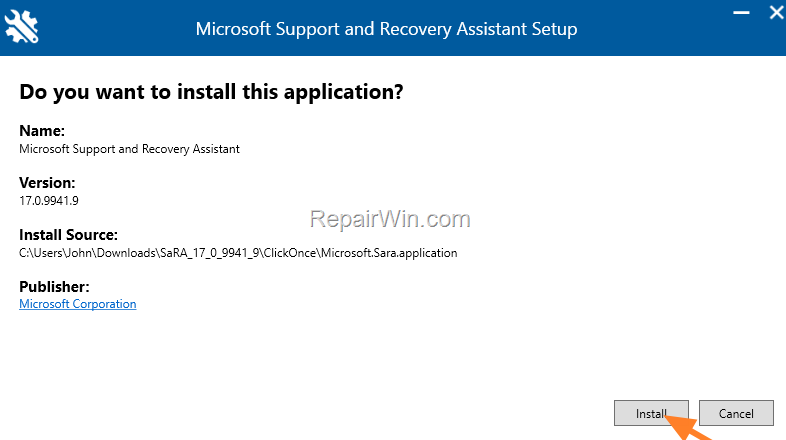
4. Click Install to install the SaRA utility.
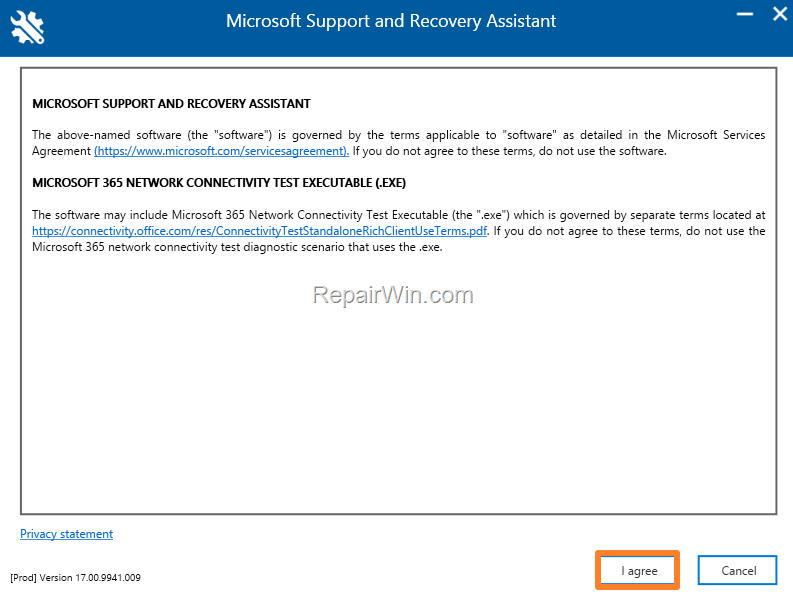
5. Click I agree on the terms.
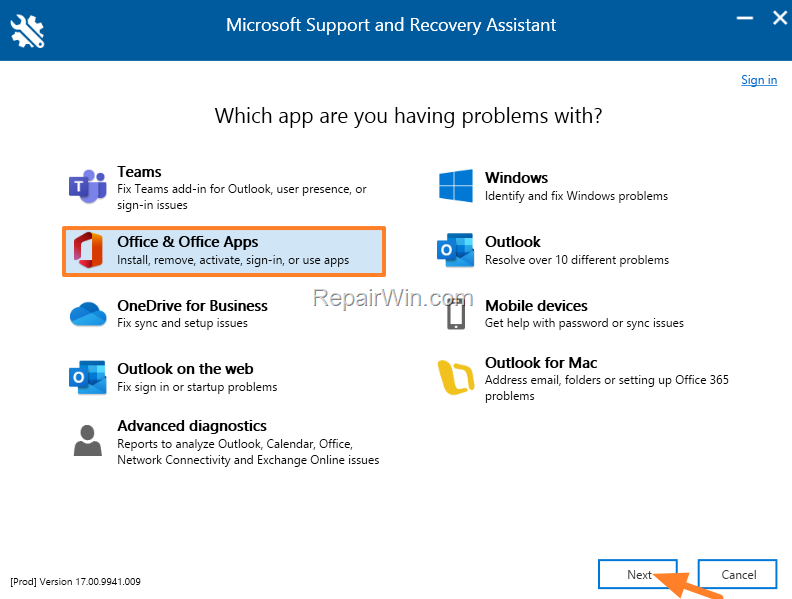
6. Select Office & Office Apps and click Next.
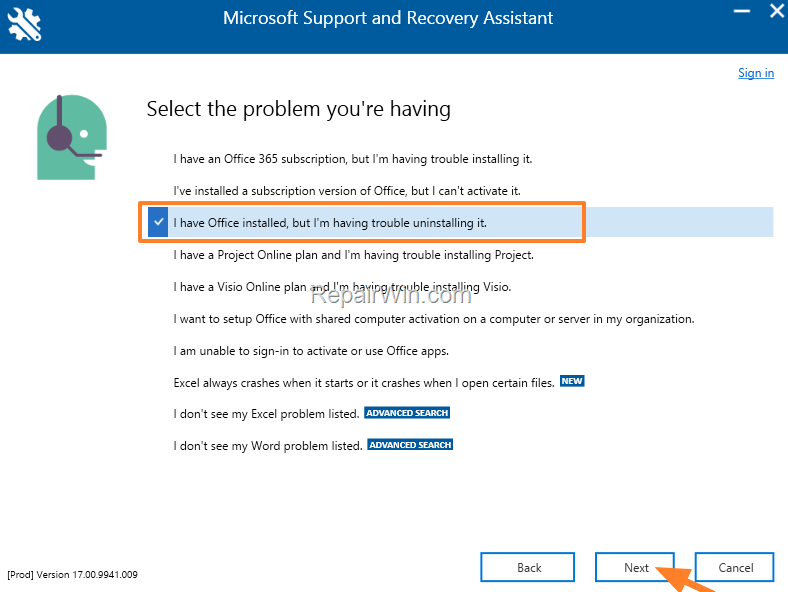
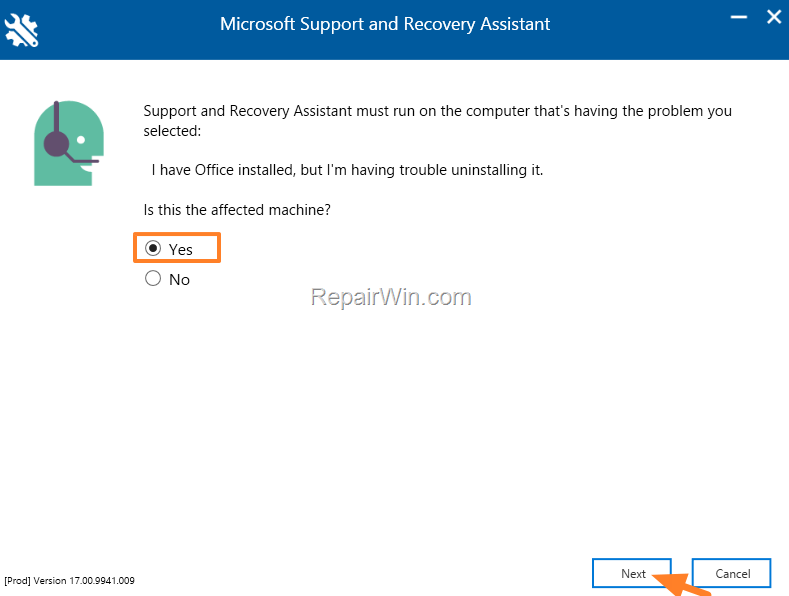
7 At the next screen choose I have Office installed but I'm having trouble uninstalling it and click Next.
8. Choose Yes on "Is this the affected machine?" question and click Next.
9. Select the checkbox with the installed Microsoft Office version and click Next.
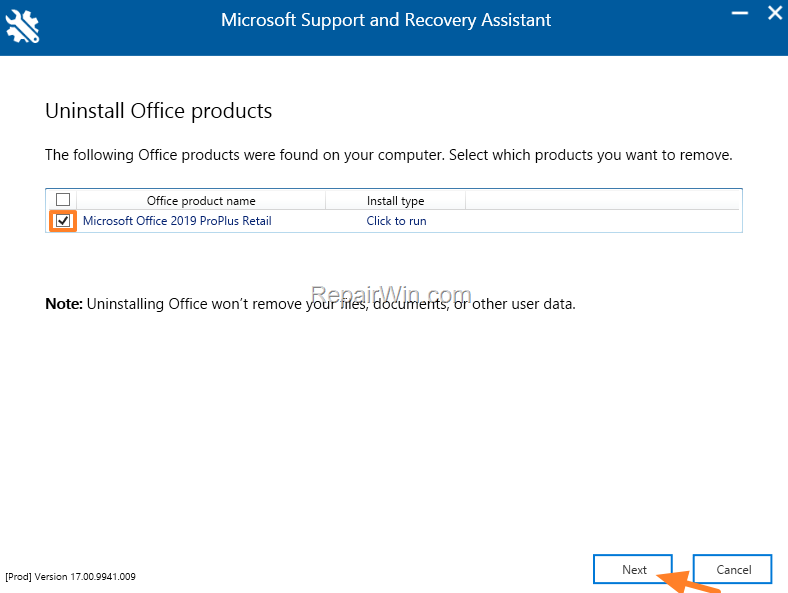
10. Now wait until the Office removal process to complete and when this is done, restart your computer.
11. After restart, proceed and reinstall Office (if you want), by following the instructions from this link: Download and install or reinstall Office 2019, Office 2016, or Office 2013.
That's all folks! Did it work for you?
Please leave a comment in the comment section below or even better: like and share this blog post in the social networks to help spread the word about this problem.
Frequently Asked Questions
How can I uninstall Microsoft Office using Windows Apps settings?
To uninstall Microsoft Office using Windows Apps settings, open Settings by pressing Windows + I or clicking the Start menu. Navigate to Apps & features on Windows 10 or Installed Apps on Windows 11. Find Microsoft Office and click Uninstall.
What are the steps to remove Microsoft Office via Control Panel?
To remove Microsoft Office via Control Panel, press Windows + R to open the run command box, type control appwiz.cpl to open Programs and Features, select Microsoft Office, and click Uninstall. Confirm the action when prompted.
What if I can't uninstall Microsoft Office with traditional methods?
If traditional methods fail, use the Microsoft Support and Recovery Assistant (SaRA) utility. Download and extract it, run the SaraSetup.exe, and follow the on-screen instructions to remove Office. After completion, restart your computer.
Can I reinstall Office after removing it with SaRA?
Yes, after removing Office using SaRA, you can reinstall it by following the instructions provided in the official guide to download and install or reinstall Office 2019, Office 2016, or Office 2013.



