
How to Stop MoUsoCoreWorker process from Waking Up the Computer.
The "MoUsoCoreWorker.exe" process (also known as "MoUso Core Worker" process), is a part of the Windows Update client and is responsible for waking up your system to check and install the available updates. So, if your PC is waking up from sleep in random times the MoUsoCoreWorker.exe is the culprit.
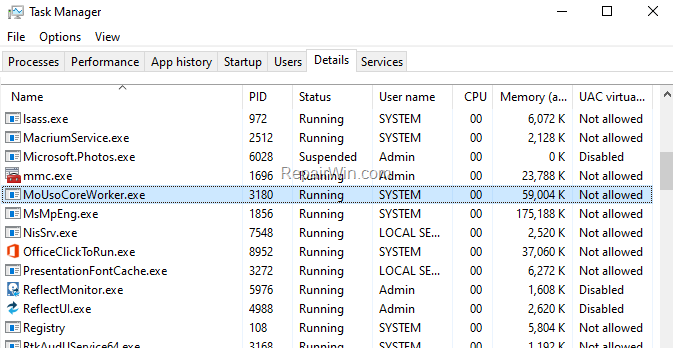
What is MoUSOCoreWorker.exe?
The MoUsoCoreWorker or USOCoreWorker.or USO (Update Session Orchestrator), is a Windows OS component that orchestrates the sequence of downloading and installing various update types from Windows Update.
FIX: MoUsoCoreWorker.exe Preventing Sleep in Windows 10.
If you want to stop MoUsoCoreWorker process from waking up your PC, apply one of the methods below:
Method 1. Stop MoUsoCoreWorker by Disabling Wake Timers.
The first method to stop MoUsoCoreWorker.exe from preventing your computer from sleeping, is to disable the Wake Timers.
1. Navigate to Control Panel and open Power Options, or right-click on the Start menu, select Power Options and click Additional Power Settings.
2. Click at Change plan settings.
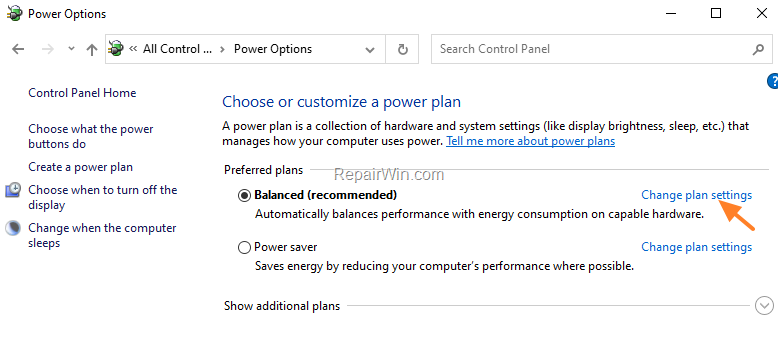
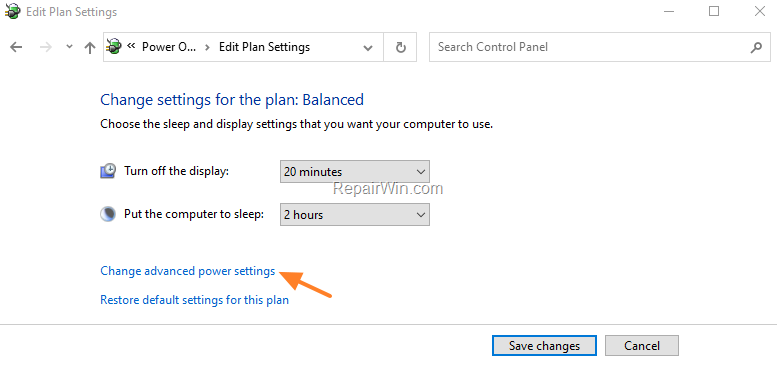
3. Then select Change Advanced Power Settings.
4. Expand Sleep, set the Allow wake times to Disable and click OK. *
* Note: If you own a laptop, apply the setting to both Battery and Plugged-in options.

.5. Perform the same steps and apply the same setting to all Power Plans.
Method 2. Stop MoUsoCoreWorker.exe in Task Scheduler.
To disable the wake from sleep to install updates, in Task Scheduler:
1. Open Task Scheduler. If you don't know how to do that, then…
1. At the search box type Task or Task Scheduler.
2. Open the 'Task Scheduler' from the search results.

2. In Task Scheduler go to:
- Task Scheduler Library -> Microsoft -> Windows -> Install Service.
3. Right-click and Disable the following two (2) tasks.
- WakeUpAndContinueUpdates
- WakeUpAndScanForUpdates

Method 3. Stop MoUsoCoreWorker.exe to Wake your System using PowerShell.
The final method to prevent MoUSO Core Worker Process (MoUsoCoreWorker.exe) to constantly wake your computer from sleep, is to ignore the MoUsoCoreWorker "wake up" requests in power plan. To do that:
1. Open PowerShell with Administrator permissions. To do that:
- In search box, type powershell
- Right click on Windows PowerShell result and select Run as administrator.

2. In PowerShell, copy/paste the following command and press Enter:
- powercfg /requestsoverride process MoUsoCoreWorker.exe execution

3. That's it. From now on MoUsoCoreWorker will not wake up your computer to check for updates.*
* Note: If you want to remove the restriction on the future, just give this command in PowerShell (Admin):
- powercfg /requestsoverride process MoUsoCoreWorker.exe
That’s all folks! Did it work for you? Please leave a comment in the comment section below or even better: like and share this blog post in the social networks to help spread the word about this solution.
Frequently Asked Questions
What is MoUsoCoreWorker.exe and what does it do?
MoUsoCoreWorker.exe, or MoUso Core Worker, is a component of the Windows Update client responsible for waking up your system to check and install available updates.
How can I stop MoUsoCoreWorker.exe from waking my PC?
You can prevent MoUsoCoreWorker.exe from waking your PC by disabling wake timers, using Task Scheduler, or leveraging PowerShell to ignore wake-up requests.
How do I disable wake timers to stop MoUsoCoreWorker.exe?
To disable wake timers, navigate to Power Options via Control Panel or the Start menu, adjust the advanced power settings, and set 'Allow wake timers' to 'Disable' for all power plans.
Can I use PowerShell to prevent MoUsoCoreWorker.exe from waking my system?
Yes, you can open PowerShell with Administrator permissions and use the command `powercfg /requestsoverride process MoUsoCoreWorker.exe execution` to prevent it from waking your computer.



