
How to Schedule Auto Send-Receive in Outlook 2019, 2016, 2013 & 2010
If you want to change the schedule of the automatic send-receive task in Outlook, then continue reading below. By default Outlook checks for, and send new messages every 30 minutes. But, if you have to manage a lot of urgent messages during the day, you may want to set Outlook to perform the auto send-receive task more often.
This tutorial contains instructions on how often Outlook will perform the automatic send-receive task.
How to Change Auto Send-Receive Schedule in Outlook 2019, 2016, 2013 & 2010.
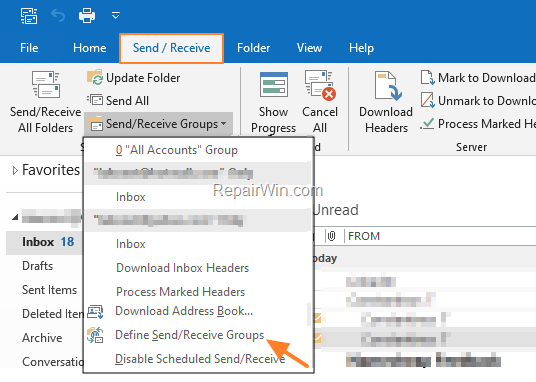
1. From 'Send / Receive' tab, click Send/Receive Groups -> Define Send/Receive Groups
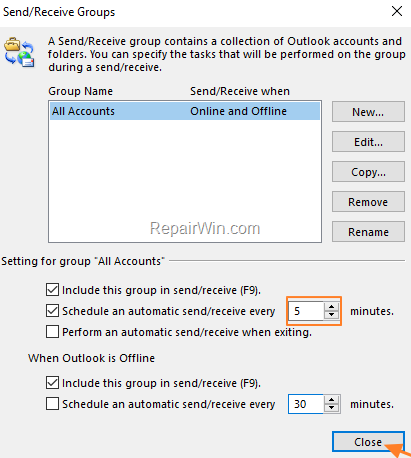
2. Check the 'Schedule an automatic send//receive every' checkbox, and then specify (in minutes) how often Outlook will perform the send/receive task. When done, click Close.

ALTERNATIVELY:
1. Click the File menu and then click Options.

2. Select Advanced on the left.
3. At 'Send and Receive' options, click Send/Receive.

4. Check the 'Schedule an automatic send//receive every' checkbox, and then specify (in minutes) how often Outlook will perform the send/receive task. When done, click Close.
That’s all folks! Did it work for you?
Please leave a comment in the comment section below or even better: like and share this blog post in the social networks to help spread the word about this solution.
Frequently Asked Questions
How often does Outlook perform the automatic send-receive task by default?
By default, Outlook checks for and sends new messages every 30 minutes.
What steps should I follow to change the automatic send-receive schedule in Outlook 2019, 2016, 2013, or 2010?
To change the schedule, go to the 'Send / Receive' tab, click 'Send/Receive Groups', then 'Define Send/Receive Groups'. Check the 'Schedule an automatic send/receive every' checkbox and specify the time in minutes, then click 'Close'.
Is there an alternative way to adjust the send-receive frequency in Outlook?
Yes, alternatively, you can click the 'File' menu, then 'Options'. Select 'Advanced' on the left, click 'Send/Receive' under 'Send and Receive' options, and specify the frequency in minutes before clicking 'Close'.
Where can I provide feedback or discuss this solution on adjusting Outlook's send-receive frequency?
You can leave a comment in the comment section below the blog post to provide feedback or discuss this solution.



