
How to Remove Windows Updates using WUSA and DISM commands.
In a previous tutorial I mentioned the way to uninstall Windows 10 updates from the Windows GUI environment. In this tutorial I 'll show to you, how to uninstall Windows updates from the command line (command prompt) using the WUSA command, or by using the DISM (Deployment Image Servicing and Management) tool.
How to Uninstall Updates from the Command Line with WUSA & DISM (Windows 10/8/7)
Part 1. Uninstall Windows Updates using WUSA command.
Part 2. Uninstall Windows Updates using the DISM command from Windows GUI.
Part 1. Remove Windows Updates using WUSA command.
1. Open Command Prompt as Administrator.
2. Display the configuration of the operating system and view a list of the installed updates, with this command:
- systeminfo.exe
3. At Hotfix(s) section, locate the number of the KB update that you want to uninstall. (e.g. "4058702")

3. Finally give the following command to remove the desired update. (e.g. the KB "4058702")
- wusa /uninstall /kb:4058702 /quiet /norestart
* Note: If you receive an "Error: 5 Access is denied", after executing the above command then make sure that you have open an Administrative Command Prompt window and temporarily disable your Antivirus Protection.

Part 2. Remove Windows Updates using the DISM tool from the Windows GUI. *
* Note: The advantage of the DISM tool is that you can use it to remove updates. from either the Windows GUI (if Windows boot normally) or the Windows recovery environment. This is useful if Windows fails to start after an unsuccessful update installation.
1. Open Command Prompt as Administrator.
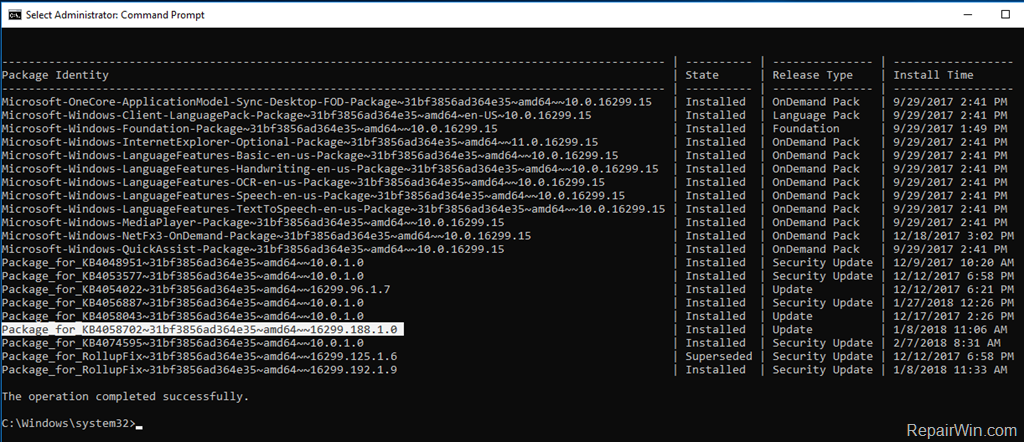
2. First, view a list with the installed updates with the DISM command:
- dism /online /get-packages /format:table

3. At the "Package Identity" column, find out the Package Name of the update that you want to remove. *
* e.g. To remove the "Package_for_KB4058702~31bf3856ad364e35~amd64~~16299.188.1.0"
Tip: If you want to view more details for an installed package then give this command:
- dism /online /get-packageinfo /packagename:PackageName
e.g: dism /online /get-packageinfo /packagename:Package_for_KB4058702~31bf3856ad364e35~amd64~~16299.188.1.0
4. Finally, type the following command to remove the desired update package and press Enter: *
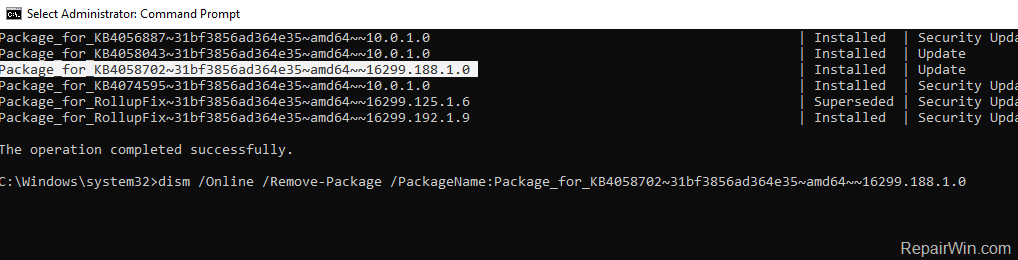
- dism /Online /Remove-Package /PackageName:PackageName
* e.g. To remove the "Package_for_KB4058702~31bf3856ad364e35~amd64~~16299.188.1.0", give this command:
- dism /Online /Remove-Package /PackageName:Package_for_KB4058702~31bf3856ad364e35~amd64~~16299.188.1.0
Tip: To easy type the above command:
1. Copy and Paste the first part (with the bold characters), of the above DISM command, in command prompt window.
2. Then highlight the full package name from the list of installed packages (above) and press the Ctrl + C keys (to copy the full package name on the clipboard).
3. Finally press the Ctrl + V keys (to paste the full package name on the DISM command.)
That’s all folks! Did it work for you?
Please leave a comment in the comment section below or even better: like and share this blog post in the social networks to help spread the word about this solution.
Frequently Asked Questions
How can I uninstall Windows updates using the command line in Windows 10?
You can uninstall Windows updates from the command line using the WUSA command or the DISM tool. For WUSA, open Command Prompt as Administrator and use the command 'wusa /uninstall /kb:[KB number] /quiet /norestart'. For DISM, use 'dism /online /remove-package /packagename:[Package Name]'.
What should I do if I receive 'Error: 5 Access is denied' while uninstalling updates using WUSA?
Ensure that you have opened an Administrative Command Prompt window and temporarily disable your Antivirus Protection to prevent it from interfering with the uninstallation process.
How do I find the update I want to remove using the DISM tool?
To find the update, use the command 'dism /online /get-packages /format:table' to display a list of installed updates. Locate the update’s Package Name in the 'Package Identity' column that you want to remove.
What is the advantage of using the DISM tool over WUSA for uninstalling updates?
The DISM tool allows you to remove updates from either the Windows GUI or the Windows recovery environment, which is useful if Windows fails to start after an unsuccessful update installation.




August 12, 2019 @ 10:16 pm
The wusa command appeared successful. But dism get packages shows 2952664 packages. Trying to remove it using dism gets me.
Error: 5
Access is denied
I am logged in as the domain admin and running the command prompt as administrator.
August 31, 2019 @ 10:16 am
@Paul Cook: Try to temporarily disable your AV protection and try again.
July 15, 2020 @ 11:32 am
Thank you so much for your tutorial! This rescued my internal WSUS server which only presented BSOD after June 2020 updates. With your tutorial I could remove the faulty updates!
May 28, 2021 @ 8:56 pm
"wusa /uninstall /kb" does not accept /quiet. It just silently doesn't do anything. Even the wusa documentation does not list "/quiet" as one of the acceptable arguments when using "/uninstall /kb".
May 29, 2021 @ 9:54 am
No, it is not true, the "/quiet" is listed in command's arguments. Type "wusa /?" (with quotes) to see all arguments of WSUA command.
May 31, 2021 @ 7:17 am
/quiet is an accepted argument.
But incompatible when trying to uninstall via a KB number
(/kb and /uninstall)
October 24, 2023 @ 3:18 pm
This is a Wonderfull Guide.
Thank you very Much !