How to Find Computer Name on Windows 10 & 7 OS.
This guide contains several methods to find out your computer name on Windows 10 or Windows 7 Operating Systems. Each computer has a computer name to identify it on the network. The computer name in the Windows operating systems is assigned during the first installation and can be changed at any time if needed.
In this tutorial will show you all the available methods to view the Windows 10 computer name.
How to find out the Computer Name in Windows 10, 8, 7 & Vista OS.
* Note: Almost all of the following methods, except the last two, apply to all Windows operating systems.
Method 1. Find Computer Name using Explorer.
1. Open File Explorer.
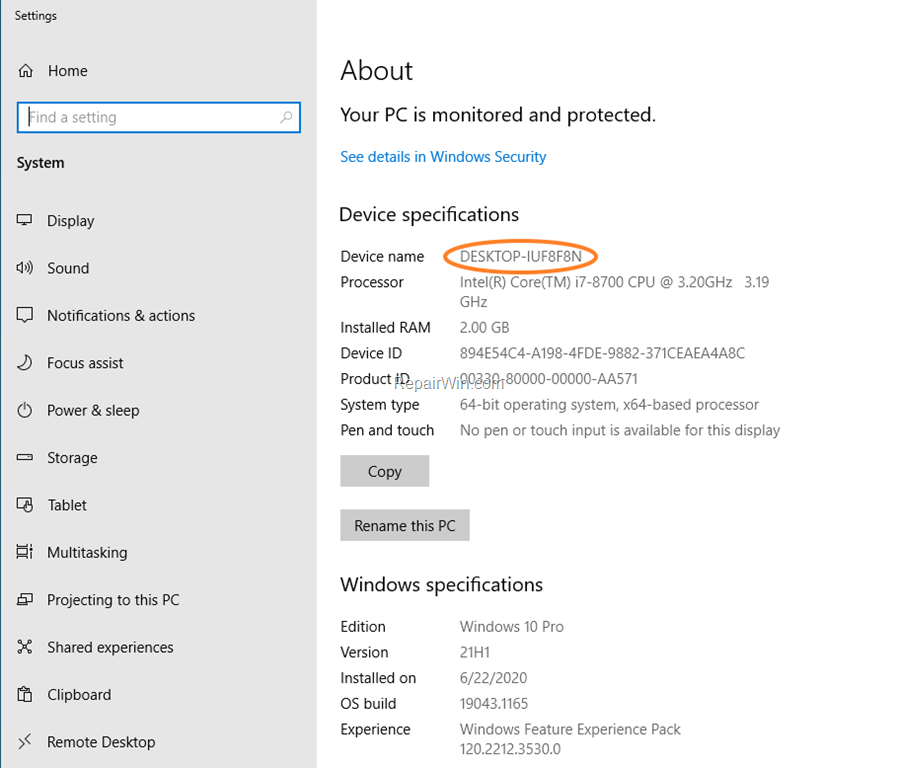
2. Right-click on This PC icon (or at "Computer" icon on Windows 7) and choose Properties.

-
To view the Computer Name on Windows 10, look at Device name.
-
To view the Computer Name on Windows 7, look at Computer name.

Method 2. Find Computer Name from Control Panel.
1. Navigate to Windows Control Panel.
2. Click System and Security and then click System.
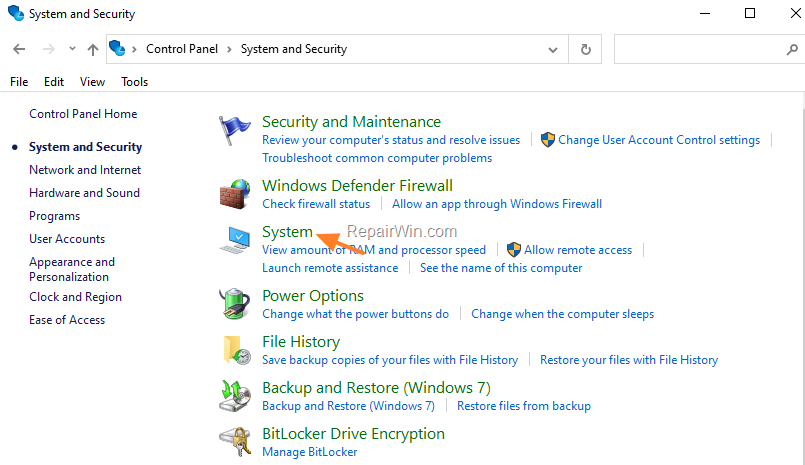
3. Look At "Device Name" field to find the out the computer name in Windows 10. (on Windows 7, look at "Computer name" field)
Method 3. View Computer Name in System Information.
1. At the search box type system information and open the System information app.

2. Look at System Name filed to find out your computer name.

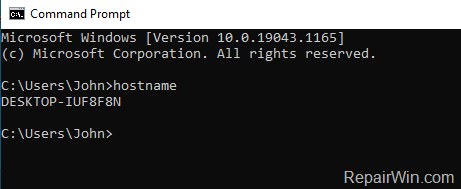
Method 4. Find Computer Name in Command Prompt.
To view your computer name in command prompt.
1. At the search box type cmd or command prompt and press Enter.

2. At command prompt, type hostname and press Enter.

Method 5. Find Computer Name using a Keyboard Shortcut.
1. Press the Windows  key + Pause/Break key* to view the computer name in System Properties. *
* Note: If your keyboard doesn't have a Pause/Break key then use one of the other methods.
Method 6. Find Out Computer Name from Power User menu on Windows 10.
1. Press the Windows key + X key (or right-click at Start  menu) to open the Power User menu.
2. Select System.

3. Look At "Device Name" field to find the out Windows 10 computer name
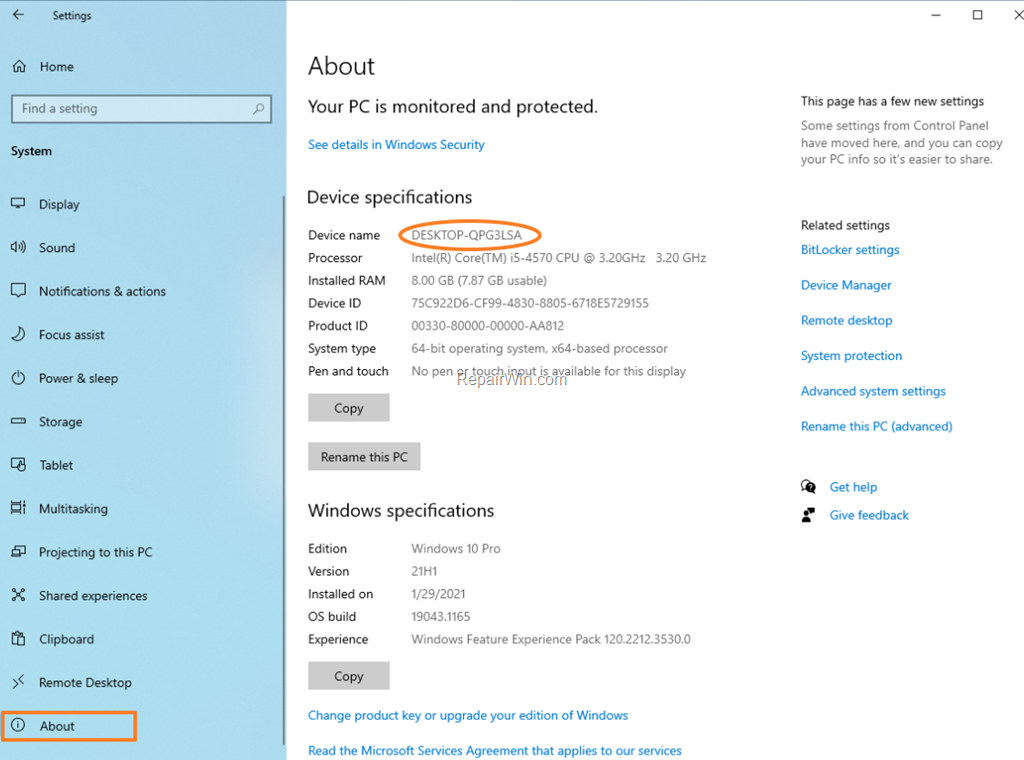
Method 7. View Computer Name from Settings on Windows 10.
To view your Windows 10 computer name in Settings:
1. Press the Windows  key + I to open Settings. (or from Start
  menu click Settings
  )
)
2. Click System & then click About.
That’s all folks! Did it work for you?
Please leave a comment in the comment section below or even better: like and share this blog post in the social networks to help spread the word about this solution.
Frequently Asked Questions
How can I find my computer name using File Explorer?
Open File Explorer, right-click on 'This PC' (or 'Computer' in Windows 7), and choose Properties. On Windows 10, check under 'Device name'; on Windows 7, look under 'Computer name'.
What steps should I follow to find my computer name using the Control Panel?
Navigate to the Windows Control Panel, click on 'System and Security', then select 'System'. In Windows 10, find the computer name under 'Device Name'; in Windows 7, look for 'Computer name'.
How do I use Command Prompt to find my computer name?
Open Command Prompt by typing 'cmd' in the search box and pressing Enter. Then, type 'hostname' and press Enter to display your computer name.
What is the keyboard shortcut to quickly view my computer name?
Press the Windows key + Pause/Break key to open System Properties and view your computer name. If your keyboard lacks a Pause/Break key, try another method.