
How to Check for Updates in Office 2019, 2016 or 2013 in Windows 10.
In this tutorial you'll learn how to manually check for updates in Office 2019, 2016 and Office 2013. In all Office versions, there are two ways to install the available Office updates: Automatically and Manually.
How to Update Office 209/2016/2013/2010 Manually.
Method 1. How to Manually Check for Office Updates in Office 2019, 2016 and Office 2013.
To manually check and install the available Office updates, in all Office versions:
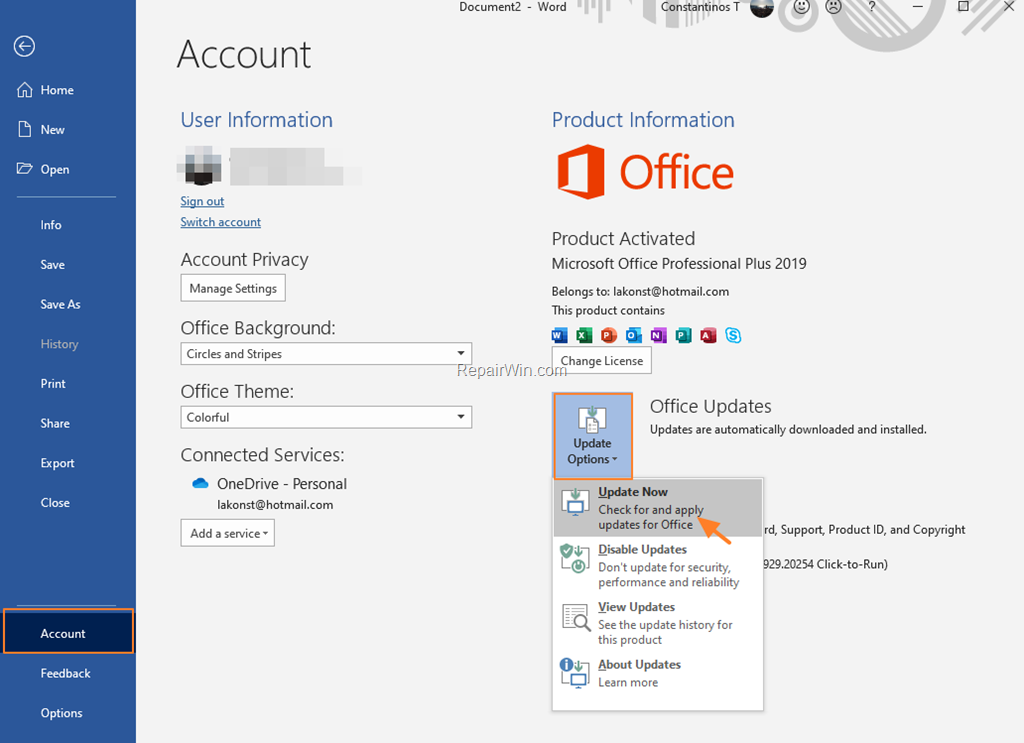
1. Open any Office program (e.g. Word).
2. From File menu, choose Account. *
* Note: In Office 2010 choose Help.
3. Expand the Update options and click Update Now. *
* Note: If the 'Update Options" are not available, follow the instructions at Method-2 below.
Method 2. How to Automatically Install Office Updates for Office 2019, 2016 and Office 2013.
If you want Windows to download and install the available Office updates automatically, navigate to Windows update settings and check the following setting:
- Receive updates for other Microsoft products when you update Windows (Windows 10)
- Give me updates for other Microsoft products when I update Windows (Windows 7)
To install Office updates automatically in Windows 10.
1. Go to Settings -> Update and Security -> Advanced options.

2. At Update options, drag the slider 'Receive updates for other Microsoft products when you update Windows' to ON.

3. Navigate to the previous screen, and click the Check for Updates button in you want to install the available Office updates immediately.
To install Office updates automatically in Windows 7.
1. Navigate to Control Panel -> Windows Update and click Change Settings.
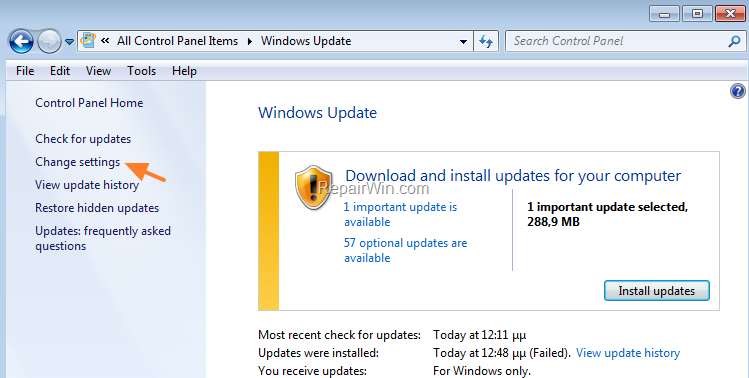
2. Select the Give me updates for other Microsoft products when I update Windows checkbox and click Apply.
3. Click Check for updates to install all available Updates.
That's all folks! Did it work for you?
Please leave a comment in the comment section below or even better: like and share this blog post in the social networks to help spread the word about this guide.
Frequently Asked Questions
How can I manually check for Office updates in versions 2019, 2016, and 2013?
To manually check for Office updates, open any Office program like Word. Go to the 'File' menu, select 'Account', expand 'Update options', and click 'Update Now'. Note: In Office 2010, you would choose 'Help'.
What should I do if the 'Update Options' are unavailable in Office 2019, 2016, or 2013?
If 'Update Options' are not available, there is an alternative method which you can follow, detailed in Method 2 of the tutorial, to enable automatic updates via Windows settings.
How do I enable automatic Office updates on Windows 10?
On Windows 10, navigate to 'Settings', then 'Update and Security' and click 'Advanced options'. Turn on the slider for 'Receive updates for other Microsoft products when you update Windows'. Go back and click 'Check for Updates' if you wish to install updates immediately.
How can I ensure Office updates are installed automatically on Windows 7?
Go to 'Control Panel', access 'Windows Update', and click 'Change Settings'. Make sure to check the box that says 'Give me updates for other Microsoft products when I update Windows', then click 'Apply'. Click 'Check for updates' to install available updates.



