
How to Change Word Theme or Document Color to Dark or White.
If you want to learn how to change the theme color of Word, Excel applications from light to dark, or to change the background color inside the document/workbook page, continue reading below.
When installing MS Office applications (Word, Excel, PowerPoint, etc.), the default theme is the "Colorful" or the "System Settings" theme, which are good for most users, but not satisfactory for users with visual impairments or users who prefer to work in low light conditions.
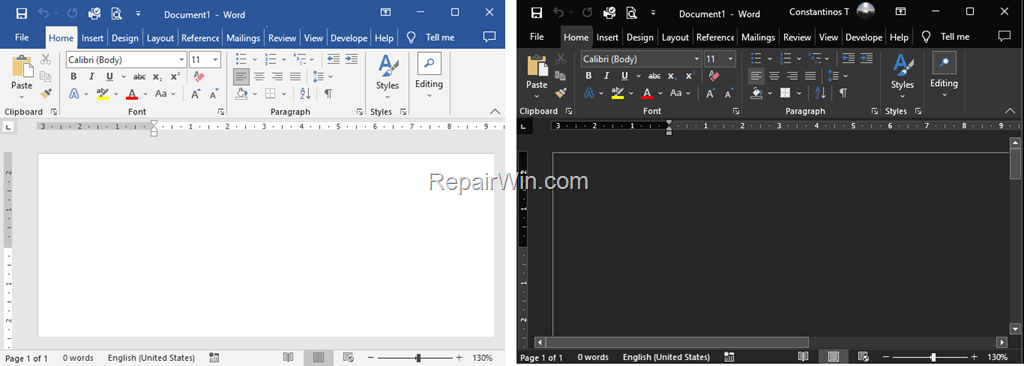
Although the white theme in Word or Excel documents reflects what will appear on paper, some people find it tiring on the eyes, so they prefer it black. If you are one of them, see below how you can easily turn on the dark theme in Word, Excel, Outlook, PowerPoint or Outlook.
How to Change Office Applications Theme or Background to Black or White.
In latest versions of MS Office you can change the Word Theme to Dark or to Dark Gray by using one of the methods below.
Method 1. Switch Office Apps Theme to Dark through Account Options. *
The first method to change the background color from light to dark in the entire working environment of Word, Excel, PowerPoint, (i.e. the color of the document page, title bar, menu bar, ruler, etc.), proceed as follows:
* Note: Keep in mind that the change of the color theme in one Office app (e.g. Word), will impact all other Office apps (Excel, PowerPoint, Access.)
1. In any Office application (e.g. "Word), open the File menu and then click Account on the left pane.

2. Now, under the Office Theme click the drop menu and chose Black.

3. After the above steps you will see that the color has changed to black both in the Office's menu bars and on the page. If you want to keep the color on the page document white, read method 2.

Method 2. Change Word to Dark Theme While Keeping Document White.
The second method to change the background color of Word or Excel from white to black, is by using the Options menu, which also allows you to keep the document page color white, while having the menu bar the ribbon and the ruler bar colors on a dark background (black).
1. From any Office app (Word, Exce, etc.), open the File menu and then click Options on the left pane.

2. In General tab, change the Office Theme to Black and tick the checkbox Never change the document page color if you want to keep the document page color white. When done click OK to apply the change.

3. After click OK, you'll see the below result.

That's all folks! Please leave a comment in the comment section below or even better: like and share this blog post in the social networks to help spread the word about this solution.
Frequently Asked Questions
How can I change the theme color of Word, Excel applications to dark mode?
You can change the theme color to dark mode by opening any Office application, going to the File menu, selecting 'Account', and then choosing 'Black' from the Office Theme drop-down menu.
Does changing the theme in Word also change it in other Office applications?
Yes, changing the color theme in one Office application (e.g., Word) will impact all other Office applications like Excel, PowerPoint, and Access.
Can I have a dark theme for the interface but keep the document background white in Word?
Yes, you can keep the document page background white while having a dark interface. Go to File > Options, select 'Black' for the Office Theme, and tick the checkbox 'Never change the document page color' under the General tab.
Where can I find the option to change the Office theme color?
To change the Office theme color, open any Office application, go to the File menu, and click on 'Account' to find the Office Theme drop-down menu. Alternatively, you can use the File > Options menu and find the theme settings under the General tab.



