
FIX: Secondary Hard Drive Not Detected in Windows 10 (Solved)
Recently, on a customer's desktop computer running on Windows 10 OS, I added a brand new hard drive as an additional storage space to the system. After connecting the 2nd drive and booting into the operating system, I realized that the secondary hard drive was not detected by Windows 10 and was not identified either in Device Manager (under "Disk Drives" group) or in Disk Management.
At first, I checked all the cables of the disk (Power & Data cable) to make sure that they were properly connected. Then, I entered BIOS SETUP to find out whether the second hard disk was recognized properly. Then, after I realized that the disc was recognized by BIOS, I found out again that Windows 10 did not recognize the secondary hard disc.
In this tutorial you 'll find detailed instructions to fix the following issue: The secondary hard disk is not recognized or not detected or does not appear in Windows 10 Disk Management or in Device Manager or in Windows Explorer.
How to fix: The Secondary Disk is Not Recognized from Windows 10.
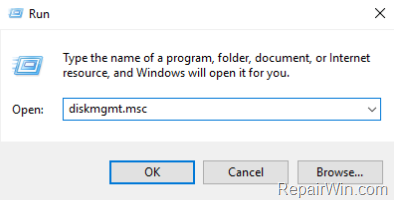
1. Press “Windows” + “R” keys to open the RUN window.
2. In “RUN” window “Open” box, type: diskmgmt.msc & Press Enter.
3. At Disk Management, check if the secondary disk is recognized.
- Case A: If the second disk is recognized in Disk Management, then:
1. Right-click on the disk and select Change Drive Letter and Paths.
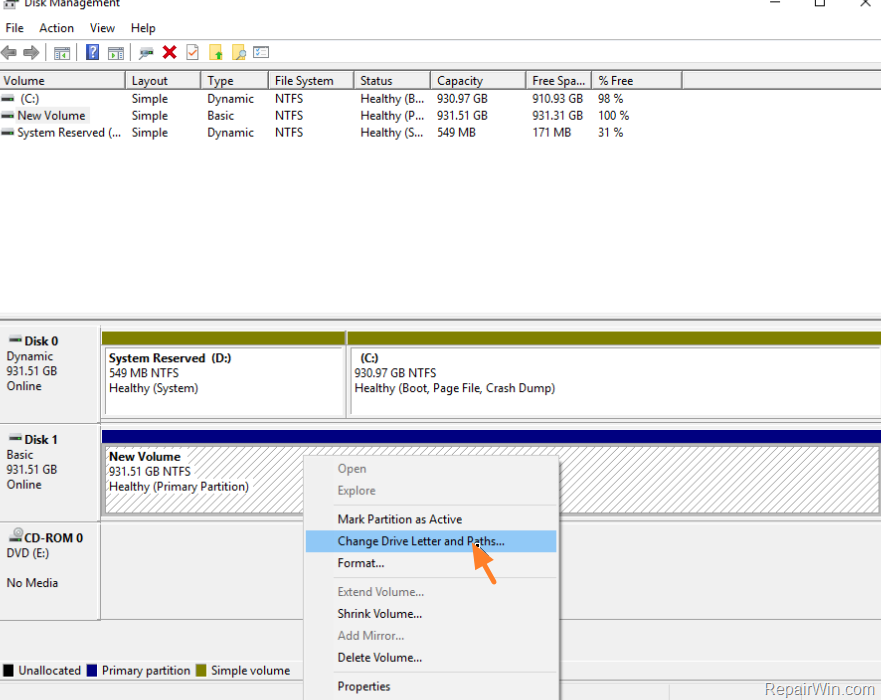
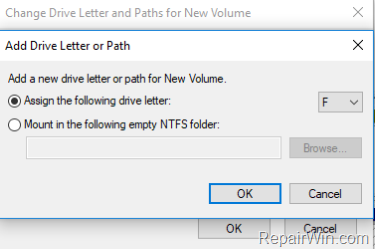
2. Click Add.
3. Assign a driver letter (e.g. "F)" and click OK twice to Exit.
4. Close disk management and open Windows explorer to see disk's contents.
- Case B: If the second disk is not recognized in Disk Management, then:
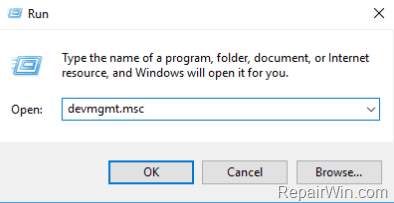
1 Press “Windows” + “R” keys to open the RUN window.
2. In “RUN” window “Open” box, type: devmgmt.msc & Press Enter.
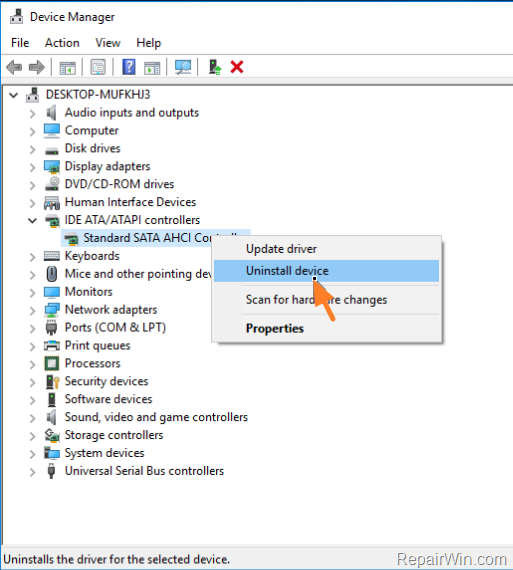
3. In Device Manager expand IDE ATA/ATAPI controllers.
4. Right click on the installed disk controller and select Uninstall device.
5. Then click Uninstall again at the warning message.
6. Restart your computer.
7. If after restart, the hard drive not shown in explorer and it still not recognized in Disk Management, then navigate to the mainboard's (or PC/Laptop's) manufacturer support site and install the latest drivers for the chipset and the disk controller.
That’s all folks! Did it work for you?
Please leave a comment in the comment section below or even better: like and share this blog post in the social networks to help spread the word about this solution.
Frequently Asked Questions
Why is my secondary hard disk not recognized in Windows 10?
If your secondary hard disk is not recognized, it might be due to improper connections, BIOS recognition issues, or missing drivers. Ensure cables are connected properly and check if the disk is recognized in BIOS and in Disk Management.
What should I do if the secondary disk is recognized in Disk Management?
If recognized, right-click the disk in Disk Management, select 'Change Drive Letter and Paths', click 'Add', and assign a drive letter. Then, open Windows Explorer to access the disk's contents.
What steps should I take if the secondary disk is not found in Disk Management?
Open Device Manager, expand IDE ATA/ATAPI controllers, and uninstall the disk controller. Restart your computer. If it still doesn't appear, download and install the latest chipset and disk controller drivers from your mainboard or PC manufacturer’s support site.
How can I access Disk Management to check if my secondary disk is detected?
Press Windows + R to open the RUN window, type 'diskmgmt.msc', and press Enter. Then, check if the secondary disk is recognized there.




September 24, 2019 @ 12:28 am
Simple and direct fix. Thank you.