
FIX: Running Scripts is Disabled on this System in Windows 10 (Solved)
If you trying to run a script in Windows 10 PowerShell and you receive the error message "Cannot be loaded because running scripts is disabled on this system" continue reading below to fix the problem.

How to FIX: Cannot Run PowerShell Script because Security Policy Prevents scripts from running in Windows 10.
The PowerShell error "%ScriptName%.ps1 cannot be loaded because is disabled on this system", appears because of a security policy that prevents scripts to be running. To remove the restriction and enable running scripts in Windows 10, proceed as follows:
1. Open PowerShell as Administrator. To do that:
1. Press the Windows + R keys to open the 'Run' command box
2. Type powershell and then press CTRL + SHIFT + ENTER.

2. At PowerShell copy/paste the command below and press Enter:
- Set-ExecutionPolicy -Scope CurrentUser -ExecutionPolicy Unrestricted
3. Press Y and hit Enter at execution policy warning message to accept the change..
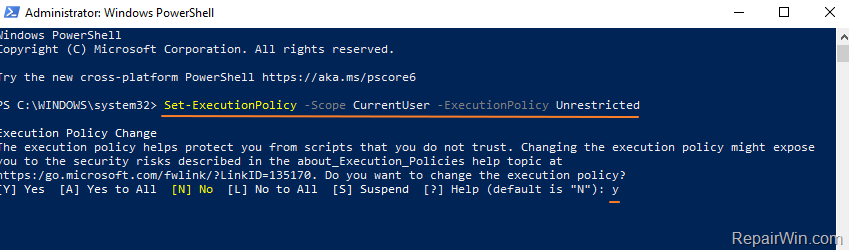
4. After the policy change is completed, close the PowerShell window.
5. Now, run the script that gave you the error "Scripts is Disabled" with admin privileges. The error should be gone now. *
* Note: If you still receive the error "Scripts are disabled on this system", give one of the following commands and try again to run your script:
- Set-ExecutionPolicy -Scope CurrentUser -ExecutionPolicy RemoteSigned
- set-executionpolicy remotesigned
6. Finally, revert back to the previous PowerShell execution policy setting (restriction), by running this command in PowerShell (Admin): *
- Set-ExecutionPolicy -Scope CurrentUser -ExecutionPolicy Restricted
* Note: After running the above command, you'll receive a warning message that explains the security risks of an execution policy change. Press Y, and then press Enter to accept the change and revert to your previous policy setting.

7. Close the PowerShell window and you're done!
That’s all folks! Did it work for you?
Please leave a comment in the comment section below or even better: like and share this blog post in the social networks to help spread the word about this solution.
Frequently Asked Questions
What error message might you encounter when attempting to run a script in PowerShell on Windows 10?
You might encounter the error message '%ScriptName%.ps1 cannot be loaded because running scripts is disabled on this system' because of a security policy that prevents scripts from running.
How can you open PowerShell with administrative privileges to change the execution policy?
To open PowerShell as an Administrator, press the Windows + R keys to open the 'Run' command box, type 'powershell', and then press CTRL + SHIFT + ENTER.
Which command should you use to remove script execution restrictions in PowerShell?
To remove script execution restrictions, use the command: Set-ExecutionPolicy -Scope CurrentUser -ExecutionPolicy Unrestricted. Press 'Y' when prompted to accept the change.
How can you revert back to the original PowerShell execution policy after running your script?
To revert to the original execution policy, run the command: Set-ExecutionPolicy -Scope CurrentUser -ExecutionPolicy Restricted. Accept any warning messages by pressing 'Y'.




August 8, 2022 @ 12:44 am
The first method worked for me. Thank you.
August 14, 2022 @ 1:58 am
Worked for me. Thanks!
October 7, 2022 @ 4:41 pm
Worked for me. Thanks
October 19, 2022 @ 4:30 pm
Another safer way to do this could potentially be to set the execution policy to RemoteSigned, as suggested in this StackOverflow thread: https://stackoverflow.com/questions/64511176/security-risks-of-set-executionpolicy-executionpolicy-remotesigned