
FIX: RUN command Not Saving History of commands used on Windows 10/11 (Solved)
If there is no history of the commands used before in RUN command box on Windows 10, continue reading below to fix the problem.
A few days now, I realized that my Windows 10 machine doesn't keep the RUN command history of the previous commands. After investigating the problem, I found that Windows 10/11 Run command does not save the history of commands used, if the Privacy setting "Let Windows track app launches to improve Start and search results" is set to Off.

How to FIX: No History of Previous Commands in RUN command box on Windows 11/10.
Method 1. Allow Windows to Track App Launches in Privacy settings.
Windows 10/11 can track the most frequently used applications to personalize the Start menu according to your needs. So, the first method to enable the RUN command box history, is to allow Windows to track app launches in Privacy settings. To do that:
1. Go to Start > Settings and open Privacy in Windows 10, or choose Privacy and security in Windows 11.
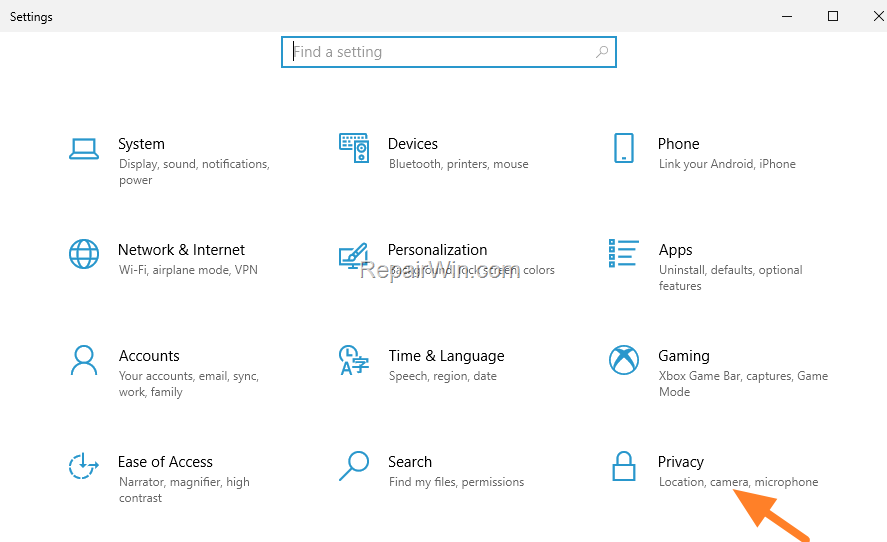
2. In Privacy and security options, set the Let Windows track app launches to improve Start and search results to ON. *
* Note: In case this option is greyed out, apply the instructions on method-2 below.

3. That's it. Now open the RUN command box, type and run few commands and you will see the problem solved.
Method 2. Turn On App Launch Tracking in Registry.
The second method to enable the command history in RUN command box, is to allow the apps launch tracking via Registry.
1. Open Registry Editor. To do that:
1. Press Windows
+ R keys to open the run command box.
2. Type regedit and press Enter.


2. In Registry Editor, navigate to the following location:
- HKEY_CURRENT_USER\Software\Microsoft\Windows\CurrentVersion\Explorer\Advanced
3. On the right pane, double-click on Start_TrackProgs REG_DWORD and change the Value data to 1 and hit OK.
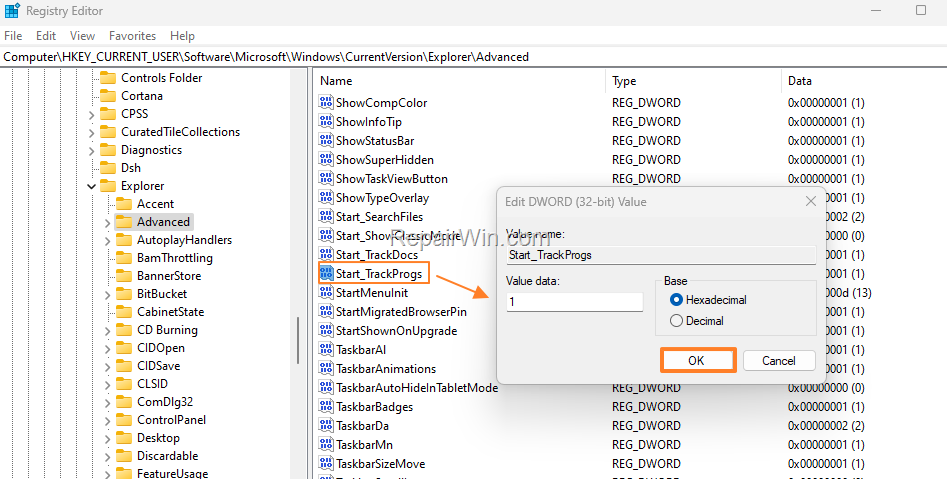
4. Close the Registry Editor and restart your PC.
That’s all folks! Did it work for you?
Please leave a comment in the comment section below or even better: like and share this blog post in the social networks to help spread the word about this solution.
Frequently Asked Questions
Why is there no history of previous commands in the RUN command box on Windows 10?
In Windows 10, the RUN command history will not be saved if the Privacy setting 'Let Windows track app launches to improve Start and search results' is set to Off.
How can I enable command history in the RUN command box on Windows 10 or 11?
To enable command history, adjust the Privacy settings. Go to 'Settings', select 'Privacy' or 'Privacy and security', and set 'Let Windows track app launches to improve Start and search results' to ON.
What can I do if the option to track app launches is greyed out in Windows Privacy settings?
If the option is greyed out, you can enable app launch tracking via the Registry. Open Registry Editor, navigate to 'HKEY_CURRENT_USER\Software\Microsoft\Windows\CurrentVersion\Explorer\Advanced', and change the 'Start_TrackProgs' value to 1.
How do I access Registry Editor to enable app launch tracking?
Press Windows + R to open the RUN command box, type 'regedit' and press Enter to open the Registry Editor. Then follow the navigation to enable app launch tracking.



