
FIX: Outlook 'Always prompt for logon credentials' is grayed out (Solved)
If in your Outlook account settings, the option "Always prompt for logon credentials" is grayed out, but you want Outlook to ask you for login credentials every time you open it, continue reading below.
Outlook gives you the option to always type your user name and password every time you open it, by enabling the "Always ask for login credentials"* option in the account settings. However, if you have an Exchange or Office 365 account, this option is grayed out (as shown in the screenshot below), and you cannot protect your emails from third parties.
* Note: In Outlook 2013, Outlook 2010 and Outlook 2007, the setting is called "Always prompt for logon credential".
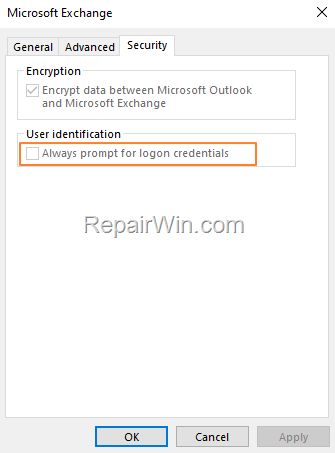
How to force Outlook to always ask your login credentials if the relevant option is grayed out in Account Settings.
Method 1. Make Outlook to Always prompt for logon credentials, by deleting the Stored Credentials.
The first method to force Outlook to require to type your username and password every time you open it, is to delete the saved credentials for your Outlook email account in Windows Credential Manager:
1. Close Outlook.
2. Navigate to Windows Control Panel, and open the Credential Manager.

3. At Windows Credentials, remove any credentials for the Microsoft Office.

4. Now open Outlook. Type your credentials when prompted and don't select to remember your credentials. *
* Note: If the REMEMBER YOUR CREDENTIALS checkbox is missing, proceed to next step and modify the value of the EnableRememberPwd DWORD from 0 to 1 in one of the following registry locations, in order to force Outlook to show the 'REMEMBER YOUR CREDENTIALS' option/checkbox :**
- HKEY_CURRENT_USER\Software\Microsoft\Office\xx.0\Outlook\Security\
- HKEY_CURRENT_USER\Software\Policies\Microsoft\Office\xx.0\Outlook\Security\
** Note: Where xx.0 is "16.0" for Outlook 2016, 2019 & Outlook for Office 365, "15.0" for Outlook 2013 & "14.0" for Outlook 2010.
5. To force Outlook to display the REMEMBER YOUR CREDENTIALS checkbox, do the following:
According to the version of Outlook version you have, go to the following 2 locations in the registry and check if the EnableRememberPwd DWORD exists and proceed as instructed below:
Outlook 2016, 2019 and Outlook for Office 365
- HKEY_CURRENT_USER\Software\Microsoft\Office\16.0\Outlook\Security\
- HKEY_CURRENT_USER\Software\Policies\Microsoft\Office\16.0\Outlook\Security\
Outlook 2013
- HKEY_CURRENT_USER\Software\Microsoft\Office\15.0\Outlook\Security\
- HKEY_CURRENT_USER\Software\Policies\Microsoft\Office\15.0\Outlook\Security\
Outlook 2010
- HKEY_CURRENT_USER\Software\Microsoft\Office\14.0\Outlook\Security\
- HKEY_CURRENT_USER\Software\Policies\Microsoft\Office\14.0\Outlook\Security\
A. If the EnableRememberPwd DWORD exists, in one of the above 2 locations, open it, set its Value Data to 1, hit OK and close the registry editor. Then open Outlook.
Value Description
0 Remember password check box is hidden (Credentials not remembered).
1 Remember password check box is visible.

B. If the EnableRememberPwd DWORD doesn't exist, then proceed to create it, in one of the above mentioned locations in registry. To do that:
1. Right-Click at Security key and select New > DWORD (32-bit value)
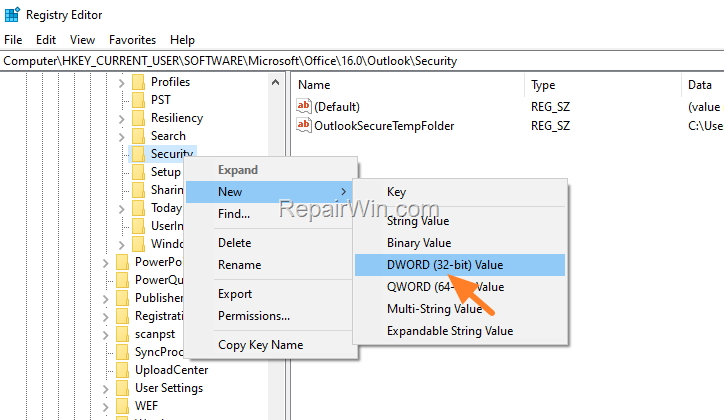
2. Name the new value as EnableRememberPwd and hit Enter.
3. Then, open the EnableRememberPwd DWORD and set the value data to 1.
4. Close the registry editor and open Outlook
Method 2. Force Outlook to Always Prompt for Logon Credentials using Registry.
If you're connecting to an Exchange mailbox, you can force Outlook to always ask for your credentials by adding the PromptForCredentials DWORD with value data 1 at the following registry location: *
- HKEY_CURRENT_USER\Software\Policies\Microsoft\Office\xx.0\Outlook\Security
* Note: Where xx.0 is "16.0" for Outlook 2016, 2019 & Outlook for Office 365, "15.0" for Outlook 2013 & "14.0" for Outlook 2010.
To do that:
1. Open the Registry Editor and navigate to this key according your Outlook/Office version:*
Outlook 2016, 2019 and Outlook for Office 365
- HKEY_CURRENT_USER\Software\Policies\Microsoft\Office\16.0\
Outlook 2013
- HKEY_CURRENT_USER\Software\Policies\Microsoft\Office\15.0\
Outlook 2010
- HKEY_CURRENT_USER\Software\Policies\Microsoft\Office\14.0\Outlook\
2a. Right-click in xx.0 key and select New Key

2b. Name the new key: Outlook.
2c. Right-click again at Outlook key and create a new key again with name Security.
3a. Finally right-click in the Security key and select New > DWORD (32bit value)

3b. Name the new value as: PromptForCredentials
3c. Finally open the PromptForCredentials value, set the Value data to 1 and click OK.
Value Description
0 Cached credentials are used.
1 Cached credentials cannot be used. You are always prompted for logon credentials.
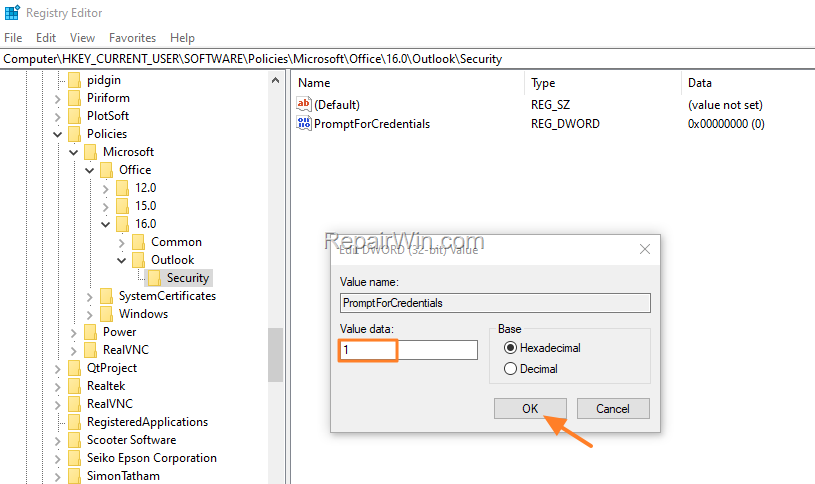
4. Close Registry Editor and open Outlook.
That’s all! Did it work for you?
Please leave a comment in the comment section below or even better: like and share this blog post in the social networks to help spread the word about this solution.
Frequently Asked Questions
Why is the 'Always prompt for logon credentials' option grayed out in Outlook?
The 'Always prompt for logon credentials' option is grayed out in Outlook if you have an Exchange or Office 365 account. This limits the ability to protect your emails from third parties by requiring a password each time you open Outlook.
How can I force Outlook to ask for login credentials if the option is unavailable?
You can force Outlook to ask for login credentials by deleting the saved credentials for your Outlook account in Windows Credential Manager or by modifying the registry settings to enable password prompts.
What should I do if the 'REMEMBER YOUR CREDENTIALS' checkbox is missing in Outlook?
If the 'REMEMBER YOUR CREDENTIALS' checkbox is missing, you can modify the value of the EnableRememberPwd DWORD in the registry to ensure the checkbox is visible. Set the DWORD value to 1 to make the checkbox appear.
How can I use the registry to make Outlook prompt for login credentials?
You can add the PromptForCredentials DWORD with a value of 1 at the specified registry location depending on your Outlook version. This will force Outlook to always ask for your credentials when you connect to an Exchange mailbox.




February 28, 2023 @ 4:46 am
Ty
April 7, 2023 @ 5:44 pm
Thanks, it did not work for W11.
April 7, 2023 @ 10:43 pm
This changed the greyed out option but it did not ask them for their password every time even after I removed their credentials. Please submit other solutions if there are any. I believe I may have to uninstall Outlook and reinstall it and this may work.