
FIX: Slow Restart on HP PCs HP 6200 Pro & HP 8200 Elite with Windows 10 (Solved)
If you have an HP desktop computer with Windows 10 and when restarting, no signal appears on the screen for 3-4 minutes, then continue below to fix the problem. This article contains instructions to fix the slow restart/no signal issue on HP PCs with Windows 10.
After updating several HP Compaq 6200 Pro and HP Compaq 8200 Elite computers from Windows 7 to Windows 10, I encountered the "slow startup with no signal" problem. The problem was that after the computer restarted, the screen goes black for about 3-4 minutes (without any signal indication), before the HP logo screen reappears on the screen. The weird with the problem, is that it's not exist in Windows 7.
How to FIX: Slow Restart with No Signal after Restarting HP 6200 Pro & HP 8200 Elite with Windows 10.
The "slow restart" issue without any signal on screen, after installing Windows 10 on HP 6200 & HP 8200 PCs, is caused if the "Embedded Security Device" is enabled. To solve the problem, proceed and disable the "Embedded Security Device" in BIOS setup with the steps below:
1. Power on the PC and press the F10 key to enter in BIOS settings.
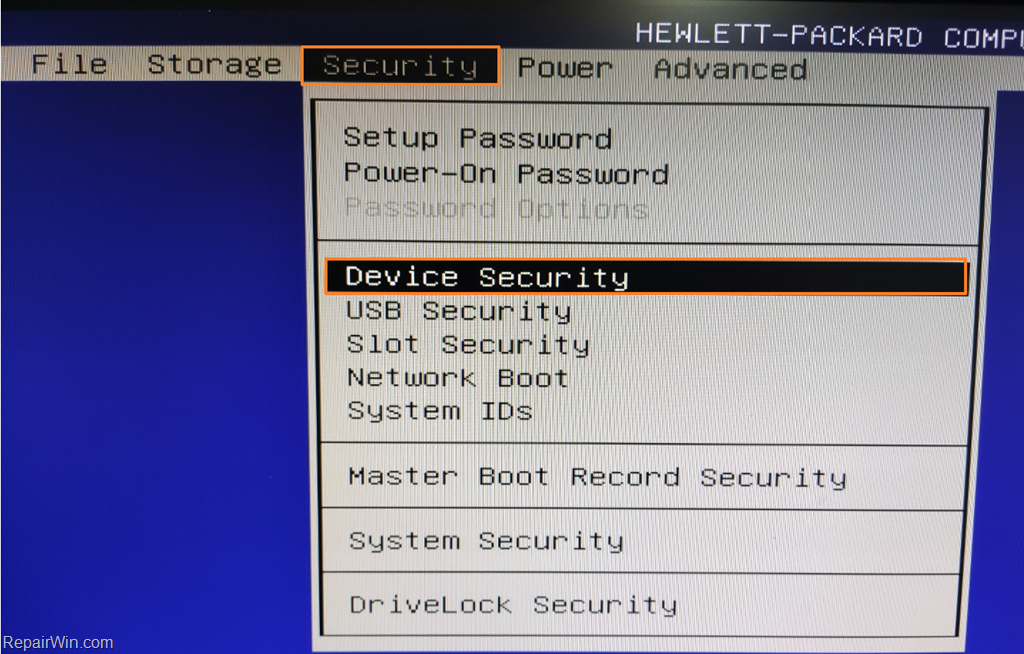
2. Using your arrows keys, navigate to Security -> Device Security and press Enter.
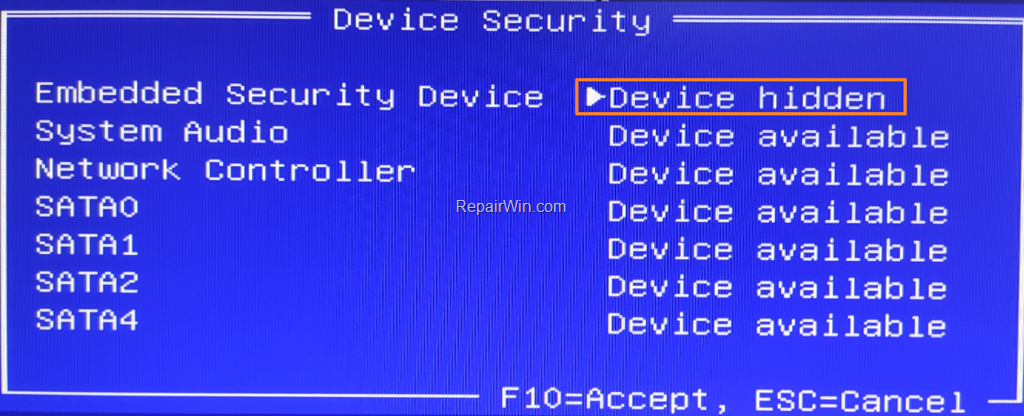
3. Use the right-arrow key and change the Embedded Security Device from Device available to Device Hidden.

4. When done, press the F10 key once to apply the change.
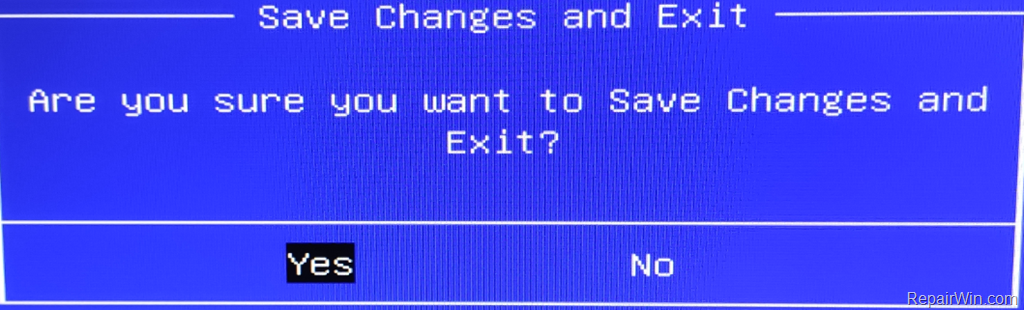
5. Then press Enter at Save Changes and exit option.

6. Press Enter once more (at 'Yes') to save the changes and exit from BIOS.
7. Now the Windows 10 slow restart issue should be gone. *
* Suggestion: If you want to use the Security Device (TPM), proceed and update the BIOS on your computer.
That's all! Did it work for you?
Please leave a comment in the comment section below or even better: like and share this blog post in the social networks to help spread the word about this solution.
Frequently Asked Questions
What causes the slow restart issue on HP 6200 and 8200 PCs with Windows 10?
The slow restart issue is caused when the 'Embedded Security Device' is enabled in the BIOS settings after installing Windows 10 on HP 6200 and 8200 PCs.
How can I fix the slow restart problem on HP Compaq 6200 Pro and 8200 Elite computers?
You can fix the slow restart problem by disabling the 'Embedded Security Device' in the BIOS. Enter BIOS by pressing the F10 key during startup, navigate to Security -> Device Security, change the 'Embedded Security Device' to 'Device Hidden', and save changes.
Do I need to update the BIOS to use the Security Device (TPM)?
Yes, if you intend to use the Security Device (TPM), it is recommended to update the BIOS on your computer after disabling it to solve the slow restart issue.
Does the slow restart with no signal issue exist in Windows 7?
No, this issue does not exist in Windows 7; it appears after updating to Windows 10.




November 5, 2021 @ 10:54 am
Thank you, I have been looking for this fix for some time now. Today I came across your link and problem is fixed. Thank you so much!
November 10, 2021 @ 11:57 pm
Thanks !!
It worked for me too
Everytime my daughter would use the computer it would take really long to get to the login page
Recently the screen kept going black before we could do anything. I had to keep unplugging and re-plugging the monitor back in to wake it up just long enough to click on the next thing.
So far so good
December 19, 2021 @ 7:28 am
Yep, that worked. I appreciate the assist.
Mark
January 13, 2022 @ 5:33 pm
Thank You!!!
January 23, 2022 @ 1:24 am
work great thanks
March 3, 2022 @ 9:46 am
Thank you man! Thank you man! You saved me today (hp 8200). There was no video signal for almost a minute on every reboot.
March 25, 2022 @ 9:26 pm
Great thanks.
Looking for a solution for over a year. .
Thanks man
May 28, 2022 @ 11:09 am
Thank you so much .. solved my issue
October 5, 2022 @ 11:10 am
Thanks for the tips. it did work.
Mihai
January 24, 2023 @ 8:10 pm
Thanks it’s work.
October 17, 2023 @ 7:16 am
Thanks for the tips.
it works.
Idan