
FIX: Folder Access Denied. You need permission to perform this action (Solved).
The error message "Folder Access Denied. You need permission to perform this action….", can be faced on any Windows based computer (Windows 10, 8, 7, Vista or XP) if you try to rename or delete a system protected folder.
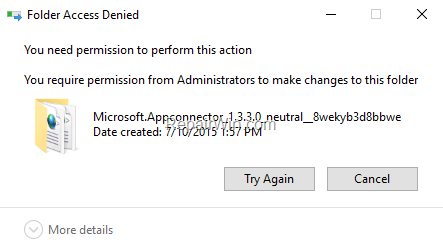
In this tutorial you will find detailed instructions on how to resolve the following error while deleting a file or folder on Windows 10, 8, 7, Vista or XP: "Folder Access Denied. You need permission to perform this action. You require permissions from Administrators to make changes to this folder".
How to FIX: You need permission to perform this action. Folder Access Denied.
Method 1. Take the Ownership of the Folder from Windows Explorer.
1. Start your computer in Safe Mode.
2. In Safe Mode, Open Windows Explorer and right-click the folder that you receive the error "You need permission to perform this action" and select Properties.
3. Click Advanced.
![image_thumb[23]](https://www.repairwin.com/wp-content/uploads/2019/06/image_thumb23.png "image_thumb[23]")
4. Click Change Owner.

5. Type Users and click OK.
![image_thumb[48]](https://www.repairwin.com/wp-content/uploads/2019/06/image_thumb48.png "image_thumb[48]")
6. Select Replace owner on subcontainers and folders and click Apply and OK.
![image_thumb[38]](https://www.repairwin.com/wp-content/uploads/2019/06/image_thumb38.png "image_thumb[38]")
7. Click OK twice to close all windows.
8. Reopen the properties of the "Photos" folder, and click Advanced again.
9. Select the Users principal and click Edit
![image_thumb[39]](https://www.repairwin.com/wp-content/uploads/2019/06/image_thumb39.png "image_thumb[39]")
10. Select Full Control and click OK.
![image_thumb[40]](https://www.repairwin.com/wp-content/uploads/2019/06/image_thumb40.png "image_thumb[40]")
11. Click Apply and OK twice to exit.
![image_thumb[47]](https://www.repairwin.com/wp-content/uploads/2019/06/image_thumb47.png "image_thumb[47]")
15. Now try to delete the folder (or the file) that you cannot delete. If you receive the same error, proceed to the next method.
Method 2. Take the Ownership and Delete the Folder/File from Command Prompt.
1. Open an elevated command prompt (Command Prompt (Admin).
2. In elevated command prompt, give the below commands, according your case:
A. To delete a folder: *
- takeown /F "FolderName" /r /d y
- icacls "FolderName" /grant Username:F /t
- rd "FolderName" /S /Q
* Notes:
1. Replace the "FolderName" with the full path and the name of the folder that you cannot delete.
2. Replace the "Username" with the username of the Administrator account.e.g: if you want to delete the "Demo" folder (and its subfolders and files) under the "C:\Program Files\" directory and your Administrator account name is "User1", then the commands should be:
-
- takeown /F "C:\Program Files\Demo" /r /d y
- icacls "C:\Program Files\Demo" /grant User1:F /t
- rd "C:\Program Files\Demo" /S /Q
B. To delete a file: *
- takeown /F "Filename"
- icacls "Filename" /grant Username:F
- del "Filename"
* Notes:
1. Replace the "Filename" with the full path and the name of the file that you cannot delete.
2. Replace the "Username" with the username of the Administrator accounte.g. if you want to delete the "Example.doc" file under the "C:\Temp" directory and your Admin account name is User1, then the commands should be:
-
- takeown /F "C:\Temp\Example.doc"
- icacls "C:\Temp\Example.doc" /grant User1:F
- del "C:\Temp\Example.doc"
Method 3. Take the Ownership of the Folder/File with TakeOwnershipPro.
TakeOwnershipPro is a nice freeware that helps you to take ownership and grant full permissions on any protected folder or file in Windows.
1. Download and install TakeOwnershipPro.
2. To take the ownership of a file or folder, preform one of the following actions:
a. Open the TakeOwnershipPro program, and drag and drop the file/folder that you want to modify its permissions, and click "Take Ownership".
b. Right click on the protected folder and select TakeOwnerShipPro.
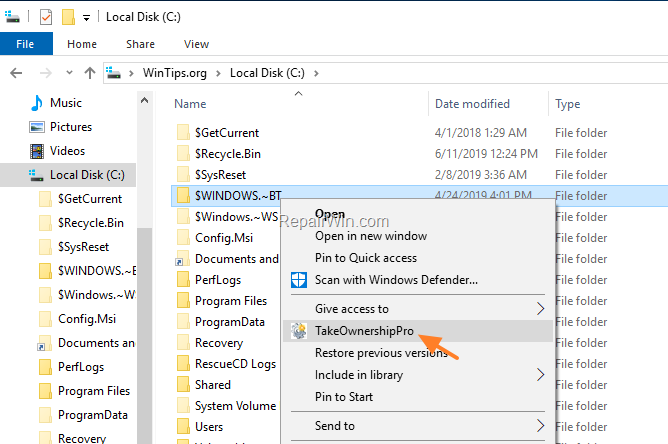
3. When the Progress is done, you 're ready to make your changes to the protected file/folder.

That’s all folks! Did it work for you?
Please leave a comment in the comment section below or even better: like and share this blog post in the social networks to help spread the word about this solution.
Frequently Asked Questions
What causes the 'Folder Access Denied' error in Windows?
The 'Folder Access Denied' error usually occurs when attempting to rename or delete a system-protected folder without the necessary permissions from an Administrator.
How can I take ownership of a folder using Windows Explorer to resolve access denial issues?
To take ownership using Windows Explorer, start your computer in Safe Mode, right-click the problematic folder, select 'Properties,' go to 'Advanced,' click 'Change Owner,' type 'Users,' check 'Replace owner on subcontainers and folders,' then click 'Apply' and 'OK.' Finally, grant 'Full Control' to the Users principal.
What are the command prompt instructions for deleting protected files or folders?
To delete a protected folder, use: 'takeown /F "FolderName" /r /d y', 'icacls "FolderName" /grant Username:F /t', and 'rd "FolderName" /S /Q'. For files, run: 'takeown /F "Filename"', 'icacls "Filename" /grant Username:F', and 'del "Filename"'. Be sure to replace 'FolderName', 'Filename', and 'Username' with your specific details.
How does TakeOwnershipPro help with file or folder ownership?
TakeOwnershipPro is a freeware tool that allows you to easily take ownership and grant full permissions for any protected folder or file. You can either drag and drop the file/folder into the program or right-click on it and select TakeOwnershipPro to gain access.



