
FIX: Error 8004004-40019 in Windows Update (Solved)
If you face the error 8004004-40019 in Windows 7, after aborting the update to Windows 10, then continue reading this tutorial. This tutorial contains instructions to fix the Windows update error 8004004-40019 in Windows 7 OS after canceling the update to Windows 10.
Problem Description: After canceling the upgrade to Windows 10, the following error appears in Windows Update: "Windows 10 couldn't be installed , Error 8004004-40019: Windows Update encountered an unknown error."
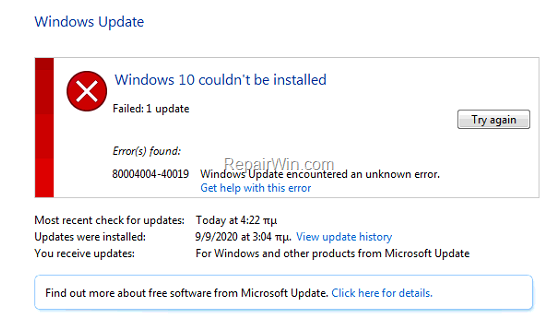
FIX: How to fix Windows Update Error 8004004-40019 in Windows 7.
Method 1. Re-Download the Windows Update(s).
The most effective solution to troubleshoot Windows update problems, is to force Windows to download the updates from scratch. To do that:
Step 1: STOP the Windows Update Service.
1. Open Windows Services control panel: To do that:
-
- Press Windows
 + R keys to open the run command box.
 - In the Search box, type: services.msc & click OK.
- Press Windows


2. In Services control panel locate the "Windows Update" service.
3. Right-click on Windows Update service and select "Stop".

Step 2: Delete the SoftwareDistribution folder.
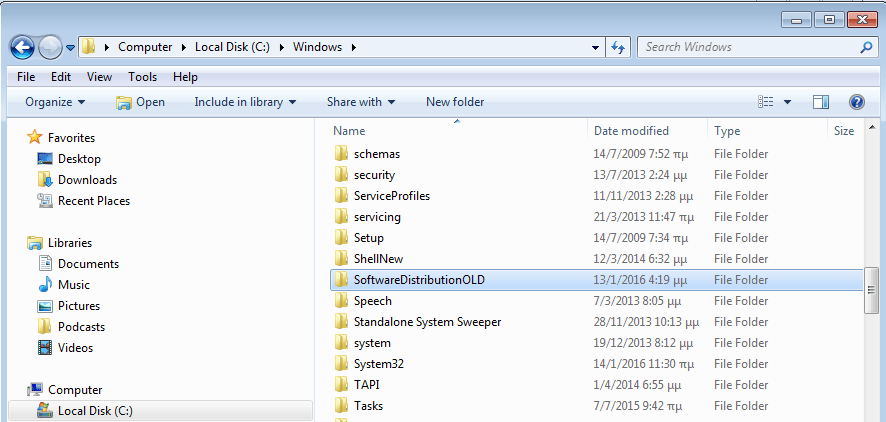
1. Open Windows Explorer and navigate to: C:\Windows folder.
2. Find and Delete the "SoftwareDistribution" folder (or rename it. e.g. to "SoftwareDistributionOLD") . *
* Note: If you cannot delete the folder, start Windows in Safe Mode.
Step 3: START the Windows Update Service.
1. Open Windows Services control panel.
2. Right-click on Windows Update service and select "Start".

Step 4. Go to Windows Update options and and click Check for Updates.
Method 2. Delete the Rollback Registry key.
The next method to resolve the Windows 7 update error 8004004-40019, is to delete the "Rollback" registry key, from the following location in registry:
- HKEY_LOCAL_MACHINE\SOFTWARE\Microsoft\Windows\CurrentVersion\WindowsUpdate\OSUpgrade\Rollback
To delete the "Rollback" key, you can use one of the following ways.
A. Delete the "Rollback" registry key, using the Registry Editor.
1. Open Registry Editor: To do that:
-
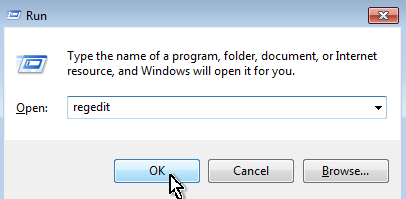
- Press simultaneously the Windows + R keys to open the run command box.
- Type regedit & Press Enter.
- Press simultaneously the Windows

2. Navigate to the following key at the left pane:
- HKEY_LOCAL_MACHINE\SOFTWARE\Microsoft\Windows\CurrentVersion\WindowsUpdate\OSUpgrade\Rollback
3. Right-click on Rollback key and select Delete.

4. Close the Registry Editor and restart your PC.
5. Go to Windows Update options and and click Try again.
B. Delete the "Rollback" registry key, using Command Prompt.
1. Open Command Prompt as Administrator. To do that:
-
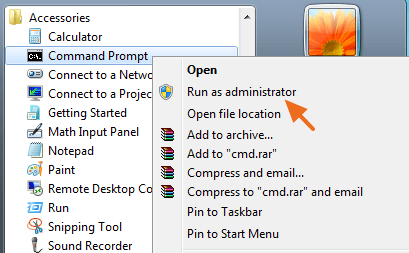
- Go to Start > All Programs > Accessories.
- Right-click at Command Prompt and choose Run as Administrator
2. In command prompt, type the following command and press Enter:
- reg delete HKEY_LOCAL_MACHINE\SOFTWARE\Microsoft\Windows\CurrentVersion\WindowsUpdate\OSUpgrade\Rollback /f

3. Restart your PC.
4. After restart, navigate to Windows Update and and click Try again.
Method 3. Run the System Update Readiness tool.
1. Download and run the System Update Readiness tool according to your Windows 7 version (32 or 64bit).
2. When the installation is completed, restart your computer and try to search updates,
That’s all folks! Did it work for you?
Please leave a comment in the comment section below or even better: like and share this blog post in the social networks to help spread the word about this solution.
Frequently Asked Questions
What does error 8004004-40019 mean in Windows 7?
Error 8004004-40019 occurs when Windows 7 encounters an unknown issue while updating, often after aborting an upgrade to Windows 10.
How can I resolve Windows Update Error 8004004-40019 on Windows 7?
To fix this error, you can try restarting the Windows Update service, deleting the SoftwareDistribution folder, or removing the Rollback registry key. Additionally, running the System Update Readiness tool may help.
How do I remove the 'Rollback' registry key in Windows 7?
Use the Registry Editor to navigate to the Rollback key under: HKEY_LOCAL_MACHINE\SOFTWARE\Microsoft\Windows\CurrentVersion\WindowsUpdate\OSUpgrade. Right-click to select Delete. Alternatively, use Command Prompt as Administrator with the command: reg delete HKEY_LOCAL_MACHINE\SOFTWARE\Microsoft\Windows\CurrentVersion\WindowsUpdate\OSUpgrade\Rollback /f.
What should I do if I can't delete the SoftwareDistribution folder?
If you cannot delete the SoftwareDistribution folder, try starting Windows in Safe Mode to perform the deletion or rename it.



