
FIX: Error 0x0000011b – Cannot Connect to Printer on Windows 10/7 (Solved)
If you can't print to a network printer, or if you cannot install or connect to network printer with error "Operation failed with error 0x0000011b", or if your receive the error 0x0000011B when trying to print to a network printer on Windows 10, continue reading below to fix the problem.
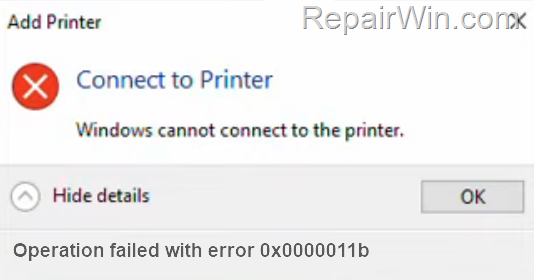
The error 0x0000011B in network printing, appears because Microsoft on September 14, 2021 enabled by default the CVE-2021-1678 mitigation to increase the RPC authentication level, with the installation of KB5005565 update.
This tutorial contains instructions to resolve the Windows error 0x0000011b when adding a network printer on Windows 10.
How to FIX: "Operation Failed with error 0x0000011b – Windows cannot connect to the printer" on Windows 10/7 OS.
Method 1. Install KB5005611 Update.
As Microsoft states, after installing update KB5005565, devices which attempt to connect to a network printer for the first time might fail to download and install the necessary printer drivers with error 0x0000011b. This issue is resolved in KB5005611, so proceed to download and install the KB5005611 from the Microsoft Update Catalog.
Method 2. Add Network Printer using a Local Port.
Another way to bypass the error 0000011b when installing a network printer on Windows 10, is to manually add the printer by using a local port.
1. Navigate to Control Panel > Devices and Printers.
2. Click Add a printer.

3. At the next screen, click The printer that I want isn't listed.
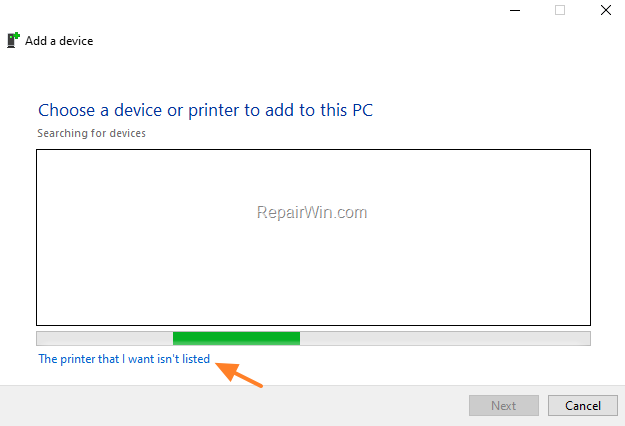
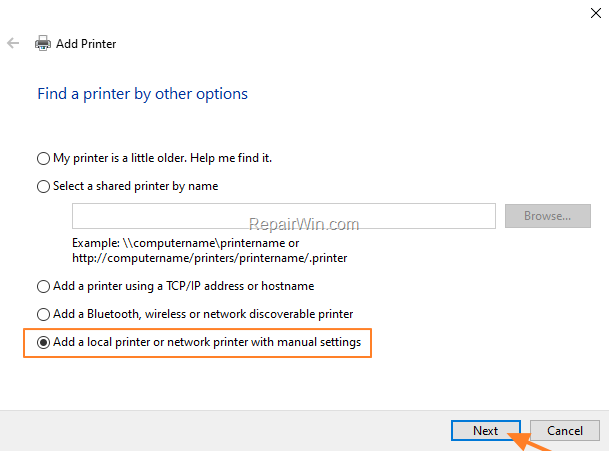
4. Select Add a local printer or network printer with manual settings and click Next.
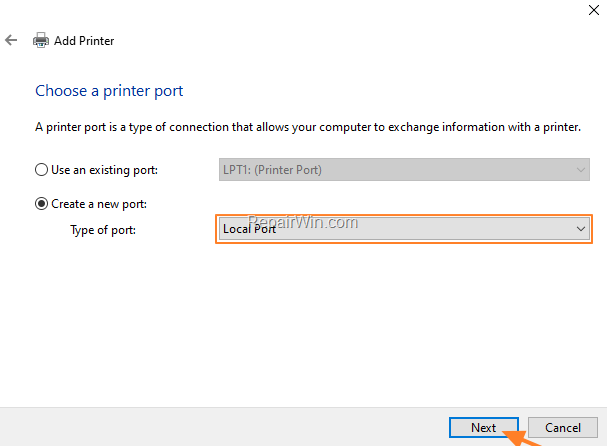
5. Click Create a new port and select Local Port from the drop-down menu. Click Next.
6. At the screen specify the port name in one of the following formats and click OK:*
-
\\ComputerName\SharedPrinterName
-
\\ComputerIPAdress\SharedPrinterName
* Examples:
a. If the computer name of the computer that shares the network printer is "Computer01" and the printer's share name is "HP1100" then the port name is "\\Computer01\HP1100"
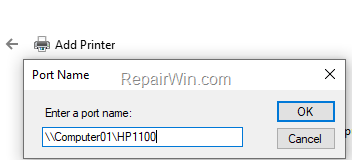
b. If the IP Address of the computer that shares the network printer is "192.168.1.20" and the printer's share name is "HP1100" then the port name is "\\192.168.1.20\HP1100"

7. At the next screen select the network printer model and click Next. *
* Note: If you cannot find the printer's model here, then download the printer driver from the manufacturer and then install the printer locally on your PC (LPT1). After installation, perform again the steps on this method to manually install the printer by using the "Local Port" option.
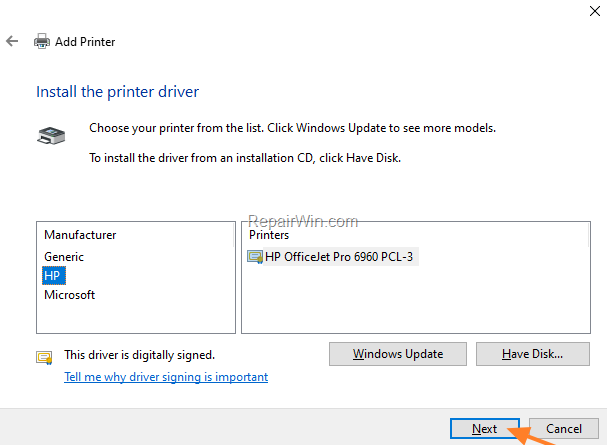
8. When the printer installation is completed print a test page to test the printer and you're done.
Method 3. FIX Network Printing Error 0x0000011b via Registry.
Another method to solve the error 0x0000011B in network printers, is to disable the increase authentication level for printer IRemoteWinspool by modifying the RpcAuthnLevelPrivacyEnabled REG_DWORD value in registry on both pcs. *
* Notes:
1. You have to apply the below modification in Registry on both PCs.
2. Please note that after implementing this solution you will no longer be protected from the Windows Print Spooler Spoofing Vulnerability CVE-2021-1678, but you can apply this solution if you cannot install your network printer after following the instructions in method 1 above.
1. Press Windows  + R keys to open the run command box.
2. Type regedit and press Enter.

3. In Registry Editor navigate to the following key:
- HKEY_LOCAL_MACHINE\SYSTEM\CurrentControlSet\Control\Print
4. Right-click at an empty space at the right pane and choose New > DWORD (32-bit) Value

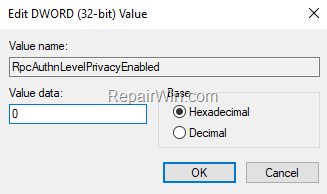
5. Give at new value the name: RpcAuthnLevelPrivacyEnabled
6. Double-click at the RpcAuthnLevelPrivacyEnabled value, set the value data to 0 and click OK.
7. Close the registry editor.
8. Restart your computer.
9. Now try to connect to your network printer. The error 0x0000011B should be resolved.
Method 4. Uninstall KB5005565 & KB5006670 updates.
Since the network printing problem 0x0000011B, is commonly seen after installing the KB5005565 or the KB5006670 security updates, proceed and uninstall them from Windows 10. To do that:
1. In Windows Update click View update history and then select Uninstall Updates.
2. Select the KB5005565 (or the KB5006670) update from the list of installed updates and click Uninstall.
3. Restart your PC.
4. Install the network printer.
5. Prevent the re-installation of the removed update, by using the Show or Hide updates tool
That's all folks! Did it work for you?
Please leave a comment in the comment section below or even better: like and share this blog post in the social networks to help spread the word about this problem.
Frequently Asked Questions
What causes the error 0x0000011b when attempting to print on Windows 10?
The error 0x0000011b appears in network printing scenarios due to a mitigation enabled by the KB5005565 update. This update increases the RPC authentication level which can result in printer connection failures.
What is the recommended first step to fix the error 0x0000011b when connecting a network printer?
The first step to fix this error is to install the KB5005611 update, which resolves the issue introduced by the KB5005565 update. This update can be downloaded from the Microsoft Update Catalog.
How can I add a network printer using a local port as a workaround for error 0x0000011b?
To add a network printer using a local port, go to Control Panel > Devices and Printers > Add a printer. Select 'The printer that I want isn't listed', choose 'Add a local printer or network printer with manual settings', and then 'Create a new port' with 'Local Port'. Enter the port name in the format '\ComputerName\SharedPrinterName' or '\ComputerIPAdress\SharedPrinterName'.
Can I resolve the error 0x0000011b using the Windows Registry, and what are the implications?
Yes, you can resolve the error by modifying the registry. Navigate to HKEY_LOCAL_MACHINE\SYSTEM\CurrentControlSet\Control\Print, create a new DWORD (32-bit) value named RpcAuthnLevelPrivacyEnabled, and set its value to 0. However, this method lowers the security measures regarding the Windows Print Spooler Spoofing Vulnerability CVE-2021-1678.




May 22, 2022 @ 8:32 pm
I was able to achieve success with Method #2.
Thank you so much.
June 11, 2022 @ 4:44 pm
Method #2 worked perfectly for us too! Thanks
October 3, 2022 @ 1:34 pm
Many Many Many (3 times) Thanks.
You are a real life survivor!
Stuck at this stage about one month.
The only other thing that I can add with this great article is method #2 can be considered a professional way that can help to solve other related connect to share printer problem even not with not exact this error code.
December 12, 2022 @ 2:08 pm
Method 3 via Registry did it for me. IMO the fastest, least intrusive and straight forward way.
July 20, 2023 @ 9:42 am
Huge thanks for your article!! Finally solve this weird microsoft windows issue that occured after some windows updates (can't tell which one is it, too much cumulative updates nowadays). I used Method 3 registry method works for me effectively. No other websites help pages can help. My OS is Win10, the shared printer on network is also on Win10.
August 31, 2023 @ 7:53 am
method 3 works, thankyou,