
How to Fix "Could not find the recovery environment" error to Reset this PC. (Solved)
If you cannot reset Windows 10 or Windows 11 due to the error "Could not find the recovery environment" follow this comprehensive guide to resolve the issue effectively.
The error message "Could not find the recovery environment. Insert your Windows installation or recovery media, and restart your PC with the media" typically occurs when the Windows Recovery partition is missing or the Windows Recovery Environment (WinRE) is not enabled on your system. This tutorial will guide you through the steps to fix this problem.
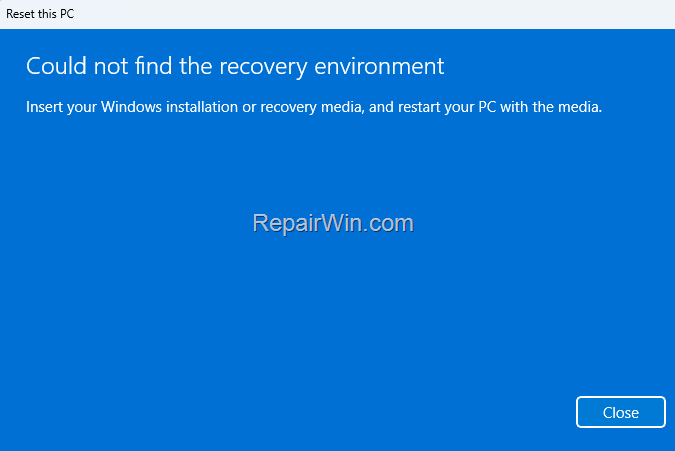
How to Fix: Can't Reset Windows 10/11, Could Not Find the Recovery Environment
Method 1. Enable the Windows Recovery Environment
1. Type "cmd" in the search bar and then open Command Prompt as administrator. This step ensures that you have the necessary privileges to execute system-level commands that can modify the configuration of your Windows installation.
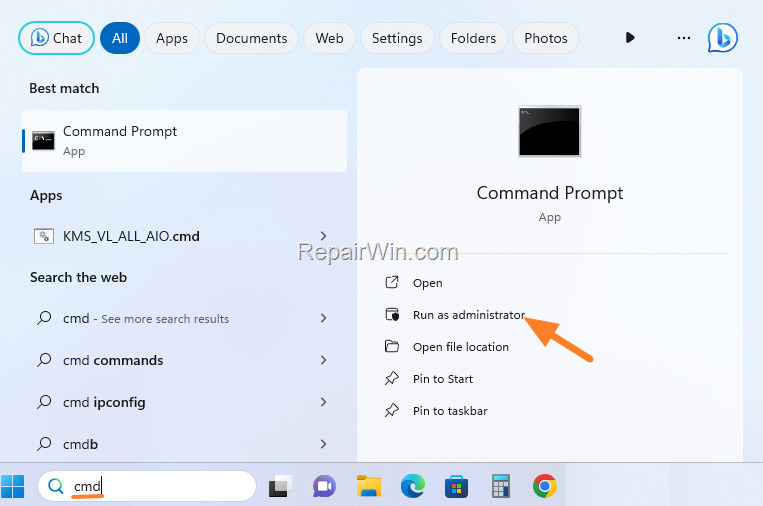
2. In the Administrator command prompt, enter the following command to activate the Recovery Environment:
reagentc /enable
This command attempts to enable the Windows Recovery Environment, which is a set of tools that can help you recover your Windows installation in case of serious system issues.
3. After executing the above command, proceed as follows based on the result:
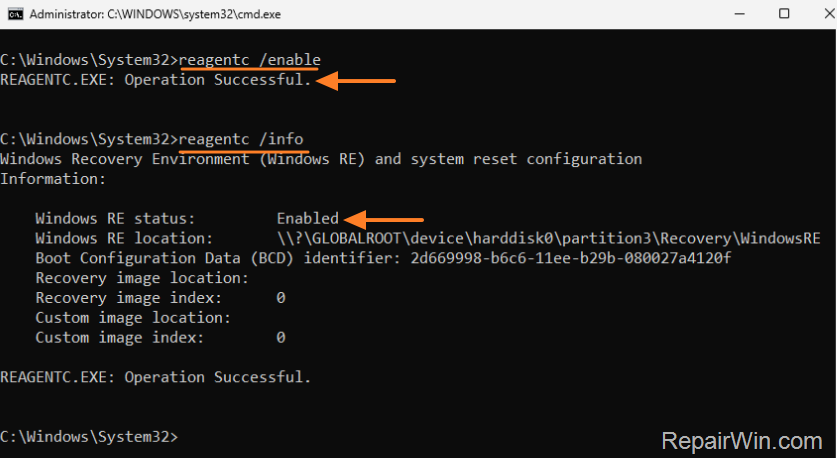
A. If you receive the message "REAGENTC.EXE: Operation successful", issue the following command to verify that the "Windows RE status" is Enabled. If it is enabled, you can close the command prompt and try resetting your PC again. If the reset fails again, continue to Method 2.
reagentc /info
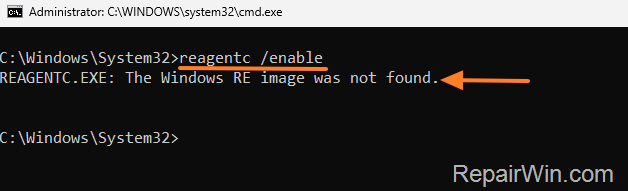
B. If after running the "reagentc /enable" command you receive the message "REAGENTC.EXE: The Windows RE image was not found", follow the instructions in Method 2 below to repair Windows using an ISO file.
Method 2. Repair & Reset Windows Using an ISO File
If you are unable to reset your PC due to the "Could not find the recovery environment" error, reinstalling Windows from an ISO file is a reliable alternative. This method involves downloading the Windows installation files and performing a repair installation.
Step 1. Download Windows in an ISO File
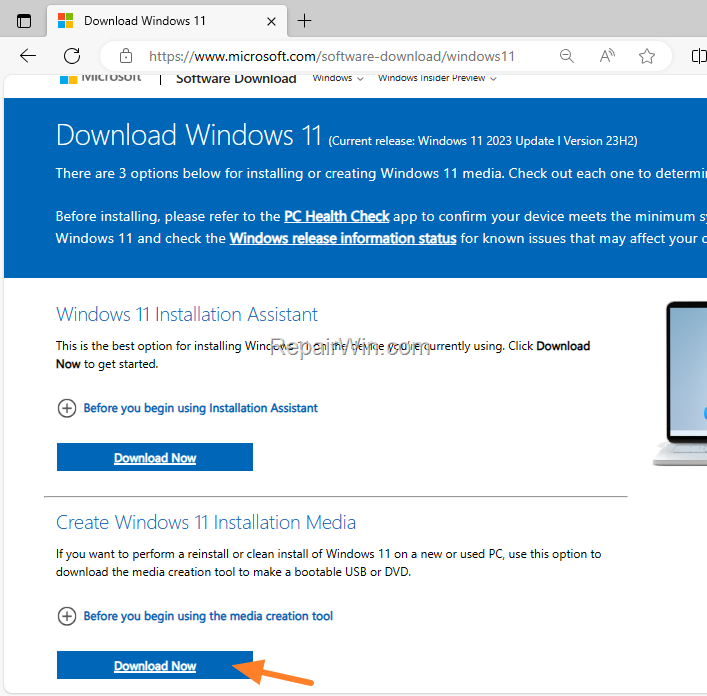
1. Depending on your installed version of Windows (Windows 10 or Windows 11), download the corresponding Media Creation Tool from Microsoft's official download page.
 .
.
2. Double-click the downloaded "MediaCreationTool.exe" file and Accept the terms. This tool will help you create an ISO file that you can use to reinstall Windows.
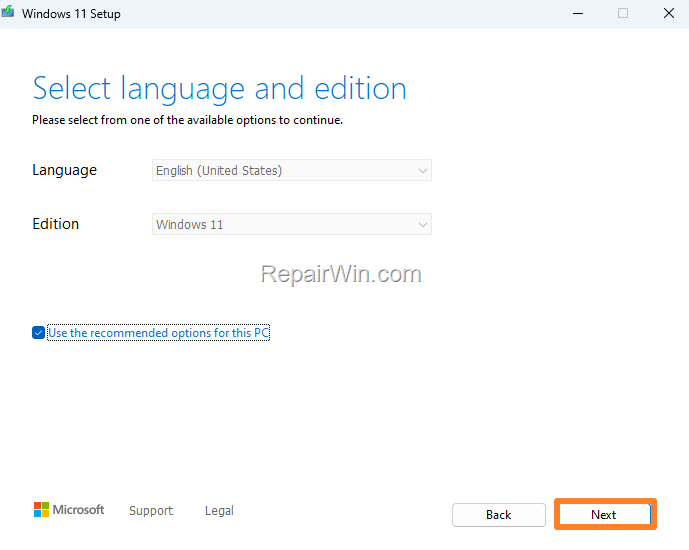
3. At the 'Select Language and edition' window, leave the recommended options for your PC and click Next.
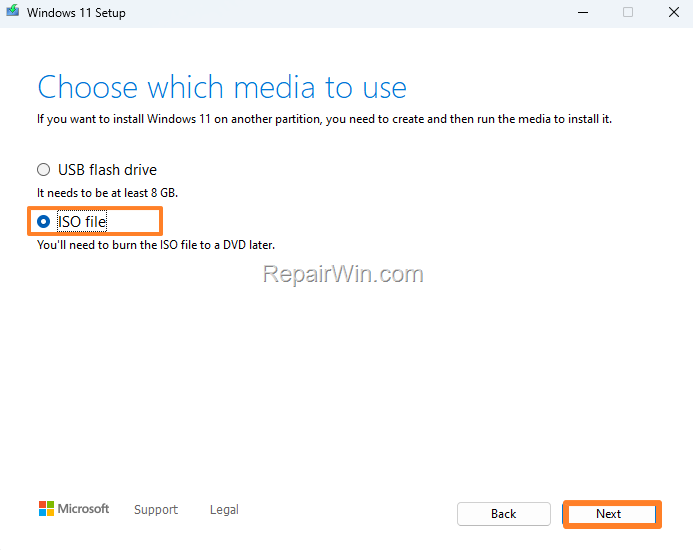
4. On the next screen, choose the ISO file option and click Next again. This step ensures that you have a standalone installation file that can be used for repair or reinstallation.
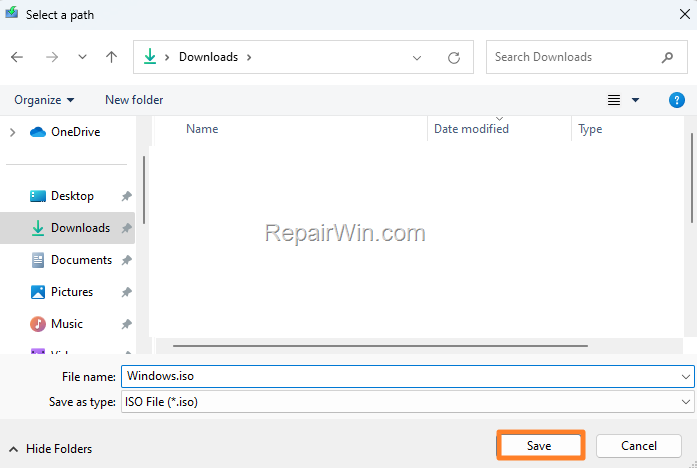
5. Click Save to save the Windows.iso file to your Downloads folder.
6. Wait for the "Windows.iso" file to download. When it's done, click Finish.
Step 2. Reset Windows 10/11 Using the Windows.iso File
1. Save your work and close all running programs to prevent data loss during the installation process.
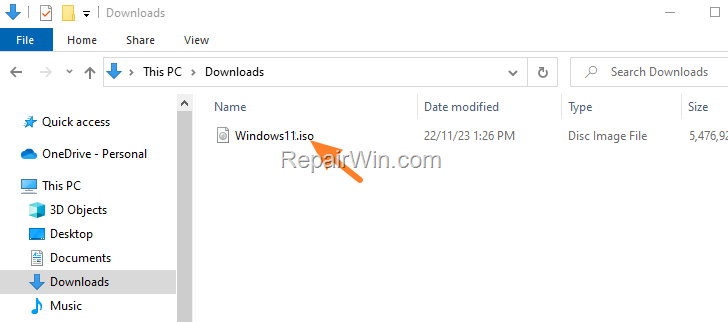
2. Open File Explorer and navigate to the location where you saved the "Windows.iso" file (e.g., in the "Downloads" folder).
3. Double-click on the Windows.iso file to open it in File Explorer. This action will mount the ISO file as a virtual drive, allowing you to access its contents.
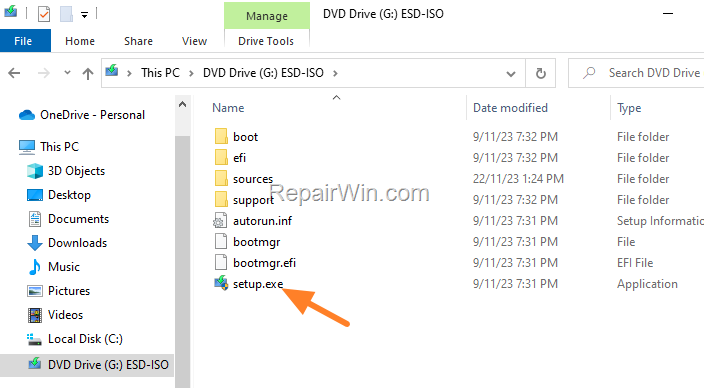
4. Then double-click to open the setup.exe application. This initiates the Windows installation process.
5. Click Next at the "Install Windows 11" window. The installer will begin checking for updates and preparing the installation.
6. Wait for the Windows installation wizard to check for updates, then click the Accept button when prompted to accept the 'License Terms'.
7. At the next screen, click Change what to keep.

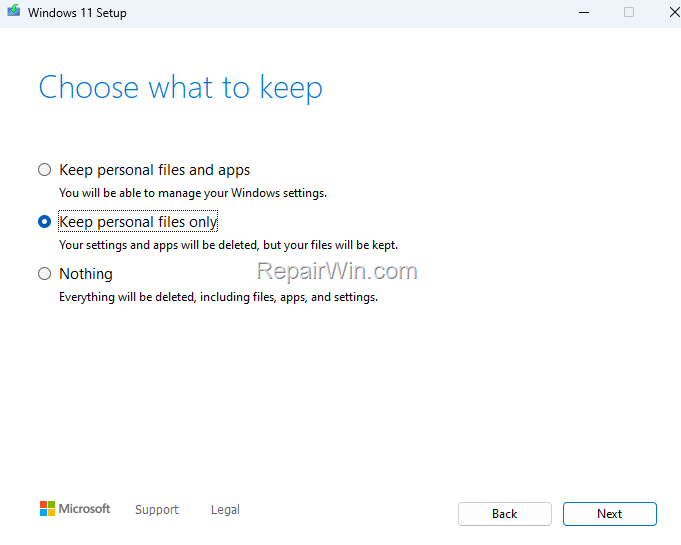
8. At the "Choose what to keep" screen, select one of the following options according to your preference and click Next:
- Keep personal files and apps: Reinstall Windows while retaining your apps and files.
- Keep personal files only: Reinstall Windows while removing your settings and apps but keeping your files.
- Nothing: Perform a clean installation of Windows, erasing all files, applications, and settings.
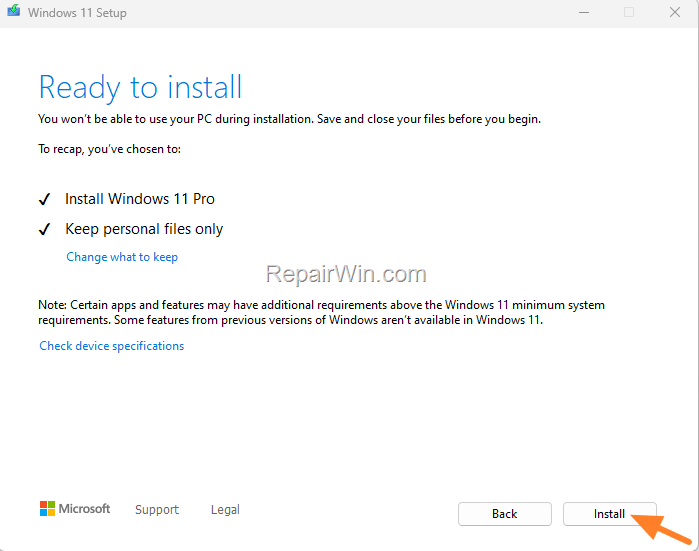
9. At the next screen, review your selections and click Install to start the Windows installation. This process will replace your current Windows installation with a fresh copy, potentially resolving any system issues.
10. The Windows 10/11 installation will start. Wait for it to finish without interrupting it. During the process, your computer will restart several times.
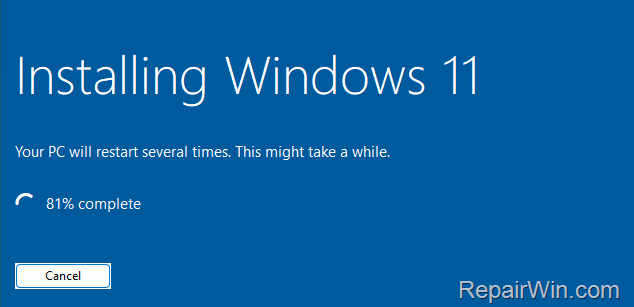
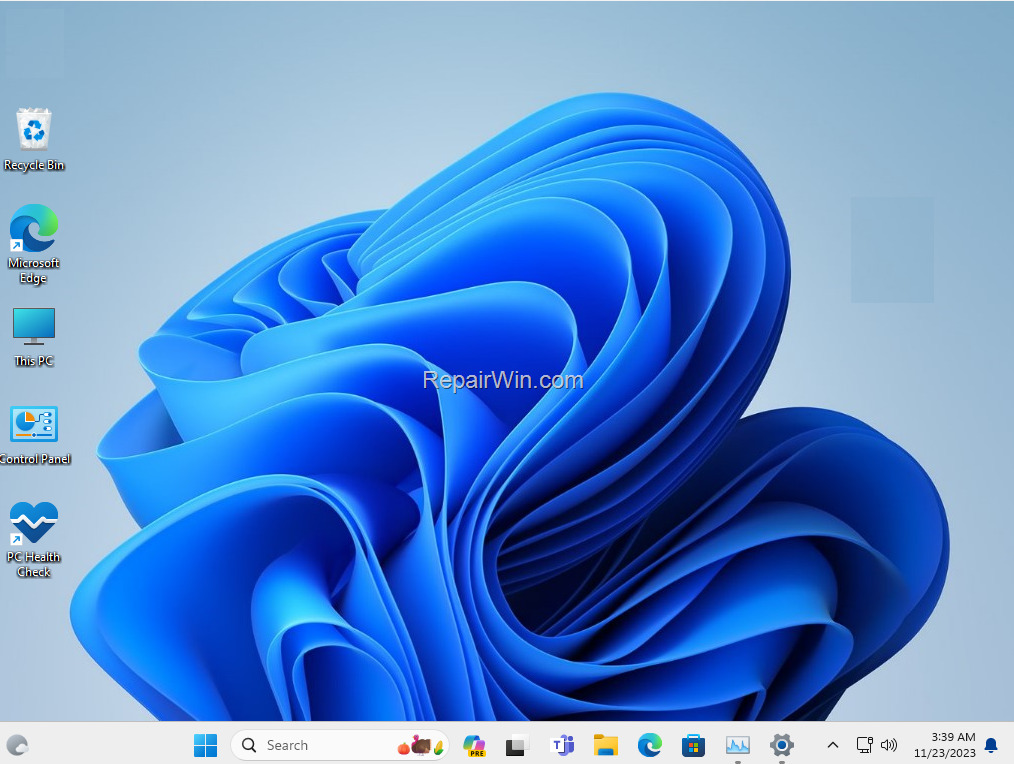
6. If all goes well, after 20-30 minutes, you should have successfully reinstalled Windows.
Additional Method: Check and Repair System Files
Another potential solution is to check and repair corrupted system files that might be causing the issue. Use the System File Checker (SFC) and the Deployment Imaging Service and Management Tool (DISM) to repair these files.
1. Open Command Prompt as administrator.
2. Run the following command to check and repair system files:
sfc /scannow
3. If the SFC command finds and repairs corrupted files, restart your PC and try resetting again.
4. If issues persist, use the DISM tool with the following command:
DISM /Online /Cleanup-Image /RestoreHealth
This command checks the Windows image for corruption and repairs it using Windows Update.
Summary
In summary, if you encounter the "Could not find the recovery environment" error when attempting to reset your PC, you can resolve it by enabling the Windows Recovery Environment using reagentc commands or by performing a repair installation using a Windows ISO file. Additionally, checking and repairing system files using SFC and DISM tools can help fix underlying issues. These methods ensure your system is restored to a functional state, allowing you to reset or reinstall Windows as needed.
That's all! Did it work for you? If so, by what method?
Please leave a comment in the comment section below or even better: like and share this blog post in the social networks to help spread the word about this problem.
Frequently Asked Questions
What should I do if I see the 'Could not find the recovery environment' error when resetting Windows?
If you encounter the 'Could not find the recovery environment' error, it's likely due to a missing Windows Recovery partition or a disabled Windows Recovery Environment. To fix this, enable the Windows Recovery Environment using the command prompt or reinstall Windows using an ISO file.
How do I enable the Windows Recovery Environment to fix the reset error?
To enable the Windows Recovery Environment, open Command Prompt as an administrator and execute the command 'reagentc /enable'. If successful, check the 'Windows RE status' by executing 'reagentc /info'. If issues persist, consider re-installing Windows using an ISO file.
What steps should I follow to reinstall Windows using an ISO file if I can't reset my PC?
First, download the appropriate Media Creation Tool from Microsoft's website for your Windows version. Use it to create an ISO file. Then, open the ISO file, run 'setup.exe', and follow the installation wizard. You can choose to keep files and apps, keep only files, or do a clean installation.
Can I keep my personal files when reinstalling Windows using the ISO method?
Yes, during the reinstall process using an ISO file, you can choose to 'Keep personal files and apps', 'Keep personal files only', or select 'Nothing' for a clean installation. Select the option that best suits your needs.



