FIX: Cannot Print PDF from Internet Explorer in Windows 10 (Solved)
After Windows 10 2004 update, many users facing problems when trying to print a PDF file. Specifically, they cannot print PDFs from Internet Explorer, or they can not print a PDF file using Adobe Acrobat Reader DC. If you face a similar problem, continue reading below to learn how to solve it.
This tutorial contains instructions to resolve the following PDF printing problems in Windows 10:
- Unable to print PDF from Internet Explorer.
- Unable to print PDF files from Acrobat Reader DC.
- After clicking "Print" to print a PDF file, nothing happens.
How to FIX: Can't Print PDF from Internet Explorer or from Acrobat Reader DC in Windows 10.
Method 1. Disable Protected Mode at Startup on Adobe Acrobat.
1. Close all open applications.
2. Open Acrobat Reader DC.
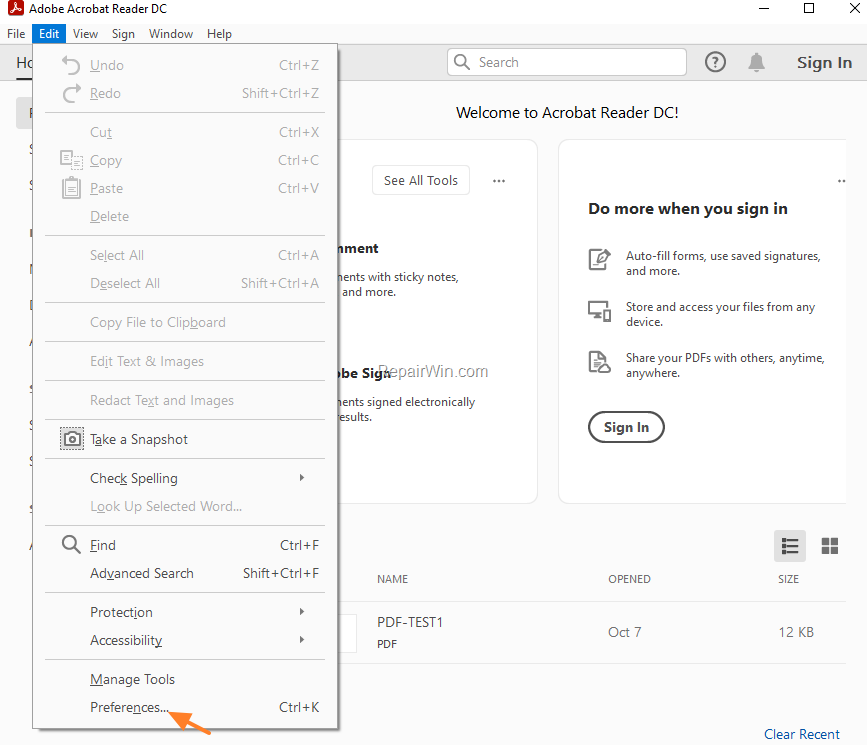
3. From the Edit menu select Preferences.
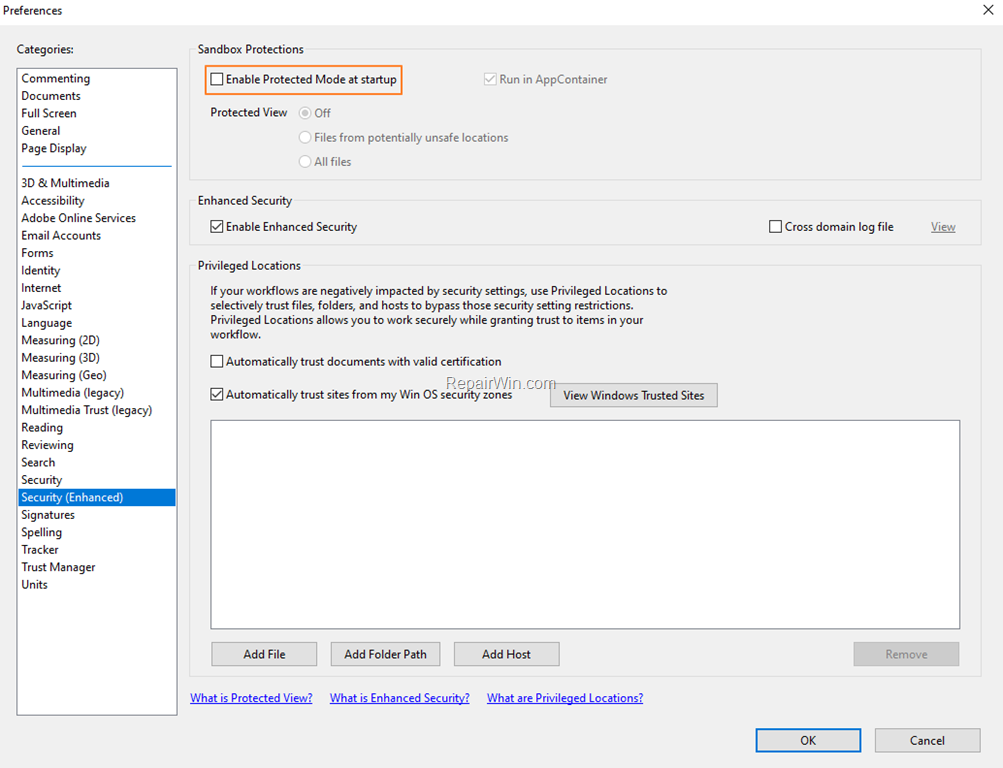
4. At Security (Enhanced) options, uncheck the Enable Protected Mode at startup.
5. Close Acrobat Reader DC and try to print the PDF file. If the problem persists, continue to method-2.
Method 2. Print PDF file as Image.
1. Open the PDF file in Acrobat Reader DC.
2. From the File menu click the Print button.
3. In Print dialog, click Advanced.

3a. Select the Print As Image option and click OK.

4. Click the Print button to print your file.
Additional Help: If you still cannot print a PDF file from a site with Internet Explorer, try to open the website in another web browser, or go to Internet Options and in Security tab select the Trusted sites and click the Sites button to add the website (with the PDF file) to Trusted websites list.
That's all folks! Did it work for you?
Please leave a comment in the comment section below or even better: like and share this blog post in the social networks to help spread the word about this solution.
Frequently Asked Questions
Why can't I print PDF files from Internet Explorer or Adobe Acrobat Reader DC in Windows 10?
This issue commonly occurs due to settings in Adobe Acrobat that interfere with the printing process. It can also be associated with Internet Explorer not interacting properly with certain PDF files.
How can I resolve the issue of not being able to print PDFs from Acrobat Reader DC?
One solution is to disable 'Protected Mode at Startup' in Adobe Acrobat. To do this, open Acrobat Reader DC, go to Edit > Preferences > Security (Enhanced), and uncheck 'Enable Protected Mode at startup.' Close Acrobat and try printing the PDF again.
What should I do if I still cannot print PDFs after changing Acrobat settings?
Try printing the PDF file as an image. To do this, open the PDF in Acrobat Reader DC, select File > Print, click Advanced in the Print dialog, and then choose 'Print As Image.' Press OK and then click the Print button.
Are there additional solutions if I can't print PDFs from Internet Explorer?
If issues persist, consider using a different web browser for accessing PDFs or add the website to the Trusted Sites list in Internet Options. This might help if the problem is specific to Internet Explorer.